A hotspot can be limited to one connection when its settings offer a device-count limit. On a Redmi 13C, open Settings > Portable hotspot > Connected devices > Limit of connected devices, then choose 1 if it's listed.
Not every phone has that setting. A new password can keep unwanted users out, but it doesn't limit how many devices can connect. On an iPhone, access controls and automatic family connections need separate attention.
In this guide
Find the connection limit on a supported Android device
Open the hotspot settings on the device sharing its connection. Look for a connected-device list and a setting such as Limit of connected devices or Maximum connections. These labels depend on the model and software.
The Redmi 13C has the direct path in the opening paragraph. On a Redmi Pad Pro 5G, open Settings > More connectivity options > Portable hotspot > Connected devices, then select Limit of connected devices.
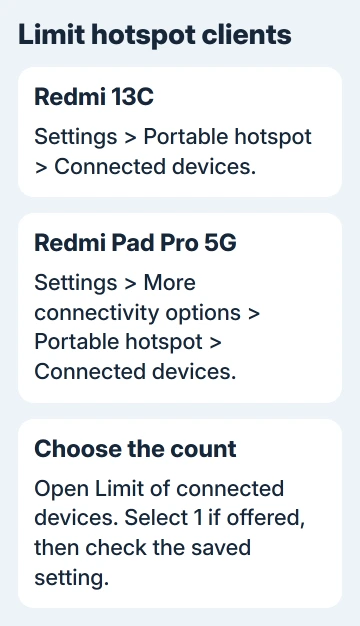
Choose 1 when the available values include it, and confirm or save if prompted. Open the setting again to check that it kept your choice. Don't choose a data allowance when the goal is to restrict how many devices connect.
These paths apply to those Redmi models. A Pixel or Galaxy won't necessarily have the same setting. If the phone has no connection-count setting, use its access controls instead of installing a random hotspot app.
A limit of one allows only one device to connect at a time. It doesn't reserve that place for your laptop. Another device with the password could take that single place before the laptop connects.
For a different Android model, use the Android hotspot setup guide to reach its sharing controls first. Then check what that particular hotspot screen actually offers.
Keep the intended device in that single place
Start with the hotspot off and disconnect devices you don't want to use. Set the connection limit first, then enable the hotspot and connect the intended laptop or tablet. Then check the hotspot's list of connected devices.
Where Blocklist is available, use it to block specific devices rather than set a connection limit. Those Redmi models have it alongside their connected-device controls. Use it if an unwanted device you've identified keeps returning.
Check device names carefully before blocking anything. A generic name can belong to your own laptop, and a restriction applied to the wrong entry can stop the one connection you wanted to keep.
I'd connect the intended device first, then check the list while it's in front of you. That makes it easier to distinguish its entry from a second laptop, tablet, or old phone that still remembers the password.
For a practical check, leave the intended device connected and try joining from another device you own. If the second device also joins, revisit the selected limit and check that both devices connected to that hotspot.
You should see one connected device, while the second device can't join. Seeing the hotspot name on a second device doesn't mean it has joined; visible networks and connected devices are different lists.
Use the older Samsung control only on models that have it
The older Galaxy Note 3 has this option in its advanced hotspot settings. Open its hotspot settings, select Configure, and open Show advanced options to find Maximum connections. Choose one when offered, then save the configuration.
That model also offers Allowed devices only from the hotspot's connection-mode choices. Its allowed-device list lets you choose which devices can connect. Maximum connections sets how many can connect at once.
Don't expect those Note 3 labels on a current Galaxy. Software generations have different hotspot options, and a setting on an older model doesn't mean your newer phone has it too.
On a Galaxy without the count setting, protect the connection with a password known only to the intended user. A missing numerical limit isn't repaired by changing the hotspot's name or switching between 2.4 GHz and 5 GHz.
Ask Samsung Support about maximum hotspot connections on your exact model and One UI version if you need the phone to enforce the limit. That question is more useful than asking for general hotspot setup instructions.
Restrict iPhone access without expecting a one-client switch
An iPhone doesn't have the same setting for choosing a connection limit. How many devices it supports depends on your iPhone model and carrier; you can't set that number to one in Personal Hotspot.
For ordinary password-based joining, open Settings > Personal Hotspot > Wi-Fi Password. On some setups, Personal Hotspot is under Cellular. Replace the password and give the new one to the person using the intended device.
Apple says the password needs at least eight characters using supported English letters, numbers, and punctuation in its Personal Hotspot instructions. Use it to reconnect the device you want to keep.
That restricts who knows the password. It doesn't prevent that user from connecting a second device, so use it to keep unwanted users out, not to enforce a one-device limit.
Check Settings > Personal Hotspot > Family Sharing when family devices join automatically. For each relevant family member, select Ask for Approval instead of Automatic when you want a request before joining.
Devices using your own Apple Account and eligible family devices can use Instant Hotspot without entering the Wi-Fi password. Disabling Allow Others to Join alone leaves those Instant Hotspot routes available.
If the concern is unfamiliar activity, the iPhone hotspot user and data checks explain which entries are usage history and which signs indicate current sharing.
Separate a device limit from a data limit
A setting measured in MB or GB limits transferred data. It won't necessarily stop two clients from connecting. Likewise, an automatic hotspot timeout controls when sharing stops, rather than reserving a place for one laptop.
After changing access, check that your intended device appears in the hotspot list and can load a page. If it connects without internet, check cellular data or your carrier rather than lowering the connection limit.
Ask the maker whether your model lets you set a limit on connected devices. Include its software version and the hotspot options shown. Ask the carrier separately about tethering availability and plan restrictions.
The Short Version
Choose one in Limit of connected devices or Maximum connections where offered, then connect the intended device. Passwords, blocklists, data caps, and iPhone family approval each control something different.
Checked November 12, 2026.
 If you have any business, I can build it online