

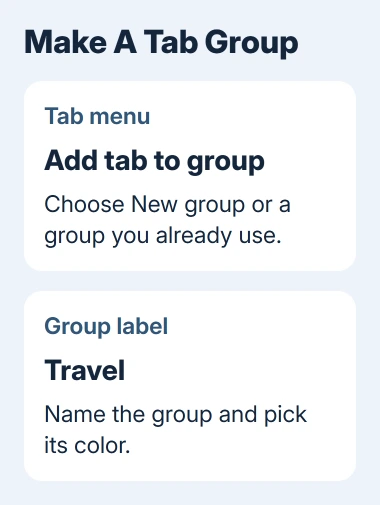
Chrome can put related tabs into a named group, so a project takes up one small label instead of a crowded row. Right-click a tab, choose Add tab to group, then create a group or select one you've already made.
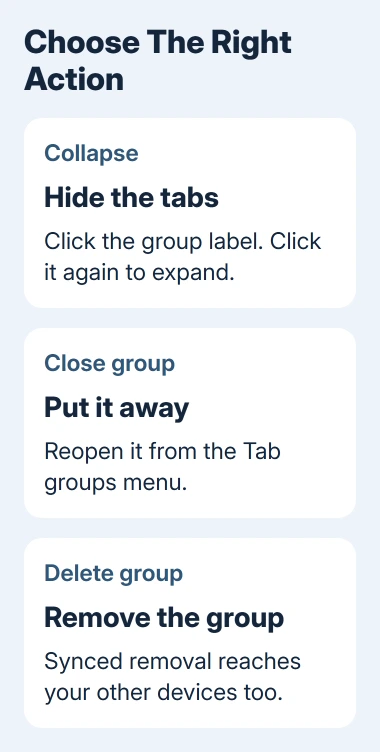
When you're finished for the day, the choice matters: collapsing a group hides its tabs, closing it puts it away for later, and deleting it removes the group. Choose based on whether you'll need the group again.
In this guide
Create a named group on your computer
Open the pages you want together in Chrome on Windows, Mac, Linux, or a Chromebook. Right-click one of their tabs at the edge of the browser window, rather than right-clicking the webpage itself.
Select Add tab to group > New group. Give the group a short name, such as Travel or Work, and choose a color. The name or colored circle appears beside the grouped tabs.
Google's tab-management guide explains creating, editing, closing, and deleting groups. These are built-in controls; an extension isn't needed to start grouping pages.
To add another page, right-click its tab and choose the existing group's name under Add tab to group. Dragging a tab into the group also works. Check that the page now sits with the group's other tabs.
I'd start with one project and a few pages. Give it a name that describes the work; remembering what a colored circle stood for gets harder as you add groups.
Add several tabs and edit the group
On Windows or Linux, hold Ctrl while selecting individual tabs to highlight them together. For tabs next to each other, select the first tab, hold Shift, and select the last one you want.
Right-click a highlighted tab and choose Add tabs to group. Pick the group you want. This groups the selected pages together, rather than moving unrelated tabs that weren't highlighted.
On a Mac, Command-click selects separate tabs; Shift-click selects a range. The usual Chrome tab shortcuts also help you navigate a busy window before organizing its pages.
Right-click the group's name or colored circle to change its name or color. Use the group label for changes to the whole group, rather than trying to rename an individual page.
To take just one page out, right-click that page's tab and choose Remove from group. The page stays open on its own, and the other tabs remain grouped.
When a drag lands in the wrong group, remove that tab from the group and add it to the intended one. Keep the page open while moving it so its address stays available.
Collapse the group when the tab strip is crowded
Click the group name or colored circle once. Its tabs collapse into the label. Click the same label again to expand them and choose a page.
Collapsing is useful while switching between projects in the same window. It tidies the tab strip without putting the group away, so the label stays available beside your other tabs.
If a page appears to have vanished immediately after clicking a label, expand that group before searching History. The page can still be there, hidden inside the collapsed group.
For a tab buried among many open pages, type @tabs into Chrome's address bar, press Tab or Space, then enter a word from its title or address. Select the matching open tab to return to it.
This search is for pages already open in Chrome. For a closed group, open the Tab groups menu instead of searching the current window's pages.
Close a group and bring it back later
Right-click the group's label and select Close group. Its pages leave the tab strip, but the group remains available from the bookmarks bar or Chrome's menu.
To reopen it, select the three-dot menu, choose Tab groups, then select its name. If your bookmarks bar shows the groups grid, select that grid and pick the group there instead.
A missing bookmarks-bar shortcut doesn't necessarily mean the group was deleted. Open Settings > Appearance and look for Show tab groups in bookmarks bar. Chrome layouts can also show Show saved tab groups.
The Appearance page may offer Automatically pin new tab groups to the bookmarks bar. Turn that on if you want newly created groups placed there without pinning each one yourself.
When browsing history and tabs sync with your Google Account, group changes are saved across devices too. If a group hasn't reached your second device, check which account it uses and what it's set to sync.
For an entire lost Chromebook session rather than one closed group, use the Chromebook tab recovery steps. Session recovery and reopening a saved group use different controls.
Use the phone's tab switcher for mobile groups
On Android, tap Chrome's Switch tabs button. Touch and hold a tab card, then drag it over another tab. Enter a group name, choose a color, and tap Done when those controls appear.
Current Android layouts also offer Tab groups > New tab group. To add a page to a group from an open tab, use the three-dot menu and Add tab to group, then choose its destination.
Some Android layouts offer Select tabs in the tab switcher's menu. Select the pages, then choose Group tabs from that menu. Use the menu labels your phone shows, rather than looking for the computer's right-click menu.
In Chrome on iPhone or iPad, bring up the tab grid. Touch and hold a tab, then choose Add Tab to New Group. Enter its name, pick a color if wanted, and tap Create Group.
For an existing group on iPhone or iPad, touch and hold a tab, choose Add Tab to Group, and select the group. The named group in the tab grid is where you'll find its pages afterward.
Remove a group only when you're finished with it
On a computer, Ungroup leaves the pages open but removes their group. Delete group removes the group itself. When groups sync, deleting or ungrouping also removes that group on your other devices.
Use Close group when you plan to return later. Read the confirmation before deleting a synced group, especially if another device still has the project open.
If the group controls are missing, open Help > About Google Chrome and finish any offered update. For a continuing problem, use Help > Report an issue and include your device, version, and the command that's missing.
The Short Version
Create a group from a tab's menu, name it, and add related pages. Collapse it to tidy the current window or use Close group to put it away. Reopen it through Tab groups; reserve Delete group for groups you want removed.
Checked November 12, 2026.
 If you have any business, I can build it online






