For the Android Auto immersive map update, update Google Maps on your phone, then check navigation settings. Maps draws the detailed driving map. Android Auto's surrounding controls update separately, and availability can differ.
A larger map, raised buildings, and full Immersive Navigation aren't interchangeable. Start a driving route before judging the view. A flat destination preview doesn't tell you what the car will show once navigation starts.
In this guide
Know which map change you're looking for
Immersive Navigation adds 3D surroundings and clearer road information. Google's announcement describes a US rollout expanding to eligible devices and car platforms, including Android Auto.
The rollout doesn't reach every phone, account, country, and car on the same day. There isn't a single Android Auto version number in it that guarantees the complete experience everywhere.
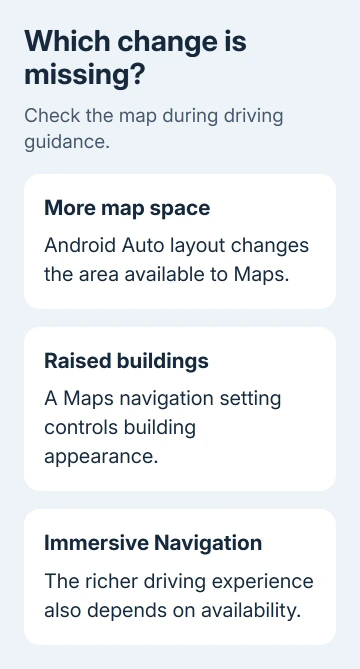
Three different changes can look like the update you're searching for:
- The map occupies more of the car display: that's the Android Auto layout and available screen space.
- Buildings rise from the map: check the Maps raised-buildings setting and an active driving route.
- Navigation gains the richer road and surroundings view: that also depends on feature availability for your setup.
Cars with Google built-in are another case. Their Maps app runs in the car itself. Android Auto shows the phone's apps on a compatible car display, so these steps start with updating your phone.
I'd start with Maps rather than resetting the car. An app update is quick, preserves your car setup, and addresses the software drawing the map. A working connection doesn't need to be deleted just because its appearance hasn't changed.
Update Maps and Android Auto through the Play Store
Park the car before changing settings. On the connected Android phone, open Google Play Store, open your profile menu, then choose Manage apps & device. Under Updates available, tap See details.
Find Google Maps and tap Update. Do the same for Android Auto if an update is offered. Alternatively, search for each app in the Play Store and open its app page to look for Update.
If the button says Open, the store isn't offering that app a newer version for this phone right now. That means your app is current for this phone, but it doesn't mean every new Maps feature is turned on.
Reconnect after the installation finishes. If an app asks for new permissions, read the prompt and approve the access it needs. Restart the phone if the update asks for it, then connect to the car normally.
The Android app update steps use the same Play Store controls. Normal app updates are enough for this check. Joining a beta isn't a required step in the published navigation instructions.
If you're comparing two phones, note the versions of both Maps and Android Auto. One app can be current while the other still needs an update. Even matching versions don't mean both phones have access to the same features.
Turn on raised buildings in Maps
Open Google Maps on the phone, tap your account image to open its menu, then choose Settings > Navigation. Look for Raised buildings routes and switch it on if you want buildings displayed in 3D along your route.
That is the current label in the Maps navigation instructions. In some interfaces, related controls refer to 3D buildings. Read the label on your screen rather than looking for an Android Auto switch called Immersive Update.

This setting changes how buildings look; it doesn't turn on the full redesign. If the switch works but the experience still looks older, check an active driving route rather than repeatedly toggling it.
If you prefer a flatter map, use the same setting to turn raised buildings off. That is a display preference, so choose the view you find easiest to read. A more detailed map isn't automatically the clearest choice for every driver.
Check the car during an active driving route
Reconnect Android Auto while parked and open Google Maps on the car display. Choose a destination, select the driving route, and start navigation. Compare that view with the map shown before guidance begins.
To check the same thing on your phone, search for a destination, tap Directions, select driving, and tap Start. Route preview and active turn-by-turn guidance are different views, which matters when comparing screenshots.
Check a familiar road route. Buildings, terrain, and road details vary by place, so a sparse area won't look like a city demonstration. Focus on whether your guidance is readable and working.
If the map says Searching for GPS, fix the phone's location access and signal first. A parking garage or tunnel can prevent a location fix. That message isn't an indication that the immersive update is waiting to install.
If Android Auto never opens, switch to the connection and cable checks. If Android Auto won't open, fix the connection first. If the map works but looks older, check the feature's availability for your setup.
When the apps are current but the view hasn't changed
Keep the installed apps current and check the feature's regional availability. The launch instructions give no manual command to force Immersive Navigation onto your account, and no complete list of cars that can get it.
Clearing Maps storage to change its styling removes app data without making an unavailable feature appear. Save that reset for a real app fault, such as repeated crashes, rather than an appearance comparison.
For trips without reliable coverage, prepare offline map areas separately. A downloaded map area helps when you lose coverage during a trip. It doesn't install the new interface.
If the phone has the view but the car doesn't, note the phone model, country, Maps version, Android Auto version, and receiver model. Tell Maps support whether the difference happens during active guidance.
In Maps on the phone, choose the profile menu's Help & feedback to report the behavior. Describe a missing feature separately from wrong turns, a blank map, or a connection failure so support can tell what needs attention.
The Short Version
Update Maps and Android Auto, check Settings > Navigation > Raised buildings routes, and compare active driving guidance. Availability still depends on your region and setup. Keep a working car connection intact.
Checked November 12, 2026.