Saved browser data or an extension can leave Outlook showing a blank page or looping back to sign-in. Try the mailbox in a private browser window first; if it opens there, work on the normal browser session before changing the account.
A wrong-password message needs account help instead. A service outage or an organization blocking access also won't be fixed by clearing your browser.
In this guide
1. Try a private session with the correct account
For a personal Outlook.com, Hotmail, or Live address, enter outlook.live.com directly. For organization email, open the Microsoft 365 app launcher or use the Outlook address your workplace supplies.
An old bookmark can return you to the wrong account or a retired organization sign-in page. Typing the address directly lets you try without that bookmark, and doesn't delete anything.
With Chrome or Edge running on Windows, press Ctrl + Shift + N for a private window. On a Mac, use Command + Shift + N in Chrome or Safari. Firefox uses Ctrl + Shift + P on Windows for a private window.
Enter your mailbox's account details. If asked to choose personal or organization access, select the one you're trying to open. Identical-looking email addresses can lead to different account types.
If the inbox loads, your account can open its mailbox in that private window. Continue with extensions and saved site data. If it still fails, note the exact message before moving to the service and account checks.
When the inbox opens normally but forgets the login after browser exit, check Outlook session retention instead of repeating the loading repairs.
The desktop Outlook opening checks apply when the installed Windows program won't launch. Commands such as Outlook Safe Mode don't repair the web page.
2. Update the browser and pause the blocker for Outlook
Use a current version of Edge, Chrome, Firefox, or Safari. Microsoft's supported-browser guidance lists these choices and warns that ad or pop-up blockers can interfere with Outlook.com.
In desktop Chrome, open menu > Help > About Google Chrome. In Edge, use menu > Help and feedback > About Microsoft Edge. Let the browser finish checking for updates and relaunch when requested.
On a Mac, Safari updates come through macOS software updates. Open System Settings > General > Software Update and review the available release. Save any unsent work before restarting.
Pause any installed blocker for the Outlook site and reload. Start with that site exception rather than removing every extension. Firefox add-ons can also prevent the inbox from loading, according to the Outlook.com known-issues page.
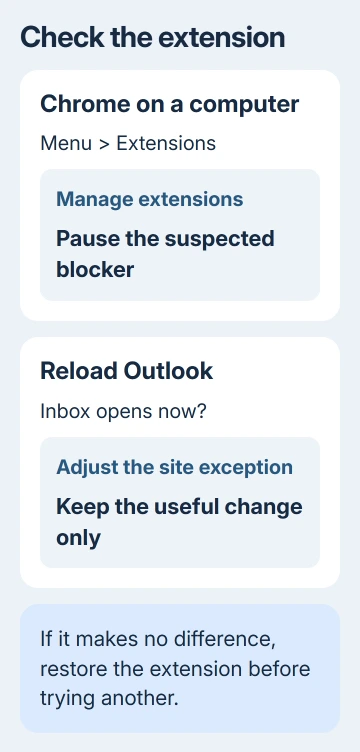
For Chrome's complete extension list, open menu > Extensions > Manage extensions. Turn off the suspected extension, reload Outlook, then restore it if the change makes no difference.
If Outlook loads with one extension off, adjust its site settings or keep it disabled for Outlook. Check extensions individually, keeping the change that helps and turning the others back on.
3. Remove Outlook's saved site data
When a private window works but the normal window still loops, clear the affected site's saved data. Cookies hold sign-in information; removing them gives the site a fresh login rather than reusing the existing session.
In desktop Chrome, open Settings > Privacy and security > Third-party cookies > See all site data and permissions. Search for the Outlook site, open its entry, and delete its stored data.
Return to Outlook and sign in again. If the loop moves through a Microsoft sign-in address, check the stored data for that address too. Removing sign-in cookies will sign you out of the affected sites, so have your sign-in method ready.
For a page that still shows missing controls or a broken layout, use menu > Delete browsing data. Choose an appropriate time range and Cached images and files, then delete the selected data and reload.
The cache stores page files, while cookies hold other site information. Removing cookies leaves cached files behind unless you select those too. Review the boxes to avoid clearing saved passwords or history unnecessarily.
If another current browser opens the mailbox normally, you can use it while repairing the affected browser. I'd use the working browser before resetting an entire browser profile just to read today's mail.
4. Check whether Outlook itself is unavailable
Open the public Microsoft service status page and check Outlook.com. A reported service problem changes the next step: wait for the service update rather than repeatedly removing local data.
The Outlook.com known-issues page links to the service status and lists current workarounds. Use its current entry when the wording matches your failure.
Work and school users should ask their Microsoft 365 administrator to check Service health for your organization's Microsoft 365 service. The personal Outlook.com status page doesn't describe every organization-specific problem.
If the browser displays a numbered server error, keep the full wording and any request identifier. The Outlook error 500 checks address that more specific failure instead of treating every blank inbox as the same fault.
5. Follow the account or organization message
A rejected password, a locked account, or a verification request needs sign-in help. Use the sign-in troubleshooter linked from the official Hotmail sign-in help.
That help applies to personal Microsoft accounts. For an organization account, give your IT administrator the full error. Access can depend on your device meeting security rules, your account's license, or your workplace's sign-in policy.
Don't try to bypass a managed-device requirement by disabling security software. Ask IT whether browser access is allowed on the device you're using and give them the time the failure occurred.
If the page never reaches sign-in on one network, try another trusted connection. A mailbox that opens there points toward the first network's filtering or connection, so tell its administrator which connection worked.
If your personal mailbox fails in two current browsers, open Outlook.com Help in any working session. When none opens, use the official sign-in help page's support link. Include browser versions and the error.
The Short Version
Try the correct mailbox in a private window, then review blockers and saved browser data. Use the service status for outages, the account troubleshooter for personal sign-in errors, and your administrator for work or school access rules.
Checked November 12, 2026.