A DualSense driver error can come from a broken Bluetooth pairing or a problem with Windows 11's Bluetooth software. Remove the saved controller and pair it again, then try a direct USB connection if Windows still can't connect it.
A controller that connects but won't control one game needs a different check. Get Windows recognizing the pad first, then check whether that game supports it.
In this guide
1. Remove the failed pairing and reconnect the controller
Open Settings > Bluetooth & devices > Devices. Find the failed controller entry, open its three-dot menu and choose Remove device, then confirm. This removes Windows' saved connection so the next pairing starts fresh.
Disconnect the controller's USB cable. With its player indicator off, hold Create and PS together until the light bar blinks. Create sits just left of the touch pad. The small button on the opposite side is Options.
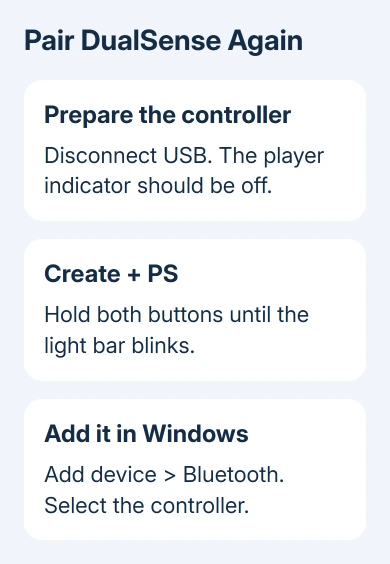
In Windows, choose Add device > Bluetooth, then select the controller. The light bar blinks during connection, and the player indicator lights when pairing finishes. Retry after charging the controller if it won't stay on.
Keep the pad near the computer for this attempt. Don't use Everything else, which is a different Windows connection category. The Xbox controller pairing guide explains that distinction for Xbox hardware.
Check whether the Driver error label disappears and the controller remains connected. If the same label returns, try USB next to see whether only Bluetooth fails.
2. Try a direct USB data connection
Connect the controller to a PC port using a compatible USB data cable. Charging alone doesn't confirm data transfer. If it still isn't detected, try a cable you know transfers data and a different PC port.
I'd make this comparison before downloading any driver package. A working wired connection gives you a way to play while the wireless fault is being repaired, and it narrows the next steps to the PC's Bluetooth radio or its saved pairing.
If your connection works briefly and then drops, use the controller disconnection checks. A repeated drop during play differs from a device that never finishes connecting.
If both USB and Bluetooth fail, record that result. A working Bluetooth mouse doesn't explain a USB failure, and reinstalling the radio's driver won't repair a charge-only cable or a damaged controller socket.
Once Windows recognizes it, press Windows-R, enter joy.cpl, and open the listed controller's Properties. If a testing panel is available, press the buttons and move the sticks to see whether Windows responds.
If the buttons and sticks respond there but one game ignores them, check that game's controller support or input settings. Continue with the driver steps when Windows itself still shows a connection error.
3. Repair the PC's Bluetooth driver
Microsoft's Bluetooth driver instructions cover updating, reinstalling and rolling back the adapter driver. The adapter is the PC's Bluetooth radio, rather than the controller entry showing the error.
Open Device Manager, expand Bluetooth, right-click the adapter and choose Update driver > Search automatically for drivers. Restart after the update, then retry the controller connection.
Also use Settings > Windows Update > Check for updates. If Windows finds nothing newer, search your PC manufacturer's support site by computer model. Compare its Bluetooth package with the installed version.
When pairing stopped immediately after a driver update, open the adapter's Properties > Driver > Roll Back Driver, if available. Retry the controller with that earlier driver to see whether the update introduced the fault.
For an 8BitDo pad instead, the SN30 Pro+ driver-error checks separate its confirmed adapter rollback from a game that still ignores the controller.
If updating doesn't help, choose Uninstall device for the Bluetooth adapter and restart. Have a wired keyboard and mouse ready first if your normal ones use Bluetooth: removing the radio interrupts those connections too.
Retry pairing after Windows brings the radio back. If the adapter itself has a warning or doesn't return, ask the computer maker for its model's Bluetooth installation package before repeating the controller setup.
4. Update the controller through PlayStation Accessories
The controller has its own software, separate from the PC's Bluetooth driver. Use PlayStation Accessories to check for a controller update on a supported Windows PC.
If the app isn't installed, get it from the official controller software page. Use the download offered there rather than a third-party DualSense driver installer.
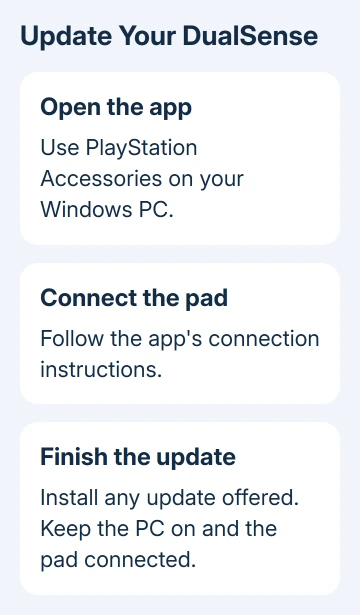
Open the app and connect the controller using the connection shown in its instructions. Install any controller software update offered and keep the PC powered on and the controller connected until it finishes.
Check whether this app recognizes the controller as well as whether Windows lists it. Finish any update, close the app and retry your normal connection. If an update error appears, copy it instead of repeatedly interrupting the process.
PlayStation Link software serves different accessories. It isn't the replacement Bluetooth driver for a DualSense pad. Match the download to the controller shown on the official page.
5. Separate an unsupported game from a hardware failure
Sony says controller support varies by game. Successful pairing doesn't mean every PC game accepts the controller or every controller feature works wirelessly.
Check the affected game's controller settings and supported input devices. For example, a missing advanced effect is separate from a Windows Driver error before the game opens.
If Windows still can't connect it, try the pad with another supported computer or console when available. A controller that fails on both needs PlayStation Support's controller troubleshooting and repair route.
If only this PC's Bluetooth fails, give the PC maker the adapter name, driver version and USB comparison. If both connections fail, give PlayStation Support the controller model and whether the Accessories app detects it.
The Short Version
Pair again using Create and PS after removing the failed Bluetooth entry. Compare USB, repair the Bluetooth driver and check PlayStation Accessories for controller updates. Then check game support once Windows recognizes the pad.
Checked November 12, 2026.