

An SN30 Pro+ that developed a Windows 11 Driver error after working over Bluetooth may need the PC's Bluetooth driver rolled back. That restored one owner's connection, though one game still had trouble afterward.
Check the adapter driver first if an update was followed by this failure. If Windows connects but a game ignores the controller, check its mode and game support. Firmware, drivers, and game settings affect different parts of the connection.
In this guide
1. Roll back the PC's Bluetooth adapter after a regression
Right-click Start > Device Manager and expand Bluetooth. Find the PC's Bluetooth adapter, open Properties, then select the Driver tab. Record its name, driver provider, date, and version before changing it.
Choose the radio adapter, rather than uninstalling every controller or Bluetooth entry. The radio may carry an Intel, Realtek, MediaTek, or Qualcomm name, depending on your laptop or adapter.
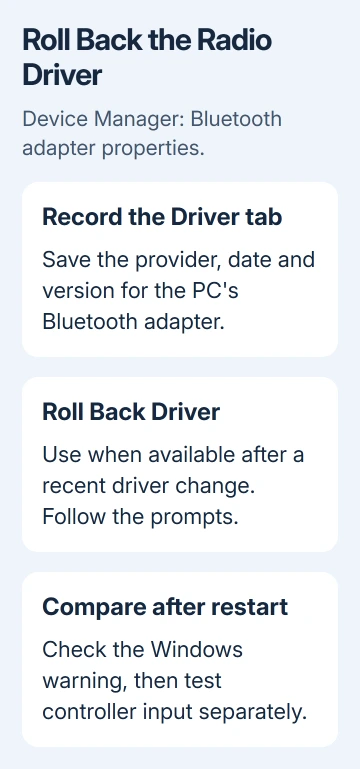
Select Roll Back Driver if it's available, choose the reason, and follow the prompts. Administrator permission is required. Restart if requested, then reconnect the SN30 Pro+ and check whether Windows still shows Driver error.
Microsoft recommends an earlier driver after a recent update in its driver rollback instructions for Device Manager. If the button is disabled, Windows has no saved previous driver to restore with that button.
One owner in the SN30 Pro+ discussion confirmed that reverting the driver restored Bluetooth connection. They also reported a remaining game problem, so getting it paired didn't fix everything in the game.
If rollback clears the warning, keep that driver while checking controller input. If the button is unavailable or changes nothing, use a matching driver package. Don't force an unrelated older driver onto the radio.
2. Install the Bluetooth package for your exact PC
Press Win + R, enter msinfo32, and note the System Model and System Manufacturer fields. On a custom desktop, use the motherboard model and revision. For a USB Bluetooth adapter, use its own model.
Get the Windows 11 Bluetooth driver from that maker's support page. Match the radio when a laptop model has several wireless options. The newest package for a different chipset won't repair the adapter you actually have.
Install the package, restart Windows, and retry the controller. Keep any error code from Device Manager > adapter Properties > General. That code tells support more about the driver failure than the Settings label does.
The Bluetooth driver-error guide explains how to follow an adapter warning. Its Intel package advice applies to Intel radios; don't install it on a Qualcomm radio because both use Bluetooth.
The same discussion mentions a Qualcomm QCA61x4A adapter and a Bluetooth switch that briefly stopped responding. Those details describe that laptop; they don't mean every SN30 Pro+ fault comes from that chipset.
If the radio driver looks healthy but the controller's saved entry still fails, remove just that entry in Settings > Bluetooth & devices > Devices. Then put the controller into its documented pairing mode and add it again.
3. Check the controller mode before changing game settings
The SN30 Pro+ supports several operating modes. Its four small lights aren't simply a battery meter. The model's FAQ identifies the second blinking LED as X-input mode, the Xbox 360-style mode.
For the SN30 Pro+, hold Start for 3 seconds to turn it off. Hold X + Start to start Windows mode; the first two status LEDs begin blinking. These controls belong to this model, rather than every similarly named 8BitDo pad.
Hold the top Pair button for 3 seconds. The lights cycle during pairing. In Windows, choose Settings > Bluetooth & devices > Add device > Bluetooth, then 8BitDo SN30 Pro+. A solid status light indicates connection.
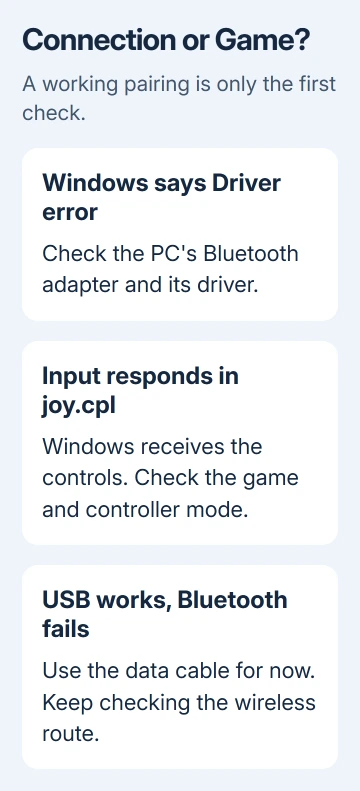
Press Win + R, enter joy.cpl, and open the listed controller's Properties. On the test page, press buttons while watching the test indicators, then move each stick. If the indicators respond, Windows is receiving input from your controller.
If the controller isn't listed or its inputs don't respond, keep working on the Windows connection. A game's controller remapping won't repair a Bluetooth adapter that can't load its driver.
When the test responds but a game ignores the pad, review that game's supported controllers and input options. Connect the controller before relaunching the game so detection starts with the pad already present.
4. Compare USB with Bluetooth without confusing the results
Use a data-capable USB cable between the controller and a port on the PC. A cable limited to charging can't provide a wired controller connection. Try the input test again before judging the result inside a game.
Working USB input lets you play while Bluetooth is being repaired. It also confirms that the controller can send input over USB. It doesn't mean the Bluetooth radio, its driver, or the saved wireless pairing is healthy.
I'd use that wired connection for the immediate gaming session rather than repeatedly restarting the laptop. Work through Bluetooth repairs separately; retry the connection between changes to see what helps.
If neither connection provides input, compare the controller with another supported device using the correct mode. If neither device receives input, ask the controller maker for help. If it works elsewhere, focus on the Windows PC.
For a pad that connects but isn't accepted by a game, compare the controller and game-support checks. Keep its PlayStation-specific firmware instructions separate from this 8BitDo model.
5. Check model-specific firmware and send useful results
Find SN30 Pro+ in the official support listing. Read its firmware notes and use its upgrade tool if appropriate. The 2022 report's statement that firmware was current then isn't a current version recommendation.
That download is controller firmware or a configuration tool. It isn't a replacement Windows Bluetooth adapter driver. Updating one shouldn't be described as updating the other.
If the warning remains, email support@8bitdo.com with the controller model, firmware version, PC model, Bluetooth adapter, driver version, and the result over USB. Include whether rollback changed the connection or only the warning.
For a radio warning that affects other Bluetooth devices too, give those details to your PC manufacturer. Ask for a compatible adapter driver or a radio hardware check, rather than an unspecified game-controller download.
The Short Version
Try adapter-driver rollback for an SN30 Pro+ that failed after an update, or install a matching PC driver. Once Windows receives input, check controller mode and game support. A USB data cable gives you a temporary connection.
Checked November 16, 2026.






