Android phones can change text size, but changing the actual lettering style depends on the phone. On a Samsung Galaxy, search Settings for Font size and style; on a Pixel, start with Display size and text for size and boldness.
Choose the setting for what you want to change. Font style changes the shape of letters, font size enlarges the words, and display size also changes the surrounding buttons and other screen items.
In this guide
Choose a font style on a Samsung Galaxy
Open Settings, tap the search button, and search for Font size and style. Select that result, open Font style, and tap an available font. Check the preview, then open an app you use every day to see how it looks.
The usual route is Settings > Display > Font size and style. Settings search is useful when a software update has moved a category or your Galaxy uses different menu wording.
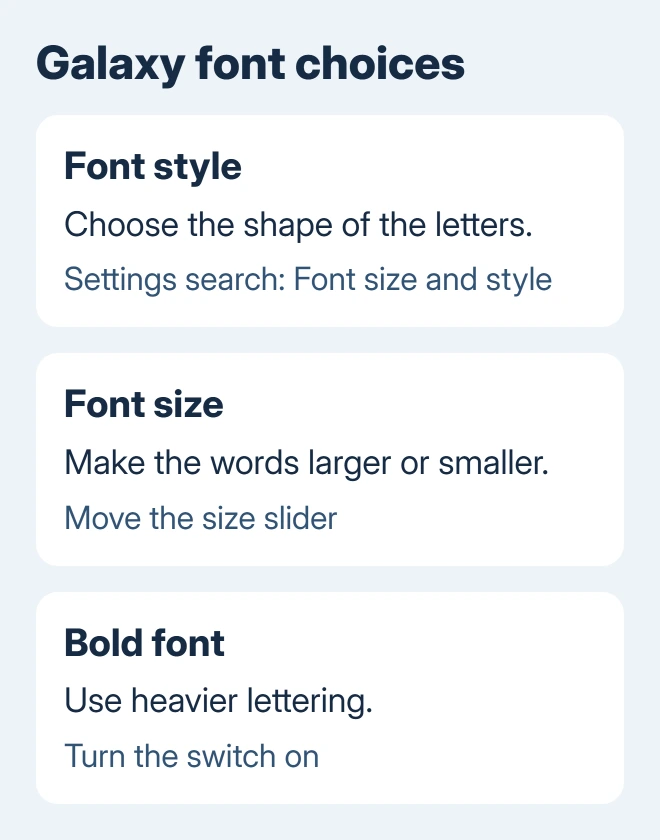
Samsung says its font controls include choices for lettering style. Choose a style from that picker rather than expecting an ordinary font file in Downloads to appear there.
The new font should appear in system text that supports it, such as Settings labels. Check the same screen before and after switching. An app's logo or words inside a picture won't change with the phone's typeface.
For a different home-screen look, changing your Galaxy wallpaper is a separate adjustment. It changes the background without making the letters themselves harder to recognize.
Add a font through the Galaxy Store
Return to Font size and style > Font style and tap Download fonts. This opens the Galaxy Store. Choose a font, check whether it has a price, and tap its install button if you want it.
After installation, return to Font style and select the new entry. Downloading and choosing are separate steps, so check that the new style is selected if the letters still look the same.
A theme can also include its own font choices or change text appearance. If the phone began looking different after you installed a theme, check that change before downloading more fonts to correct it.
I'd start with a built-in font and use it for a while before buying another. A style that looks attractive in a short preview can be harder to read in a long message or a crowded notification.
These store steps work on compatible Galaxy devices. A Pixel doesn't gain Samsung's font picker by installing a font from a different phone's store, and another Android brand may use its own theme app.
Adjust text size on Pixel and other phones
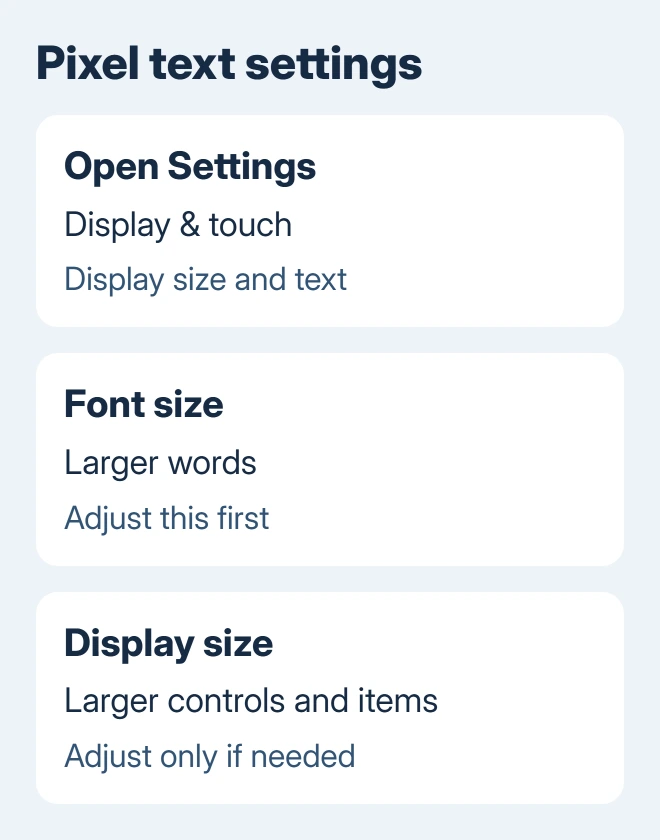
On a current Pixel, open Settings > Display & touch > Display size and text. Move the Font size slider until the preview is comfortable to read. Older versions may call the first category Display.
For other Android phones, open Settings and search for Font size. Select the matching control and move its slider. The Android text controls need no font download.
Use a familiar message or Settings list to judge the result. The aim is to read comfortably at your normal viewing distance, with enough room left for buttons and labels to make sense.
If text is larger but the buttons still feel too small, adjust Display size on the same Pixel page. On other phones, search Settings for that term. This changes more of the interface than the font-size slider does.
Change one slider at a time. That makes it easier to decide whether you need bigger letters, bigger controls, or both. A larger display setting can also leave fewer items visible on a screen.
These Pixel settings make text bigger or easier to read. They don't offer the Galaxy Store's downloadable font-style menu. Check your phone maker's theme settings if choosing a different typeface is the goal.
Use bold or stronger text contrast
For heavier lettering on a Galaxy, return to Font size and style and turn on Bold font. Compare the same Settings labels with it on and off before changing the text size again.
On supported Android phones, open Settings > Accessibility > Display size and text and enable Bold text. Some apps don't use this setting, so judge it in system menus as well as in your usual app.
Android 16 and later offer Outline text in that accessibility section. Android 15 and earlier use High-contrast text instead. Look for the name that matches your Android version.
On a Samsung Galaxy, the separate contrast control is under Settings > Accessibility > Vision enhancements > High contrast fonts. It can help when the letter size is already right but the text doesn't stand out enough.
These settings won't sharpen text inside a blurry photo. For that, zoom in on the photo or get a sharper copy.
Deal with an app that ignores the change
Open Settings again and compare its text with the app. If Settings changed but the app didn't, look inside that app for a reading, appearance, or text-size control. System font size doesn't apply to every app.
A web page can also need its browser's own text or zoom adjustment. Test an actual paragraph rather than the site's banner, which may be a picture with fixed lettering.
The font in an email you're composing is another separate choice. If the goal is to change how outgoing Outlook messages look, use the Outlook default-font controls instead of changing the whole phone.
When only one app is affected, tell its support team which text setting didn't work, your app version, phone model, and Android version. For a missing system setting, ask the phone maker about that exact model and software version.
Return to a comfortable default
On a Galaxy, choose Default in the font-style picker if it's listed, then readjust size and boldness to your preference. Removing a downloaded font isn't necessary just to stop using it.
On supported Android display-size-and-text pages, Reset settings restores those display and text preferences. Read the confirmation so you're resetting that page's choices, rather than starting a full device reset.
The Short Version
Use Galaxy's Font style picker for different lettering. Use Font size for bigger words, Display size for bigger controls, and bold or contrast settings for clearer text. Check an app's own controls when it ignores the system change.
Checked November 12, 2026.