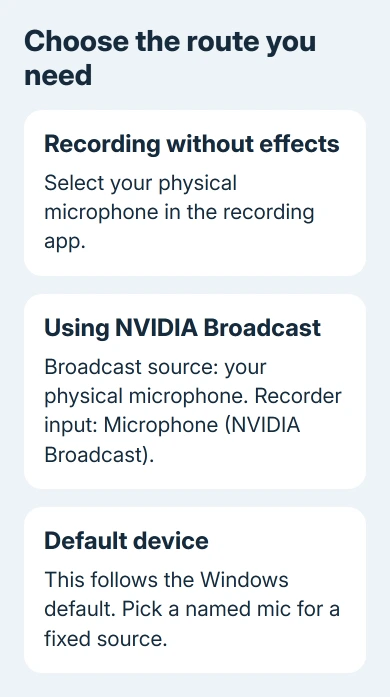
NVIDIA can switch microphones when it follows Windows' default input. Choose your real mic in Broadcast and Microphone (NVIDIA Broadcast) in the recorder, or choose the physical mic directly for recording without effects.
The NVIDIA app recording overlay and NVIDIA Broadcast have different controls. Setting the mic in one doesn't change the other, so first check which screen is switching your source.
In this guide
1. Set the input in the app that changes it
For clips or Instant Replay, press Alt+Z for the NVIDIA overlay. Open its settings and audio controls to inspect the microphone source. The NVIDIA app and older GeForce Experience layouts place controls differently.
Choose the microphone by its device name. If you're using Broadcast noise removal, choose its virtual microphone instead. That virtual microphone carries your voice after Broadcast applies its effects. It isn't another physical mic.
Turn microphone recording on, then make a short manual recording while speaking. Play the saved clip. Listen for your voice from the microphone you chose. The saved clip tells you whether the menu selection is working.
Reopen the source control after closing it. A selection that changes immediately is different from one that survives until a reboot or headset reconnection. Note when it changes for the later checks or a support report.
In Broadcast, open Microphone and inspect the source. It must point to the headset, USB mic, or audio-interface input you intend to use. Continue to the next section if it says Default device.
2. Give Broadcast a named physical microphone
Select the actual microphone in Broadcast rather than Default device when you want one fixed source. Then select Microphone (NVIDIA Broadcast) in your recording, meeting, or streaming app.
NVIDIA's Broadcast setup instructions explain that Default device follows whichever microphone Windows detects as its default. That option is convenient for switching headsets, but it isn't a fixed-device choice.
This also matters if you've made Broadcast the Windows default. Its own source should still be your real microphone. Don't select Broadcast's own output as its microphone source; it needs the sound from your physical mic.
I'd keep the route simple while fixing it: one physical mic into Broadcast, then Broadcast into the recorder. Add other mixing software back only after that path records cleanly and stays selected.
Record a voice test in Broadcast and listen back. If its source stays correct but the saved NVIDIA clip uses another mic, return to the overlay's input selection rather than changing effects.
If you don't need Broadcast, choose the physical mic directly in the recorder for comparison. If the physical mic records correctly on its own, focus on the route through Broadcast rather than the microphone itself.
3. Check the Windows input before the next recording
A webcam, USB headset, and laptop can each offer a microphone. Adding or reconnecting one can alter the available list. Check the Windows input as well as the app's own selection before assuming a graphics-driver update changed it.
On Windows 11, open Settings > System > Sound. Under Input, select your physical microphone. Open its properties, choose Start test, speak, then stop the test and play the recorded sample when that option appears.
On Windows 10, open Settings > System > Sound and select the microphone under Choose your input device. Speak and watch Test your microphone for a response. This checks the input Windows is receiving.
For the older Sound dialog on either system, press Windows+R, enter mmsys.cpl, and open Recording. Check which enabled input is marked as the default and which is the default communications device.
Choose the intended device and use Set Default as needed. With a fixed Broadcast setup, its own source remains the physical mic even if you choose the Broadcast output as the Windows default for other apps.
If Windows doesn't receive your voice from the physical mic, work through the Windows microphone checks. A recorder can't keep using a device that has stopped appearing or supplying audio.
4. Stop a reconnect from removing the chosen source
Power on a wireless headset and connect a USB mic before opening Broadcast or recording software. Start the apps after the physical input is available, then check the source once more.
For a USB mic, try a direct computer port if it currently passes through a dock or hub. Keep it on that connection for this comparison. If the device disappears from Windows, fix its connection before trying to keep it selected in an app.
Restart Windows with the same microphone attached. Open Broadcast, verify its physical source, then open the overlay and make another clip. This shows whether the selection survives startup with the input already present.
If the source changes only after unplugging or waking a headset, note when it happens. Repeatedly changing the default won't help while the headset is still connecting and its input isn't available yet.
Don't disable every recording device to try to fix this. A Broadcast setup still needs its physical microphone enabled, and removing that input can break the route you're trying to preserve.
5. Separate a silent recording from a changed source
When the selected microphone is correct but the clip is silent, inspect microphone recording mode and volume in the overlay. A muted mic or push-to-talk setting can produce silence without changing the selected device.
Check permissions too. In Windows 11, open Settings > Privacy & security > Microphone. In Windows 10, use Settings > Privacy > Microphone. Allow microphone access and desktop-app access for desktop recording software.
The microphone troubleshooting controls distinguish permission and detection problems. Use these checks for missing audio. If the source name visibly changes by itself, keep working on the app's selection.
If clips work but a call doesn't, inspect that calling app separately. For example, Teams keeps its own microphone selection, so the overlay's choice doesn't set the call's input.
For a source that still reverts, update the NVIDIA app and Broadcast. Give NVIDIA Support both app versions, your mic model, the source before and after the change, and whether it switches when you close the menu or restart.
The Short Version
Choose your mic inside Broadcast and its processed output in the recorder. Check the overlay separately and connect the mic before startup. Test a saved clip, and report an immediately reverting selection as an app fault.
Checked November 12, 2026.