To set up your Google Pixel home screen, hold an empty space and choose Widgets, Wallpaper & style, or Home settings. Add everyday apps from the app list, then organize the rest into folders or another page.
The home screen is separate from the full app list. An app can stay installed after you remove its home-page icon. The favorites row also behaves differently: it can contain suggested apps rather than fixed choices.
In this guide
Put everyday apps where you can reach them
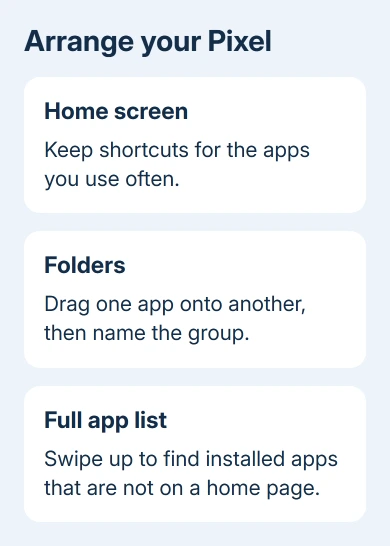
Swipe upward on the lower home-screen area to display the app list. Hold your chosen app, drag it onto a home page, and lift your finger at the position you want.
Start with the apps you open every day. A home screen full of everything installed doesn't save much searching. Keep less-used apps in the app list, where you can find them without putting each one on a home page.
To move an existing icon, touch and hold it, drag it to another position, then lift your finger. If you only want to open the app, use a brief tap instead. Holding it brings up its shortcut menu or starts moving it.
Google explains apps, shortcuts and widgets in its home screen instructions. Some steps need Android 14 or later, so an older Pixel can show different controls from a newer model.
If a downloaded app isn't in the app list, check that it finished installing before arranging the home screen around it. The Pixel screenshot guide can help you save the current layout before making a larger change.
Build folders and add another page
Make a folder by holding one app and dropping it onto another. Tap the resulting folder to open it, then tap its name to rename the group. Choose a suggested name or enter your own.
Drag more related apps onto the folder to add them. A folder for travel, banking or work can be easier to recognize than several pages of similar icons. Choose names that describe how you look for the apps.
To create another home-screen page, hold an app, shortcut or group and drag it toward the right edge until a blank page appears. Drop it there. The extra page gives larger widgets room without covering the main page with small items.
To delete an extra page, move or remove everything on it. The empty page disappears when its last item leaves. You don't need a separate button to delete the page.
Drag an unwanted shortcut to Remove to clear it from the home page. Uninstall deletes the installed app instead. Check which label you're dragging it to before lifting your finger, so you don't uninstall an app you meant to keep.
Add a widget and resize it when supported
Hold a blank home-screen space and select Widgets. Open the choices for your app, hold your chosen widget, then move it to a home page. Release it somewhere with enough room.
A widget shows information or controls without opening the full app. Pick one whose contents you'll use, such as a calendar view, instead of adding several that repeat information already on the screen.
To resize it, touch and hold the placed widget, then lift your finger. If it supports resizing, dots appear at its edges. Drag a dot to change its size, then tap outside the widget to finish.
Not every widget can be resized. If no handles appear, check the widget picker for a different size from the same app. Even if an app offers several widget sizes, resizing after placement may not be supported.
Move surrounding icons if the widget won't fit. Dropping it over existing icons won't add more rows to your layout. A second home-screen page is often a cleaner place for a large calendar or task list.
Choose what stays in the favorites row
The row near the bottom of the home screen holds favorite apps. A suggested app has a colored shadow around its icon, and an empty spot can receive another suggestion based on your use and routines.
Keep a suggested favorite by holding its icon and selecting Pin. For an unwanted suggestion, drag the icon to Don't suggest app when offered. Pinning keeps that app in place even when your routine changes.
For a manual favorites row, long-press blank home-screen space, then choose Home settings > Suggestions. Switch off Suggestions on Home screen. Suggestions in the full app list have a separate control.
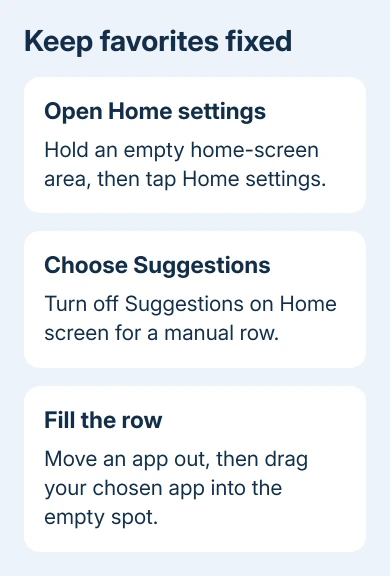
Move an existing favorite out of the row to make room. Then open the app list, hold the app you want, and drag it into the empty favorites position. Repeat for the apps you want fixed there.
I'd settle the favorites row before choosing a large widget. The bottom row is easy to reach, so putting your frequent apps there can remove the need for extra shortcuts across the rest of the page.
Adjust the layout, wallpaper and fixed areas
Hold an empty home-screen area and choose Wallpaper & style. To change the home-screen layout on versions that offer it, swipe to the home-screen preview, tap Layout, choose an icon size and tap Apply.
If your version instead shows an App grid control, use that to choose from its available grid arrangements. The labels differ across Android releases; don't expect every older Pixel to have the current Layout screen.
Choose a wallpaper in Wallpaper & style and check the home-screen preview before applying it. A busy picture can make app labels harder to read. The preview lets you judge the arrangement before committing to it.
The At A Glance information at the top isn't a normal movable widget. In Pixel's built-in home screen, you can't drag that area somewhere else. Hold it, choose Customize, then open its settings to adjust the information it shows.
The search bar has its own options too. On versions that offer them, hold the bar and tap Widget settings to change its available themes or shortcuts. These controls don't make it an ordinary app icon.
For an individual app's style, the Android icon guide distinguishes replacing one icon from changing the overall Pixel style. Styling and shortcut positions are separate adjustments.
When a setting or widget isn't available
Note your Pixel model and check Settings > About phone > Android version when comparing controls. The app itself must supply a widget for the picker to list one; some apps supply only shortcuts.
If you're using another home app, it has its own controls rather than Pixel's built-in settings. Open Settings > Apps > Default apps > Home app to identify the active launcher before looking for Pixel-specific options.
If a setting is missing from Pixel's built-in home app, give Pixel support your model, Android version and the exact menu you see. Ask whether your current software supports the layout or widget option you want.
The Short Version
Drag apps from the app list, group them into folders, and add widgets from a long press on empty space. Pin favorites or turn off home-screen suggestions for a fixed row. Use Wallpaper & style for the layout your Android version offers.
Checked November 12, 2026.