Outlook often signs out after you close the browser because private browsing or a cleanup setting deletes its sign-in data. Use a normal window that keeps site data. Regular work-account prompts can instead follow your organization's rules.
Desktop and phone password prompts need their own checks. Start with the section for the version you're using; changing Chrome's settings won't fix sign-in problems inside the Outlook mobile app.
In this guide
1. Use a normal window for Outlook.com
Check the browser window before signing in again. Incognito in Chrome and InPrivate in Edge are designed to discard the session when the private windows close. Needing another login afterward is expected.
Open a normal browser window and sign in to your personal Outlook.com account. Close and reopen the browser, then return to the mailbox. If your mailbox stays signed in there, the private window was causing the repeated logins.
Microsoft's current personal account sign-in guidance says the browser remembers the sign-in automatically unless you sign out or use private browsing. You won't see a stay-signed-in checkbox on every current personal login screen.
Use that convenience only on a device and browser profile you control. On a shared computer, keep using private browsing and sign out when finished. Repeated login is preferable to leaving your mailbox open for the next person.
If a normal window still forgets you only after closing, continue with stored site data. If it signs out while you're actively reading mail, skip to the account and organization checks.
2. Stop the browser deleting sign-in data on exit
Cookies and related site data let websites remember a signed-in session. Saving your password in a password manager is separate: it can fill the login form without keeping the mailbox signed in.
In Chrome, open Settings > Privacy and security > Site settings > Additional content settings > On-device site data. Check the default behavior selected on that page.
Choose Allow sites to save data on your device if that's appropriate for your own computer. Delete data sites have saved to your device when you close all windows explains a mailbox that forgets you after every full browser exit.
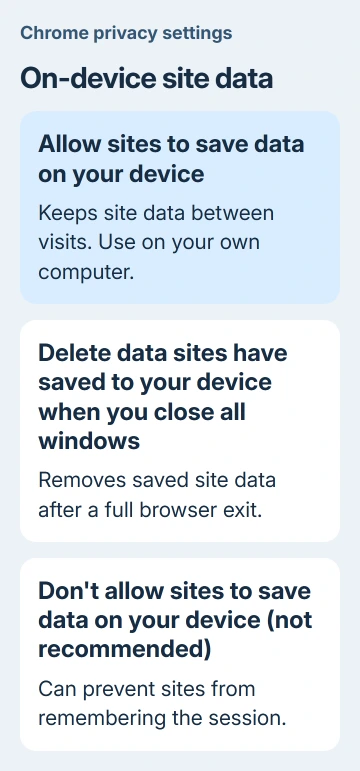
Check the site-specific lists on that page too. A rule deleting data for a Microsoft sign-in site can matter even when the general default allows saving. Remove an unintended delete-on-exit rule for the affected site, then sign in again.
Check extensions and privacy programs set to erase cookies on exit. Pause that cleanup for one close-and-reopen comparison. If the setting returns by itself, a managed browser policy or cleanup tool may be applying it.
For Edge, open Settings > Privacy, search, and services and look for Choose what to clear every time you close the browser. Review whether Cookies and other site data is being cleared.
Keep the change narrow. Clearing all cookies again won't help a session that is already being deleted too often. If the mailbox won't load at all, the Outlook browser loading guide addresses that separate failure.
3. Separate personal and work account sessions
Look at the account address shown by Outlook's profile control. A personal Outlook.com mailbox and an organization mailbox hosted through Microsoft 365 can both appear in the same browser, but they don't follow the same session rules.
If the browser keeps selecting the wrong identity, use a separate browser profile for work and personal mail. That keeps their cookies and account choices apart without repeatedly signing one account out to reach the other.
For an organization account, answer Stay signed in? if your organization presents that choice. Your organization can decide whether the browser remembers you and require another sign-in after a set period, even on a familiar computer.
The session management explanation describes sign-in frequency and persistent browser sessions. The administrator controls these settings; there isn't a missing Outlook checkbox you can turn back on yourself.
Note whether prompts follow closing the browser, regular intervals or switching networks. Give IT the time, error text and account address, and ask them to review Conditional Access sign-in frequency and browser persistence.
Don't disable multifactor authentication to avoid prompts. If the prompt is unexpected, approve only sign-ins you started and report suspicious activity through your organization's account-security process.
4. Update credentials and the Outlook app
For classic Outlook on Windows, a repeated password box can follow a password change or an expired work password. Confirm that you can sign in to that account through its provider, then complete the password prompt in Outlook.
Use the full email address when asked for the username. For Gmail, Yahoo or another provider, the mailbox password is managed by that provider. Your Windows sign-in password isn't necessarily the same one.
Update classic Outlook through File > Office Account > Update Options > Update Now, when that control is available. Managed installations can use a different update method; ask IT if those controls are missing or disabled.
For new Outlook on Windows, open Microsoft Store and check Downloads or Library for app updates. Its account controls differ from classic Outlook, so skip classic-only registry or profile repairs.
On iPhone or Android, get the Outlook update from your phone's app store, then reopen it and finish the account's sign-in prompts. Updated security requirements can cause recurring prompts in older app versions.
If classic Outlook shows Need Password but the login box disappears before you can type, use the vanishing password window fix. That specific fault has a different repair sequence.
5. Take persistent sign-outs to the appropriate support team
For a personal Microsoft account that signs out across browsers and devices, use the sign-in helper linked from Microsoft Support's account sign-in pages. Record the exact error rather than resetting your password after every prompt.
For a work account, tell IT which app version you're using, when the last prompt appeared and whether webmail stays connected. Ask them to compare your sign-in logs with the organization's session rules.
For a non-Microsoft mailbox, contact its email provider when the same credentials fail on the provider's own sign-in page. If that page works and only Outlook mobile fails, use Outlook's in-app help and include the app version.
The Short Version
Keep sign-in data in a normal browser window on your own computer. Work policies can still require logins. For app prompts, update Outlook and check credentials, then report the exact version and error if it continues.
Checked November 12, 2026.