

Missing Chrome tabs on a Mac can still be open in a collapsed group or another window. Press Command + Shift + A and search for a missing page first. If the entire tab bar hides, enable the fullscreen toolbar in Chrome's View menu.
A tab that's hidden, a saved group that's closed and a tab lost after a crash need different actions. Check what Chrome can still find before restarting or changing its profile files.
In this guide
1. Search for a tab that is still open
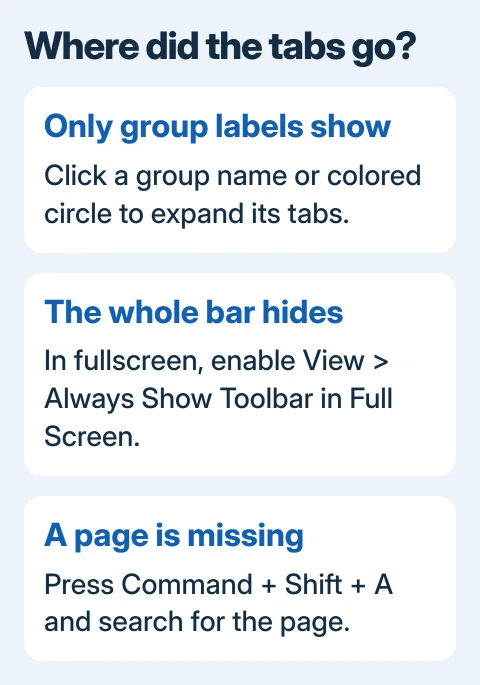
Bring Chrome to the front, press Command + Shift + A, and type part of the page title or site name. Choose the matching page from the open-tab results. Searching is easier than reading a row of tiny tab icons.
The address bar offers another search method: type @tabs, press Tab or Space, then enter the site's name. Choose the matching result. This searches tabs rather than running an ordinary web search for the same words.
Google's tab-management instructions cover both search methods. If the page appears among open tabs, it's still open. Select that result to bring the page into view.
If the result doesn't appear, check the other Chrome windows and profiles next. Searching your current Chrome profile won't list every page you've opened in other profiles or private windows.
I'd use the page's site name first if its title changes frequently. A mail inbox or dashboard might have a different title from the one you remember, while its address still points to the same service.
2. Keep the tab bar visible in fullscreen
Point at the screen's upper edge to reveal the Mac menu bar. With Chrome active, open View and enable Always Show Toolbar in Full Screen. Move the pointer back into the page to check whether the tabs stay visible.
One owner on Google's forum fixed disappearing fullscreen tabs with that setting. The useful distinction is that their tabs returned when they pointed at the top; the pages hadn't actually closed.
If Chrome isn't using fullscreen, this setting won't explain a missing individual tab. Check groups and other windows next; the fullscreen setting won't change tabs in an ordinary window.
To leave fullscreen without changing the toolbar preference, point at the top-left corner and use the green window control. Once Chrome is back in an ordinary window, check whether the tab row is visible there.
Clicking the red window control closes the window instead of leaving fullscreen. Keep the window open while checking visibility, especially if it contains work that hasn't been saved or submitted.
3. Expand groups and reopen saved groups
Look along the tab strip for a colored circle or a group name. Click it once. A collapsed group keeps its tabs together while hiding the individual tabs from the strip; expanding it shows them again.
Check each group that could contain the missing pages. A row with several group labels can look as though many tabs vanished even though those tabs are simply folded into their groups.
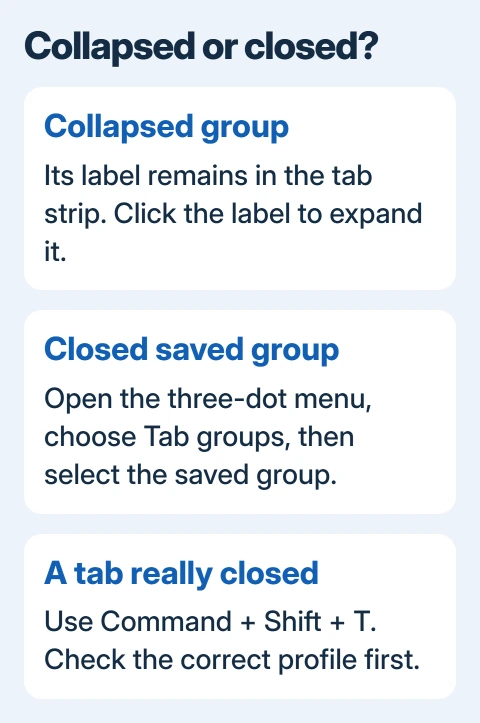
A closed saved group is different. Open Chrome's three-dot menu, choose Tab groups, then select the group you want. A saved group may also be available from its button on the bookmarks bar.
If the bookmarks bar doesn't show the groups you expect, open Chrome > Settings > Appearance and check Show tab groups in bookmarks bar. This changes where saved groups are shown; it doesn't recover pages that were never saved in a group.
Don't choose Delete group while trying to reopen one. Select the saved group itself. Once its pages are back, check that they contain the sites you expected before reorganizing anything.
4. Check another window or Chrome profile
Open Chrome's Window menu in the Mac menu bar and look for another browser window. Select it to bring it forward. A minimized window or a window on another desktop can hold tabs missing from the current window.
Use Mission Control if several desktops or fullscreen apps are involved. Look through the spaces across the top and select the Chrome window you need. Changing desktops doesn't combine their tab strips into one row.
Then check the profile button near Chrome's top-right corner. Switch to the profile you used for the missing pages. Work and personal profiles keep browsing information separate, even on the same Mac.
Choose an existing profile rather than adding a new one. A new profile starts with its own tabs and history, so opening one won't explain where your old profile's tabs went.
Private browsing is separate too. An Incognito window won't put its pages into your ordinary browsing history. Check an Incognito window that is still open; after all private windows close, normal history isn't a recovery list for them.
For keyboard commands to move around a crowded browser, the Chrome shortcut guide includes Mac tab and window commands. Use those after confirming which window and profile contain the pages.
5. Recover closed pages only after the visibility checks
If a tab really closed, press Command + Shift + T to bring back a tab you recently closed. Press it again to reopen earlier tabs. Chrome can also offer a recently closed window through its History menu.
Open History > Show Full History to search for a site visited in an ordinary browsing window. Reopening a history entry loads that address again; it doesn't necessarily restore unsaved form text or an old signed-in session.
After a crash that lost a whole session, use the Chrome session-recovery guide before experimenting with profile folders. That problem needs more care than a hidden tab strip.
If new tabs keep disappearing while Chrome stays open, use Help > Report an issue. Mention tab-search results, any group involved and whether fullscreen changes it. Those details help show whether the pages closed or their tabs are hidden.
The Short Version
Search with Command + Shift + A, enable the fullscreen toolbar when the whole bar hides, and expand collapsed groups. Check other windows and profiles next. Use Command + Shift + T only for pages that actually closed.
Checked November 13, 2026.
 If you have any business, I can build it online






