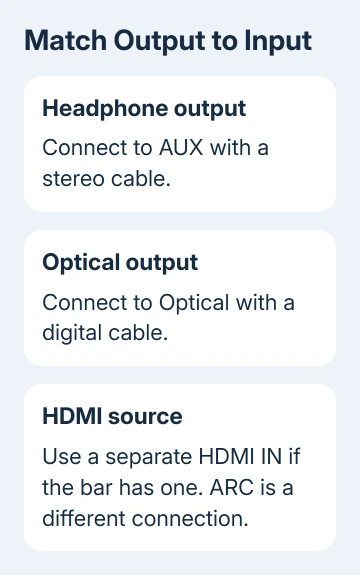
Bluetooth isn't required to connect a Vizio soundbar to a desktop computer. Connect the PC's audio output to a matching input on the bar, then select that input. For a bar with AUX, start with the computer's headphone or speaker socket.
A connected cable can still leave everything silent when Windows selects monitor audio or the bar remains in Bluetooth mode. Check the port labels first, because the available connections vary between Vizio models.
In this guide
1. Choose a connection both devices actually have
Read the soundbar's model number and inspect its input panel. Look for AUX, Analog Audio In, Optical, or a separate HDMI IN. Then compare those labels with the outputs on your desktop or its connected monitor.
A headphone or green speaker socket sends analog audio. A square optical socket sends digital audio. Check HDMI labels closely: a bar's HDMI ARC port doesn't work like a normal PC HDMI input.
The SB3851-C0M connection guide, for example, lists stereo RCA, stereo 3.5 mm, optical, digital coaxial and HDMI connections. Use that as a model example, not a promise that every Vizio bar has those ports.
Write down both port labels before buying an adapter. A cable needs to carry the correct signal as well as fit. Take particular care with listings offering a simple cable between analog and digital sockets.
2. Start with AUX when the soundbar supports it
Connect a 3.5 mm stereo audio cable from the desktop's headphone or speaker output to the soundbar's 3.5 mm AUX input. Use the PC's audio output, not its microphone input. On a typical desktop rear panel, the speaker output is green.
If the soundbar instead has red and white analog inputs, use a 3.5 mm stereo-to-RCA cable. Connect its two RCA plugs to the matching left and right inputs. Those are analog connectors; a single digital coaxial socket is a different input.
Power on the bar and use Input to select the AUX connection you've used. On the SB3851-C0M, RCA is AUX 1 and 3.5 mm is AUX 2. Other models can use different names or lights, so check your bar's input labels.
Start with modest volume on both devices and play a familiar audio file. Raise the computer and soundbar volume gradually. If changing inputs restores sound, the cable was already carrying audio and the bar was listening to another source.
I'd try AUX first when both devices have it. It avoids pairing and gives you a straightforward stereo connection. If the bar is still silent, check which output Windows is using before replacing the cable.
3. Send Windows sound to the wired output
In Windows 11, open Settings > System > Sound. Under Output, choose the playback device feeding the cable. For an AUX connection, that will usually be Speakers or Headphones with the computer's audio-device name.
In Windows 10, open Settings > System > Sound and use Choose your output device. Pick the output feeding the bar. These controls remain in Windows 10, whose standard support ended October 14, 2025.
Vizio doesn't need to appear in the output list for an analog cable to work. Windows sees the PC's sound hardware, which sends audio through the cable. Looking for a new Vizio entry can make a working AUX connection seem missing.
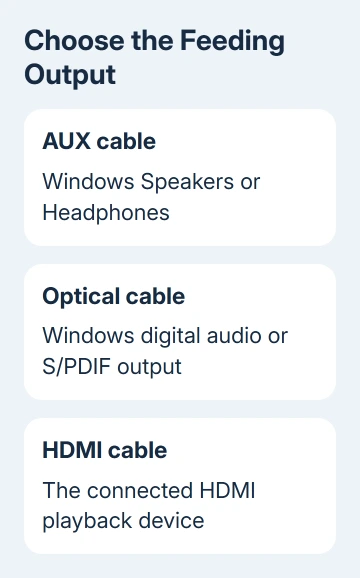
Check the main output volume and the app's volume. Windows 11 also has Volume mixer on the Sound page; in Windows 10, use App volume and device preferences under the advanced sound options. An app can have a different output selected.
Try another app before changing hardware. Microsoft says to check outputs and muted apps in its Windows audio fixes. The PC sound guide handles silence across the whole computer.
4. Use optical when both ends support it
Connect an optical cable from the computer's optical output to the soundbar's optical input. Remove the small protective caps from the cable ends, then align the connectors and seat them gently. Select Optical on the soundbar.
In Windows Sound settings, choose the digital or S/PDIF output for that socket. Optical audio doesn't travel through an attached 3.5 mm cable. Selecting Speakers may leave the optical connection without a signal.
If optical stays silent, choose stereo PCM, a digital audio format, in the hardware's format controls if supported. The Vizio guide recommends PCM for unsupported digital formats. Rapidly flashing SB3851-C0M input lights can signal this.
For a desktop without optical, use AUX if available. Otherwise, a USB audio adapter can supply the required analog or optical output. Confirm that its output matches the bar before buying it.
5. Check HDMI labels and leave USB out of the guesswork
An ordinary PC HDMI output isn't an ARC source just because it uses an HDMI cable. A soundbar port labeled HDMI OUT (ARC) is intended for an ARC connection with a compatible TV. Don't assume it's a general PC audio input.
If the bar has HDMI IN, follow its manual for connecting an HDMI source. Select that input and its HDMI playback device in Windows. Check the display arrangement too, because HDMI carries video along with sound.
USB also needs model-specific confirmation. On the SB3851-C0M, the USB input is for WAV-file playback. Connecting the desktop to that socket doesn't make the bar a USB computer speaker. A separate USB sound adapter is a different device.
6. Check the bar and cable before requesting repair
With AUX selected, try headphones in the desktop's same output. If they play, the PC can supply sound through that socket. Try another compatible source through the soundbar's AUX cable to check the cable and bar together.
For wireless speakers elsewhere in your setup, the Bluetooth speaker connection guide explains that separate pairing process. Wired AUX and optical connections don't need a Bluetooth pairing entry.
If another source stays silent, give Vizio support the model, input indication and cable used. Ask them to check the supported formats and input hardware. Tell them what happened with both sources so they can check the wired connection.
The Short Version
Match the PC output to the Vizio input, select the bar's wired source, and choose the matching output in Windows. AUX is straightforward when available; optical needs digital output. Verify HDMI IN and USB functions in the model's manual.
Checked November 13, 2026.