OBS Game Capture can stay black when it targets the wrong window, doesn't have the permissions the game needs, or uses a different graphics processor. Select the running game directly, then make a short recording with the game in front.
Some games block Game Capture altogether. Destiny 2 needs Window Capture, for example, while a fullscreen game can stop drawing the moment you switch away to inspect OBS. Those cases need different fixes.
In this guide
1. Select the game and check a recording
Launch the game and wait until its picture appears normally. In OBS, select the scene you want to record. Check that the Game Capture source is visible in Sources and isn't hidden behind another full-screen source.
Open that source's Properties, set Mode to Capture specific window, then select the actual game in Window. Choose the game process rather than its launcher or updater. Keep the game open while choosing it.
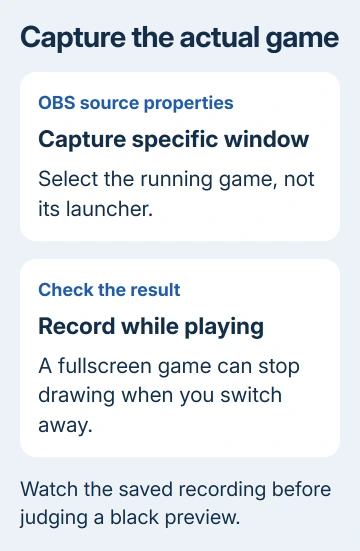
For fullscreen capture, Capture any fullscreen application is another supported mode. A game running in an ordinary window needs the specific-window choice instead of relying on fullscreen detection.
Make a short local recording, return to the game and play briefly. Stop recording and watch the file. On one monitor, switching out of a fullscreen game can stop it drawing, leaving a black preview even when capture works during play.
If the recording shows the game, the black preview comes from switching away from the game. Use the recording to judge capture, or watch OBS on a second monitor. If the file is also black, continue with permissions and graphics selection.
For a game that hasn't been launched yet, an empty capture is expected. I'd get one game working in a simple scene before adding overlays or switching scenes automatically. With one game and one scene, it's easier to see what changed.
2. Run OBS as administrator for games that require it
Close OBS, open Start, search for OBS Studio, then right-click it and select Run as administrator. Approve the Windows prompt, reopen the same scene and repeat the short recording.
OBS's game-specific troubleshooting recommends administrator access for games including Call of Duty, Genshin Impact and Honkai: Star Rail. This gives OBS the access it needs to capture those games.
If this clears the black recording, keep that launch method for the affected game. If it doesn't change the result, check the graphics processors next rather than repeatedly recreating the same source.
Leave the anti-cheat software running. Running OBS as administrator is a supported capture step and doesn't require turning off the game's protection.
3. Put OBS and the game on the same GPU
A gaming laptop often has integrated graphics for ordinary work and a separate high-performance graphics processor for games. Game Capture needs OBS and the game on the same processor. A desktop with multiple GPUs can have this issue too.
Close OBS. In Windows 11, open Settings > System > Display > Graphics. Find OBS Studio in the app list, or add its desktop executable with Browse. The normal installation uses C:\Program Files\obs-studio\bin\64bit\obs64.exe.
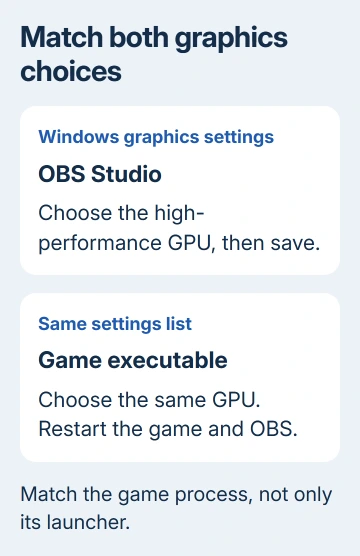
Select OBS, open its graphics options, choose High performance, and save. Microsoft explains the GPU choice in its graphics settings guide.
Add the game's real executable to the same list and choose the same high-performance GPU. Restart OBS and the game so the new choices take effect. A launcher entry alone might not apply to the game it starts.
Minecraft: Java Edition runs through Java, whose executable can differ from the launcher. If that game stays on integrated graphics, follow the Minecraft link in the capture troubleshooting page for its specific GPU steps.
Don't follow old advice to force OBS onto Power saving for every black-screen problem. Current laptop guidance recommends the high-performance GPU. Display Capture and Game Capture have different requirements and capture methods.
If both programs already use the same GPU, keep that setting and try the next section. Changing GPU preferences repeatedly won't help a game that refuses the capture method itself.
4. Use Window Capture for games that block the hook
Game Capture works by connecting to the game's graphics output. Some games don't allow that connection. The supported alternative for Destiny 2 is a windowed or borderless fullscreen game captured through Window Capture.
Counter-Strike 2 also appears in the known-issues list, and Roblox is listed with Window Capture as the alternative. Check the specific game's entry before spending time changing Windows or reinstalling drivers.
Set the game to Windowed or Borderless fullscreen in its display settings. In OBS, use Sources > Add > Window Capture, select the game window and confirm. Hide the unsuccessful Game Capture source while checking the replacement.
Make another recording with that window visible. If it works, keep using Window Capture for this game. You can still use Game Capture for other games in separate scenes.
League of Legends has a different split: its launcher and lobby need Window Capture, while the running match uses Game Capture. Two scenes avoid trying to capture both parts as one window.
For ordinary apps, the Windows screen-recording choices cover other tools. For a built-in recorder that refuses to open, use the Snipping Tool repair steps.
5. Close conflicting overlays and restore a stuck source
Exit frame-rate counters and graphics overlays such as RivaTuner Statistics Server or MSI Afterburner before starting capture. Relaunch OBS and the game, then compare the result without those extras.
These programs are listed as capture conflicts. If closing one restores capture, check that program's compatibility with OBS. Reopen one overlay, record again, then repeat with the others to see which one causes the problem.
For a tiny red dot at the preview's upper-left corner, right-click the source and choose Transform > Reset Transform, then Transform > Fit to Screen. That fixes a source stuck at the wrong size rather than a failure to connect to the game.
DirectX 12 crashes or broken frames are another case. When the game offers DirectX 11, try that option and restart it. This is particularly relevant to the documented Fortnite DX12 issues, not a required change for every game.
If capture still fails, make the problem happen again, then select Help > Log Files > Upload Current Log File in OBS. Post that log link to OBS support. Include the game's name, the capture mode you chose and what appears in the recording.
The Short Version
Select the running game and check a recording made with it in front. Try administrator access and matching GPUs, or Window Capture for incompatible games. Close conflicting overlays; reset a source stuck at the wrong size.
Checked November 13, 2026.