SteelSeries GG can stay running in the background even when its window won't open. Close its tray icon and remaining GG tasks first, then start it again. That clears the hidden session before you reinstall GG or change its settings.
A blank window, a loading circle and GG running with no window aren't always the same failure. The fixes differ: run GG as administrator once, or stop it from always running that way. VPN software can also cause trouble.
In this guide
1. Close the hidden GG session completely
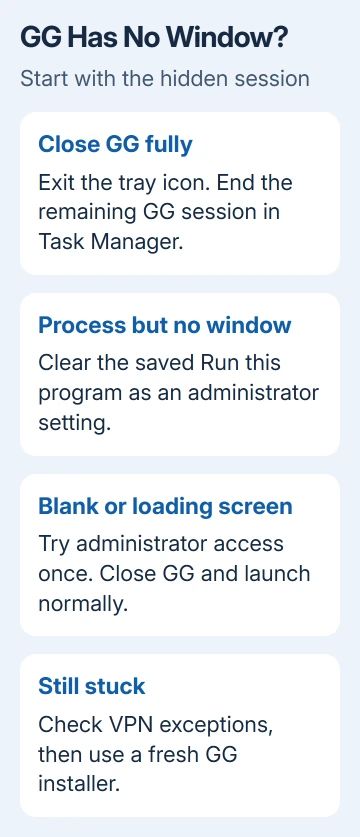
Check the notification area at the right of the Windows 11 taskbar, including its hidden icons. Right-click the SteelSeries GG icon if present and use its exit command. Closing the window alone may leave GG running.
Press Ctrl+Shift+Esc to open Task Manager. Select Processes, find SteelSeries GG or its GG process group, and choose End task. Check that the GG session has disappeared from the list before opening it again.
SteelSeries explains in its GG launch instructions why Task Manager matters even without a visible taskbar icon. GG can still be running after its window closes.
Open Start, search for SteelSeries GG, and launch it once. Wait to see whether its window appears rather than repeatedly clicking the shortcut and starting more attempts.
If this brings the interface back, use GG normally and check whether the same symptom returns after the next sign-in. A one-time stuck session doesn't call for removing Windows drivers or resetting the headset or keyboard.
If the mouse or keyboard itself won't connect even after GG opens, use the SteelSeries mouse connection checks. A repaired GG window doesn't automatically repair wireless pairing.
2. Remove a permanent administrator setting
Use this check when GG appears in Task Manager but never opens a usable window. The vendor has a separate background-process fix that removes forced administrator mode.
Close GG completely again. Open File Explorer and locate C:\Program Files\SteelSeries\GG\SteelSeriesGG.exe. Right-click the file and select Properties, then open the Compatibility tab.
Clear Run this program as an administrator if it's selected, choose Apply, and close the dialog. Launch GG normally from Start. This stops Windows from giving GG extra permission every time it starts.
If that box is already clear, leave it clear. A GG process with no window doesn't need a new compatibility setting. Continue if it remains stuck.
A shortcut can have its own launch options, so use the executable's Properties for this check. Have IT handle changes requiring administrator approval on an employer-managed computer.
GG should now open its interface without asking for administrator permission. Once it works, avoid adding Windows compatibility modes or permanent administrator settings as extra precautions. GG is already opening correctly.
3. Try administrator access once for the blank launch
For the blank screen, loading circle or general failure to open, the other supported procedure is a one-time administrator launch. This differs from leaving the Compatibility checkbox enabled permanently.
End the GG session in Task Manager, then search for SteelSeries GG in Start. Right-click the result and select Run as administrator. Approve the Windows prompt after checking that the request names your installed GG app.
After that attempt, close GG completely again, including its background session. Open it normally from Start and check whether its window appears. That normal launch is part of the fix, so don't stop after the administrator launch.
I'd keep those two administrator checks separate. One removes a saved setting when GG runs without a window; the other gives it extra permission once. Leaving administrator mode on combines advice meant for different symptoms.
If neither changes the result, record which screen you still get. A blank panel, spinning circle or missing window gives support more useful information than simply reporting a broken app.
4. Check a VPN before reinstalling everything
A VPN can interfere with GG launching even when the VPN's main window isn't open. If you use one, check its app exceptions for SteelSeriesGG.exe, SteelSeriesGGClient.exe and SteelSeriesGGEZClient.exe in the GG installation folder.
Check all three program files. Allowing just the app that shows the window can leave another part of GG blocked. Use the VPN maker's instructions for its exception list rather than changing unrelated Windows security controls.
If the exceptions don't help, the clean-install instructions call for completely removing the VPN and reinstalling GG. Simply disconnecting a VPN isn't the same test as uninstalling its software.
Before removing a required work VPN, ask IT. If it's your own VPN, keep its installer and sign-in details ready for reinstallation. After GG works, reinstalling the VPN may bring the problem back, so check GG again afterward.
If you don't have a VPN installed, skip its removal entirely. Continue with a fresh GG installer; searching for a VPN that isn't there won't explain a damaged or incomplete GG installation.
5. Reinstall GG from a fresh installer
Close GG, then open Control Panel > Programs > Programs and Features. Select SteelSeries GG and uninstall it. Restart the PC when that finishes, rather than immediately running another copy of an old installer.
Delete the old GG installer files you downloaded previously, then get the current Windows version from the GG download page. Keep your personal recordings and other files when you delete the old installer.
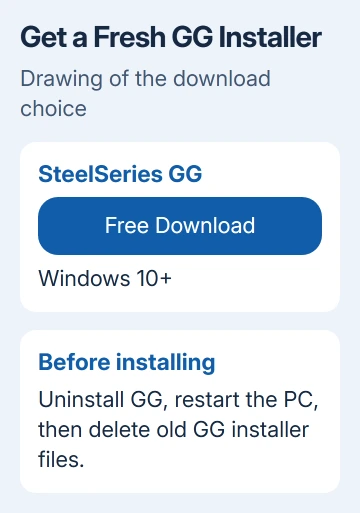
Install the fresh download. The clean-install procedure includes running GG as administrator afterward; use the one-time method already described, then return to a normal launch. Don't turn that into a permanent Compatibility setting.
If GG opens but a connected device remains missing, check the actual USB connection next. The Apex Pro Mini USB guide separates a cable or port problem from an app that won't start.
If a clean install still leaves GG stuck, submit a ticket through SteelSeries Support. List the Windows and GG versions, your VPN, and the result of each administrator-setting check.
The Short Version
End GG's hidden session. Clear the permanent administrator setting when GG runs without a window, or try Run as administrator once for a blank or stalled app. Check VPN interference before reinstalling from a fresh download.
Checked November 13, 2026.