Motorola screenshots normally go into Pictures/Screenshots. To put saved captures in another folder, move them with Files by Google. That organizes existing images; it doesn't redirect the next screenshot to the folder you selected.
To change where future screenshots go automatically, check the screenshot options for your exact Motorola model. A file manager's Move to command changes a saved file's location, not the screenshot tool's settings.
In this guide
Find a saved capture before moving anything
Open Photos > Collections > Screenshots on current Photos layouts. Earlier layouts can use Library > Screenshots. Older Motorola phones with a separate Gallery app can use Gallery > Folders > Screenshots instead.

Those views help you recognize the picture, but check its storage location in a file manager. A Photos collection isn't the same as a folder on your phone, especially when Photos also shows backed-up pictures.
Open Files by Google, select Images under its categories and locate the capture. If necessary, open Internal storage, then Pictures > Screenshots. Choose the image you recognize rather than a similarly named downloaded picture.
For an image shown in a grid, press and hold it, open its three-dot menu, then tap File info. In list view, open the three-dot menu beside the file and select File info. Check the location shown there.
Motorola's photo-location instructions list Pictures/Screenshots for screen captures. File info is useful when your phone, app or previously moved file uses a different location.
If the image was never captured, use the Motorola screenshot controls first. Moving a folder won't recover a capture that the phone didn't save.
Move one screenshot to an existing folder
In Files by Google, find the screenshot through Images or its storage folder. In grid view, hold the image to select it, then open More > Move to. In list view, use More > Move to beside that image.
Select Internal storage, open the destination folder and tap Move here. Choose a destination you'll recognize afterward, such as a work or receipts folder you've already created, rather than an unfamiliar system directory.
Google explains both category and storage-device routes in its file-moving steps. How you select the file depends on the view you started in, but you choose its destination the same way.
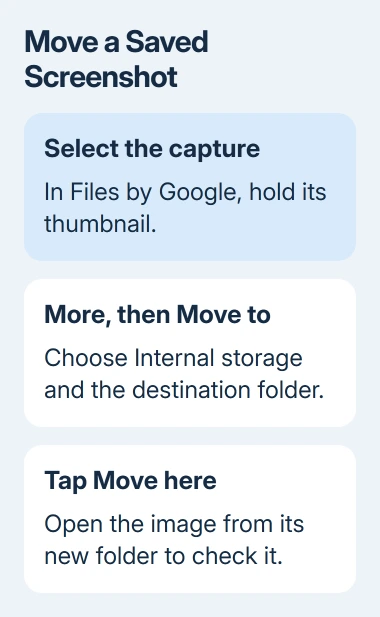
Open that destination in Files and tap the image to confirm it opens. Check File info again if the folder name isn't clear. You'll be able to confirm that your screenshot is where you wanted it.
The original folder no longer contains that moved file. To keep the original too, choose the copy option instead, when it's offered. Moving and copying produce different results even when the destination is identical.
I'd move one unimportant capture first. Once you've opened it from the destination, you'll know how the controls work before selecting a large set of screenshots.
Select several captures without moving everything
In the image grid, hold one screenshot, then tap the selection circles for the other captures you want to move. Review the selected thumbnails before opening the menu. A category can contain pictures that aren't screenshots.
Use the top-right More > Move to control for the selected group. Choose the storage location and folder, then tap Move here. Let the move finish, then leave the file manager.
In list view, open More beside a file and use the selection circles to add the other images you want. The group menu applies to the selected files, so check that selection rather than relying on the folder's name.
To keep screenshots organized, group them by purpose or date in folders with names you'll recognize. You don't need to rename the phone's original screenshot directory to organize its contents.
After moving the group, inspect a few images in the destination, including the oldest and newest selected captures. If something appears missing, check the source folder and the selected group before moving a second batch.
Use an SD card when the phone supports one
To move screenshots to an SD card, your phone must support one and recognize the inserted card. In Files by Google, check whether SD card is listed under Storage devices before planning to move images there.
Find the screenshots, select the intended files, then use More > Move to or Copy to. Choose SD card and open the destination folder. Tap Move here or Copy here, matching the option you chose.
When the destination picker offers Add new folder, enter a descriptive name and finish the move or copy into that folder. That gives these files their own folder; it doesn't change where future screenshots are saved.
Keep important images copied elsewhere before relying on a removable card as their only location. If the card isn't detected, check whether the phone recognizes it in Settings before attempting another file transfer.
Some cards are set up as internal storage, which can change how they appear in Files. Check your phone's storage instructions for that setup rather than formatting the card to make a separate SD-card entry appear.
Check what happens to the next screenshot
Take a harmless test capture after the move and locate it in Files. Read File info to confirm its location. Moving the earlier images didn't change the screenshot setting, so this new capture won't follow them to the destination folder.
If the real aim is finding captures faster, keep using Photos' Screenshots collection or the known storage path. A folder shortcut or a clearer organization routine can solve that need without changing the capture system.
If the aim is saving room on the phone, moving images between two internal folders doesn't create more free space. A supported SD-card transfer or removing unneeded copies addresses storage instead.
For downloaded pictures, use the Android download-location steps. A browser download and a screenshot can look similar in Photos while belonging to different folders.
Ask Motorola Support whether your model and Android release offer a default screenshot-folder option. Make clear that you're asking about screenshots. The Camera app's photo destination is a separate setting.
The Short Version
Check Pictures/Screenshots and confirm the file location. Use Files by Google's Move to command to organize saved captures, then open them in the destination. A move doesn't change the default folder for the next screenshot.
Checked November 13, 2026.