Downloading apps on a Samsung phone starts in Play Store: search for the app, open its listing, and tap Install. Use Galaxy Store for Samsung apps or another app offered there, with your Samsung account instead of your Google account.
A free app doesn't need a purchase, though it may offer paid extras after installation. If the listing says Open, it's already installed; if it says Update, you can update the copy on your phone.
In this guide
Find the right app store on your Galaxy
Open the Apps screen by swiping upward on Home. Look for Play Store, sometimes inside a Google folder. Look for Galaxy Store on the Apps screen or inside the Samsung folder.
The two stores use separate accounts and purchase histories. Play Store requires a Google account; Galaxy Store requires a Samsung account. Signing in to one store doesn't sign you in to the other or give it access to your purchases.
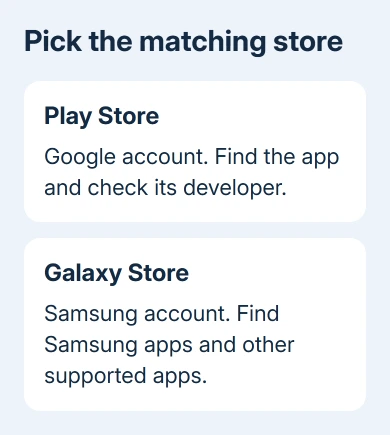
Samsung's app-management instructions cover both stores. Store layout and some labels vary with the Galaxy model, software and region, but downloading begins from the app's own listing.
If a store isn't visible, use the Apps screen's search box to find it. Searching the phone is different from typing an app's name into a web browser, which can return advertisements and unrelated download pages.
Download an app from Google Play
Open Play Store and enter your Google account details if prompted. Use the account you want to keep your apps and purchases on, particularly with personal and work accounts on the same phone.
- Open the store's Search tab or search field, depending on its layout.
- Type the app's name and run the search.
- Tap the listing and check the developer's name and description.
- Choose Install, or its price if payment is required.
- Wait for downloading and installation to finish, then tap Open.
Check the developer before installing. Similar names and icons can belong to different apps. A bank, school or employer can provide the correct app name and developer if the search results leave you unsure which listing is theirs.
An app showing a price needs a purchase confirmation. Review the price and account before approving it. Free downloads can still include subscriptions or in-app purchases. The Install button doesn't promise free access to every feature.
Google's download instructions explain that purchases are attached to your Google account. Use the account you'll want to sign in to when you download your purchases again.
Once installation finishes, the app is available on the phone's Apps screen. Open it and complete its own setup. Store sign-in doesn't necessarily sign you in to the service inside the app, such as your bank or streaming account.
Use Galaxy Store for its apps
Open Galaxy Store, then enter your Samsung account details if prompted. Search for the app, open its listing, and choose Install or its download control. Follow any purchase prompt only after checking the price.
Galaxy Store offers apps made for Samsung devices as well as other apps. Its selection differs from Google Play. Follow a developer's chosen store link instead of assuming both stores carry the same edition.
Wait until its download completes, then choose Open. Afterward, look on the Apps screen if it doesn't appear on your Home screen. Installation and adding a Home screen shortcut are separate actions.
To add a shortcut, hold your finger on its Apps screen icon and choose Add to Home when offered. That puts an entry on the Home screen; it doesn't download another copy or create a separate account.
Bring back an app you used before
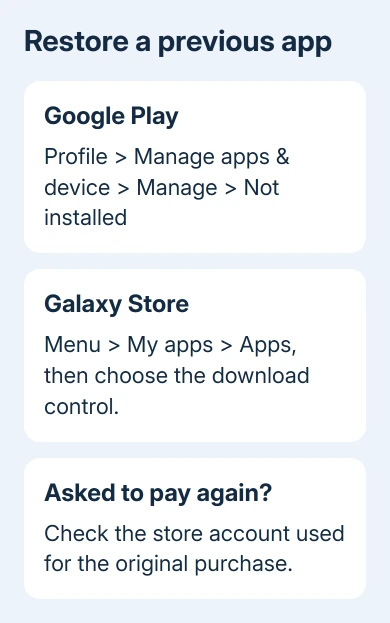
For a previous Google Play app, tap the profile icon > Manage apps & device > Manage. Open the Installed filter and choose Not installed, then select the missing app and install it again.
If a paid app requests payment again, open the profile menu and check its account. Select the address that bought it. Purchases don't move between Google accounts simply because both accounts are on the phone.
For a Galaxy Store app, open Galaxy Store > Menu > My apps. Find it under Apps and use the download control. Use the Samsung account you first downloaded it with, including when you're moving to another Galaxy.
A reinstalled app may need its own sign-in to recover your information. Check its account or backup options for missing content. Reinstalling doesn't automatically recover data stored only on the previous phone.
Handle a missing Install button or a stalled download
An app may not support your phone or be available in your country. Parental controls can also block it. A button to register for a future release isn't an immediate download either. Read the listing's message before changing settings.
For a child's account, ask the family organizer whether the download needs approval. For a managed work phone, ask IT whether the app is allowed. These restrictions aren't fixed by repeatedly restarting an otherwise working store.
If downloads stay Pending, check that the phone can load another page over its current connection. Reconnect to working Wi-Fi, reopen the store, and retry. A Wi-Fi symbol alone doesn't confirm that the connection reaches the internet.
Next check Settings > Device care > Storage. Some Galaxy versions call this Battery and device care. Remove unwanted files to free some space, then retry; the phone needs space to install the download as well as store it.
Close and reopen Play Store. If it stays stuck, restart your Galaxy and try the same app again. I'd check whether another small free app downloads before changing anything more involved.
If several downloads still fail, use Settings > Apps > Google Play Store > Storage > Clear cache. The Samsung cache instructions explain the neighboring Clear data control, which resets more than temporary files.
For one failing app, use its listing's developer support contact. For failures across apps, open Play Store's Help & feedback or use Samsung Members. Include the phone model and exact download error.
The Short Version
Open Play Store or Galaxy Store, check the app and developer, then install it. Use the original store account to recover purchases. For stuck downloads, check connection and storage before restarting or clearing the store's cache.
Checked November 13, 2026.