DaVinci Resolve can stop opening when a graphics driver or saved device setting no longer works. Restart Windows first, then check whether Resolve stops before its opening screen, during device loading, or only after you select a project.
Choose the repair that matches the point where it stops.
If this started after you changed audio hardware, check that device's driver too. It can stop Resolve from opening even when other programs still play sound.
In this guide
1. Restart Windows and watch where Resolve stops
Save work in other apps, then choose Start > Power > Restart. Open Resolve once after signing back in. Repeatedly clicking its shortcut can leave you waiting on an existing process rather than starting a fresh attempt.
Press Ctrl + Shift + Esc to open Task Manager. Look for DaVinci Resolve under Processes. If it remains after the window has closed, select it and choose End task, then try opening the editor again.
Ending a process loses unsaved work in that process. Don't do this while Resolve is still saving a project or rendering in another window.
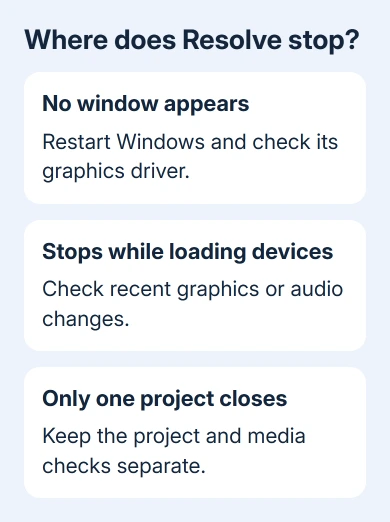
Note the last words on the opening screen if it appears. Device loading, a plug-in name, and a project opening are useful details to give support. A screenshot of the error is better than remembering that it mentioned graphics.
If Windows itself restarts or displays a blue screen, use the PC restart checks. A whole-computer crash needs a different explanation from one editor closing.
2. Check the graphics driver before reinstalling Resolve
Right-click Start > Device Manager, then expand Display adapters. Write down every graphics device listed.
Some laptops list both an integrated GPU and a dedicated NVIDIA or AMD chip. The sticker on your laptop might name only one of them.
Open each adapter's Properties > Driver tab and note its version. A warning symbol or Microsoft Basic Display Adapter entry is a reason to repair the driver before changing Resolve's project settings.
Choose a driver package that matches your GPU and laptop model, supplied by the laptop or graphics manufacturer. Install it, restart Windows, and test Resolve. The driver update instructions also cover using Device Manager.
When Resolve stopped launching right after you changed drivers, open Properties > Driver > Roll Back Driver. Complete the rollback prompts, then reboot.
A grayed button means Windows doesn't have that previous driver available through this control.
I'd try the normal installer before a driver-removal utility. It makes a smaller change and gives you a clearer result. Avoid downloading individual DLL files to replace files inside Windows or the Resolve installation.
Check the release notes supplied with your installed Resolve version against the GPU, memory and Windows requirements. An older release's requirements won't tell you whether your computer supports the version you're installing.
3. Revisit audio hardware if startup broke after a change
Disconnect a recently added USB audio interface or control surface while Resolve is closed. Leave your usual keyboard and mouse connected. Try starting the editor without that accessory, then reconnect it after closing the program again.
If this changes the result, check the accessory maker's driver for Windows 11. An interface that works through Windows audio can still fail when an application tries to load its separate ASIO driver, used for low-delay audio.
One owner restored startup after changing audio settings by resetting Resolve's saved preferences, then fixed the underlying problem by updating the audio device driver.
Start with the audio driver if your startup trouble began after an audio change.
Open Device Manager > Sound, video and game controllers to identify the interface. Get its driver from the manufacturer, install it with the interface connected or disconnected as its instructions require, and restart before testing again.
If ordinary Windows sound is broken too, the microphone and audio-device checks can help identify a missing or incorrectly selected input. If Windows audio is fine, focus on the device selected in Resolve.
4. Try fresh preferences without deleting the old copy
Use this when startup failed after a settings change, particularly an audio change that you can't undo because the editor won't open. Close Resolve and check Task Manager first so its files aren't still in use.
Press Windows + R, enter the following folder path, and press Enter:
%AppData%\Blackmagic Design\DaVinci ResolveFind Preferences and rename it Preferences.saved. Choose another unused name if that already exists. Open Resolve so it can create fresh settings.
Renaming the folder lets you try the preference reset that worked for that owner and keep your original settings.
Leave your project libraries, media and other Blackmagic folders alone. This step changes preferences; it isn't a reason to delete an entire application-data folder or assume every project has a separate backup.
If the editor opens, review its device settings before continuing your work. If the test makes no difference, close Resolve, move the newly created Preferences folder aside, and give the saved folder its original name.
5. Treat a one-project crash separately
An editor that reaches Project Manager has started successfully. Try a new empty project before changing more system settings. If that opens but one existing project closes the app, record that difference for support.
Think about what you changed in that project: newly added footage, a third-party effect, or an update to a plug-in. Check that plug-in's compatibility with your Resolve version before removing and reinstalling the whole editor.
Back up the project library before any repair that changes its files. If the editor closes before you can export, ask support how to save a copy of that library before deleting any folders.
If no project opens, return to the driver and startup details. If only one fails, include its name and last working version in the support request. Describe exactly what you do just before it closes.
6. Give Blackmagic the details needed for a startup repair
Open Blackmagic Design's Support Center and choose DaVinci Resolve and Fusion. Use the support forum or the contact option listed for your product.
Give them your exact Resolve version, whether it's free or Studio, your Windows build and both graphics devices.
Include driver versions, any audio interface, the final startup message and whether fresh preferences changed the result. Say whether Project Manager appears. Ask for the startup-log collection instructions for your installed version.
The Short Version
Restart Windows, repair a mismatched graphics driver, and check audio hardware when the failure followed an audio change. Save the old Preferences folder before testing fresh settings.
A crash limited to one project needs project-specific help.
Checked November 13, 2026.