Delete an Android app's cache in Settings > Apps: choose the app, open its storage controls and tap Clear cache. That removes the app's temporary files. Leave Clear storage or Clear data alone; those reset saved app data.
Pixel and Samsung Galaxy phones use slightly different labels. Chrome also has its own control for cached webpages, which lets you choose browser cache without deleting other browsing information.
In this guide
Choose an app with space to recover
Open Settings > Storage to see what is taking up room. On a Pixel, tap a category for more detail. Start with an app you use a lot, or one with a large cache shown on its storage screen, rather than opening every installed app.
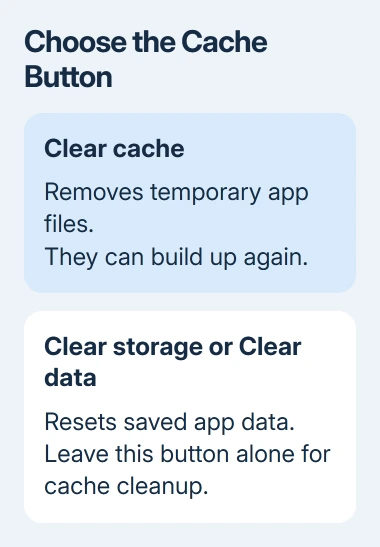
A cache is data the app keeps to avoid downloading or building the same things again. Images and other temporary content can accumulate as you use it. Clearing those files can recover storage, but the app can create them again.
Google explains the difference between cache and app data in its Android storage guidance. It also notes that an app can be slower the next time it opens after clearing its cache because it needs to load that material again.
Look at the storage breakdown before tapping anything. App size, User data and Cache describe different parts of the total. A large total doesn't necessarily mean there is a large cache available to delete.
If the cache is small but downloaded videos occupy most of the phone, this button won't solve the storage shortage. Keep that distinction in mind when checking the result, so you don't keep clearing the same small amount.
Remove temporary app files on a Pixel
Open Settings > Apps > See all apps. Select the app, then tap Storage & cache. Check the Cache amount and tap Clear cache, leaving Clear storage untouched.
Return to the app and open the screen you normally use. It can take longer to load the first time, especially if it needs to download content again. A brief delay at that point isn't a reason to repeat the cleanup immediately.
Go back to the app's storage screen to compare the storage amounts. The cache should be reduced, though some files can return as soon as you open the app. Compare the amounts, but don't expect the cache to stay empty forever.
These steps are the Pixel route. Other Android makers can call the page Storage, Storage usage, or something similar. Open your chosen app's information page, then select its cache control.
When the phone doesn't show the same labels, search Settings for the app or for Apps. Check that model's help instructions instead of choosing an unrelated reset button.
Use the Galaxy storage screen
On a Samsung Galaxy phone, open Settings > Apps and find the app. Tap Storage, then Clear cache. The Clear data button on that page has a different purpose and isn't required to remove temporary files.

Check that you're working on the right app, particularly when two installed apps have similar names. Return to its main screen afterward and confirm it still opens normally. The cleanup doesn't require uninstalling the app.
Samsung's Device care tools can also review storage and background activity. They do a different job from clearing one app's cache. Use that app's Storage page when you want to remove its temporary files.
Some system apps have fewer available controls. Don't choose a bigger reset just because the cache button is missing or grayed out. Check the maker's help for that app before changing system-service data.
I'd clean the app with the biggest relevant cache first, then check free space again. Working through every small app adds effort without necessarily recovering much room.
Delete Chrome's cached webpages separately
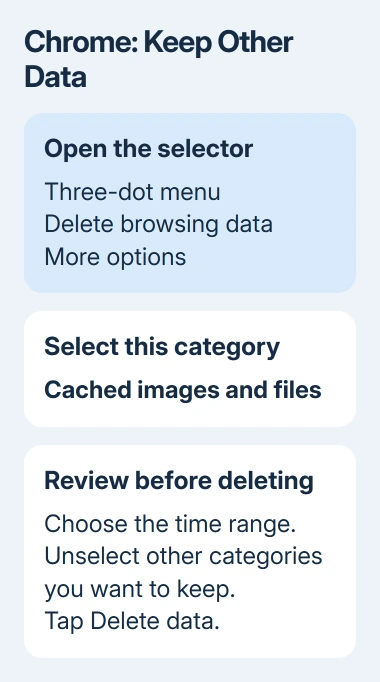
In Chrome on Android, tap the three-dot menu > Delete browsing data. Tap More options to choose the types of information to remove. Review the time range as well as the selected categories before continuing.
Select Cached images and files. Clear the selections for categories you want to keep, such as browsing history, cookies, saved passwords and autofill data, when those choices are shown. Then tap Delete data.
The quick deletion dialog can have a short time range selected already. Set it to All time to clear the entire browser cache, including older cached material. Chrome only removes cached material within the time range you choose.
Open a familiar webpage afterward. Images and other page content can load again from the internet. Leave cookies unselected to keep the site sign-in information stored there.
Chrome's browsing-data menu is separate from Android's app storage screen. Use Chrome's menu to clear webpage cache so you can see which categories you're deleting. Android's Clear storage button isn't needed for this job.
Decide whether more cleanup is needed
Check free storage after removing the cache. Stop if you've recovered the room needed for the download or update you were trying to complete. Cache cleanup doesn't need to become a daily task.
For a phone that's still nearly full, review saved downloads, unused apps and large media files. Remove an offline movie or music download through the app that saved it, where you can identify exactly what you're deleting.
Keep a copy of personal files you need before removing them. Clearing app cache doesn't require erasing your photo library, and a factory reset is far too large a step for ordinary cache cleanup.
For an app that keeps closing rather than a storage shortage, follow the Android app-crash checks. A fresh cache can help some app problems, but repeated crashes need the rest of that troubleshooting path.
If the whole phone is slow, use the Android performance checks after checking space. More than one cause can make a phone sluggish, so don't judge every delay by the cache total.
When a particular app repeatedly fills storage or stops opening after cleanup, update it through Google Play and contact its developer through the app's Play listing. Include your phone model, Android version and the affected app screen.
The Short Version
Use Clear cache on the chosen app's storage screen. For Chrome webpages, pick Cached images and files in Delete browsing data. Check how much space you've recovered before removing anything else, and leave saved app data alone.
Checked November 13, 2026.