

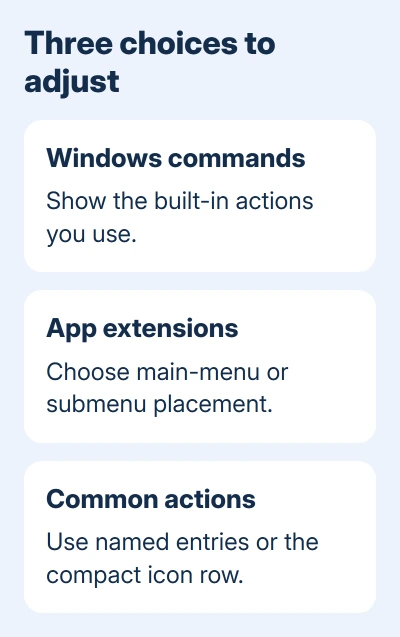
Windows 11's updated right-click menu has built-in customization controls. On PCs with the feature, right-click a file or folder and choose Customize menu to change commands, app extensions, and common actions.
If that command isn't there, the feature may not have reached your PC yet. The older menu still has Show more options for extra commands, without that newer settings page.
In this guide
Find the customization page your PC supports
Open File Explorer, right-click a file or folder, and look for Customize menu at the end of the menu. Choose it to open the settings for that menu. The page also sits under Settings > Personalization > Context menu on supported PCs.
Microsoft's October 28, 2026 update notes describe the updated menu as a gradual rollout for Windows 11 versions 25H2 and 26H2. Two PCs with the update installed can still get the feature at different times.
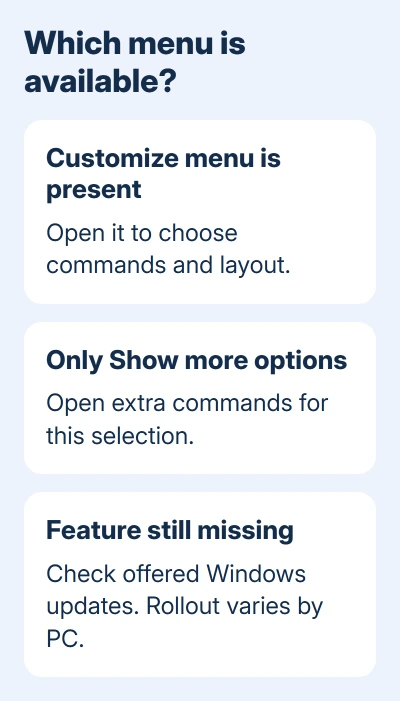
If Customize menu is missing, open Settings > Windows Update and select Check for updates. Apply your offered updates and any requested restart, then inspect a file's menu again.
Don't assume a missing page means Windows is damaged. A staged release can leave two updated PCs with different features for a while. On a managed PC, your organization also decides when its approved updates are installed.
The menu depends on what you right-click. A desktop background, a folder, an image, and a selected group of files don't all support the same actions. Use the same kind of item before and after a change so the comparison makes sense.
Choose which built-in commands appear
On the new Context menu page, look at the built-in Windows commands. Turn on the commands you actually use, such as Send to, Create shortcut, or Print, and turn off ones that add clutter to your routine.
After changing an option, reopen the right-click menu in File Explorer. A menu that's already open won't show you whether the change worked. Check a file that supports the command you enabled.
For example, turning on Print lets Windows show that command; it doesn't give every file type an app that can print it. A file still needs an application that supports the requested action.
If Print is missing only for PDFs, use the PDF right-click Print checks to examine the associated app. Changing a global menu preference won't add a printing command that the app doesn't provide.
I'd begin with one command you use every day. Once its position feels right, change another. This gives you time to judge the menu before moving several familiar controls at once.
Put app extensions in the main menu or a submenu
An app extension is an action another program adds to File Explorer, such as an archive tool's extraction command. The new page lets you choose which app extensions appear in the main menu and which stay in a submenu.
Keep frequent actions in the main menu and move occasional ones into the submenu. There is also an option to hide the app-extensions submenu. Hiding an entry removes that way of reaching the command. It doesn't uninstall the app.
Reopen the menu on a file the app handles. An extraction command belongs on an archive, for example, while a photo editor's actions can depend on image files. An entry absent for one file type isn't automatically broken.
If an app never appears, check its own integration setting and updates. Some programs still add their commands to the older extended menu. Their presence there doesn't mean the app's installation failed.
For the archive tool specifically, the 7-Zip menu guide separates its integration setting from the old-versus-new menu issue. Use those app-specific checks before reinstalling several unrelated programs.
Replace the icon row with named commands
The updated page also controls where common commands live. Choose the option to display Cut, Copy, Paste, Rename, Delete, and Share as entries in the menu instead of the compact row of icons.
This is useful when the small symbols slow you down or you prefer reading an action's name. This changes how the commands look. A command can still be unavailable when it doesn't work with the selected item.
There is a separate option to move Properties to the bottom. Use that if your routine is to right-click a file and finish by opening its details. Check its new position on the next menu you open.
These layout choices bring back familiar parts of older Windows menus without requiring the entire old menu. The controls are separate, so you can keep the icon row and move Properties, or use named commands while keeping other defaults.
If the menu becomes harder to scan, reopen that settings page and reverse your individual choices. Note which setting you changed rather than searching for a registry file to reset every part of File Explorer.
Reach extra commands on an older Windows 11 menu
On a PC without the customization page, right-click the item and select Show more options. The extended menu exposes commands that haven't joined the streamlined Windows 11 menu.
This opens another menu for that selection. It doesn't permanently change the first menu or move all app commands into it. Open the extended menu whenever you need one of its additional actions.
If an action exists in neither menu, look in the app's own settings for Explorer integration. Check the developer's current Windows 11 instructions, since the app decides which commands it adds and which file types they work with.
Advice based on older Windows 11 releases may claim that built-in customization is impossible. The October 2026 rollout changes that answer for supported PCs. Check the actual Customize menu command before trying an older workaround.
When a menu setting doesn't produce the expected result
Check whether the issue affects every file or one file type, and whether the entry comes from Windows or another application. Use those details to decide between checking Windows settings and checking the app.
For a Windows layout option that doesn't stick, send Feedback Hub the Windows version, update history, and the specific toggle that resets. On a work PC, report those details to IT rather than forcing another update channel.
For one app's missing command, tell its developer which app version is installed and which menu contains the entry. That gives them a concrete integration problem to reproduce, so they can check that command on the same kind of file.
The Short Version
Choose Customize menu on supported Windows 11 PCs to adjust built-in commands, app extensions, named actions, and Properties. If that command hasn't arrived, use Show more options and check your offered Windows updates.
Checked November 15, 2026.
 If you have any business, I can build it online






