Wi-Fi carries data by radio between your device and a nearby router or access point. The router then passes internet traffic to your provider's connection, which is why full Wi-Fi bars can appear even when websites won't load.
Follow those two parts separately: first join the intended wireless network from the laptop or phone, then check whether that network can reach the internet.
This makes weak reception, a wrong password and an internet outage much easier to tell apart.
In this guide
Follow a page from your device to the internet
Opening a website starts a two-way exchange. Your laptop sends requests through its Wi-Fi adapter to the router, and replies travel back through the router to the laptop. The radio connection replaces the cable for this part of the journey.
The router connects devices on your home network and directs traffic between that network and the internet. A modem or fiber terminal connects to the provider's service.
Some homes have separate boxes; others have a combined modem and router.
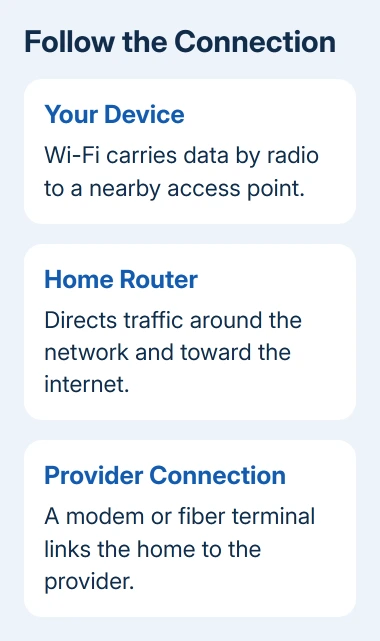
A Wi-Fi access point provides wireless access to a network. It may be built into the router or provided by another unit.
A mesh system uses several units that work together to spread coverage. They share the internet connection rather than needing a separate subscription for each room.
Those roles explain a common screen message. Connected, no internet means joining the local network succeeded, but the device hasn't confirmed a working internet connection.
Entering the same correct Wi-Fi password again won't repair a provider outage.
Microsoft's wireless network setup instructions describe the equipment and radio connection.
Check which box supplies Wi-Fi in your home before moving or restarting equipment.
Join the network that belongs to your router
Start with the network name printed on the router or supplied by the person who manages it. That name is also called the SSID. A neighbor's network can have a stronger signal while still being the wrong network for your device.
In Windows 11, click the network and volume icon group on the taskbar. Open the Wi-Fi network list beside the Wi-Fi control, select your network and choose Connect. Enter its wireless password when asked.
Windows 10 puts the available networks behind the taskbar's network icon. Select the network, choose Connect and enter its password.
On an iPhone, open Settings > Wi-Fi; on Android, open the Wi-Fi list in your device's network settings.
Your network should show as connected after joining. A password error means the device hasn't been allowed to join yet. Check the spelling and network name before changing router settings or asking the provider to repair the line.
The Wi-Fi password lets a device join the wireless network. The router's administrator password lets someone change router settings. These are separate passwords; the phone may need a different one from the router's sign-in password.
For a new home setup rather than a device joining an existing network, use the router maker's setup process. Leave provider-specific internet settings as supplied unless the provider tells you to change them.
Use signal bars to check the nearby radio connection
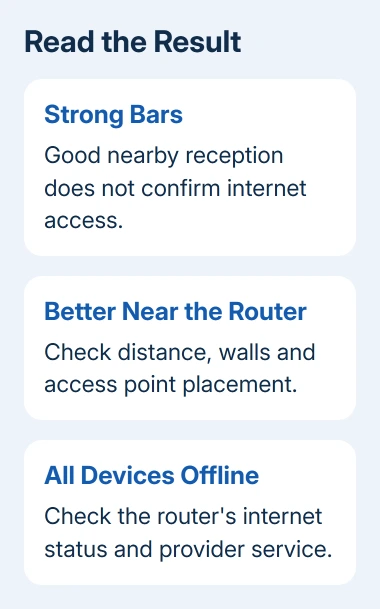
Wi-Fi bars describe reception between the device and its access point. They don't report the speed of your internet plan or confirm that the provider is online. Strong bars and slow downloads can happen at the same time.
Move the same device closer to the main router and try the same task. If the connection improves there but falls apart in the usual room, check the distance, walls and position of any mesh point.
Keep the router out in the open where its signal can reach the rooms you use. A radio signal has to reach the device through the house. Placing the router behind obstacles can make a fast internet plan feel slow at the laptop.
For that room-by-room problem, the weak Wi-Fi signal guide explains the next checks. If every room behaves the same way, compare another device before buying an extender.
A mesh point also needs a good connection back into the network. Putting it at the far end of a dead area can leave it struggling to communicate with the rest of the system. Follow the maker's placement check when positioning it.
Understand bands before choosing a different network
Wi-Fi uses radio bands such as 2.4 GHz, 5 GHz and, on compatible equipment, 6 GHz. Both the access point and the device must support a band to use it. An older laptop can't gain 6 GHz by changing its network name.
A 2.4 GHz signal generally travels farther, while 5 GHz can provide faster connections over a shorter useful distance. Walls and interference affect the result, so the band with the higher number isn't automatically better in every room.
Some routers broadcast separate names for their bands. Others use one name and steer devices automatically. Several bands can share that name, so you don't need to see a separate 5 GHz network for it to be working.
If your router already provides separate bands, compare them from the same location using the same device and task. Keep the one that works reliably there. Don't rename an entire household network just to make this comparison.
The Wi-Fi generation, such as Wi-Fi 6, describes a set of wireless capabilities. That generation number doesn't identify the 6 GHz band, and neither tells you the speed your provider supplies.
Check which bands and Wi-Fi generations both your router and your device support.
Separate slow Wi-Fi from slow internet
A speed test on a wireless laptop measures the whole route it uses, including Wi-Fi and the provider connection. A low result on its own can't tell you which part is slowing things down.
Repeat the same task on another device connected to that network. If only one device struggles, check that device's connection and software. If both struggle only in a distant room, return to reception and placement.
If devices struggle even near the router, look for a reported provider outage and read the router's internet status.
If your setup supports it, try the same task on a computer connected by Ethernet cable. That lets you compare results without Wi-Fi as part of that computer's connection.
The connected but no internet checks take that result further. At a hotel or cafe, also finish the network's welcome or sign-in page; joining its Wi-Fi isn't always the final access step.
Heavy downloads and several devices using the connection at once can also affect performance. Compare a normal task when that traffic has stopped. A router can't create more provider bandwidth simply because the Wi-Fi signal is strong.
If all devices lose internet while staying connected to Wi-Fi, contact your provider and report that exact result.
If the same laptop fails on several networks that work for other devices, contact its maker, name the model and describe what happens when you connect.
The Short Version
Wi-Fi connects your device to a nearby network by radio; the provider supplies the route from that network to the internet. Join the correct network, compare reception beside the router and repeat with another device.
Full bars don't rule out an internet outage.
Checked November 15, 2026.
 If you have any business, I can build it online