

Google Lens can search an object, image, or text directly from a Chrome tab. On a computer, open the three-dot menu, choose Search this tab with Google Lens, then select what you want to look up.
Results open beside the page, so you don't need to save the picture first. The controls differ between Android and iPhone. Use the section for your phone after the computer steps.
In this guide
Search part of the current tab on a computer
Open the webpage containing the object or text you want to search. On Windows or Mac, use Chrome's three-dot menu and choose Search this tab with Google Lens. You can also right-click the page to find that command.
Click the object, highlight text, or drag around whatever you want Lens to search on the page. For example, select a lamp in a room picture instead of including the sofa and wall decorations in the same search.
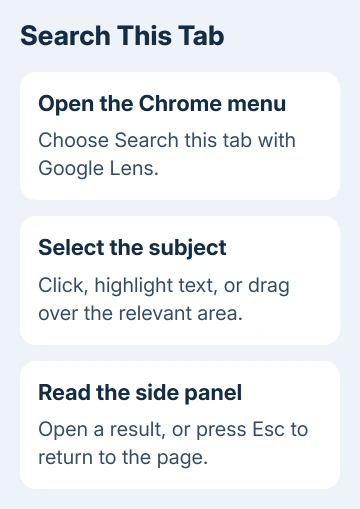
Results appear in a side panel. Select a result to open it in a new tab. To return to ordinary browsing, press Esc, select Close in the panel, or click the live page area.
To search a whole picture, right-click it and choose Search with Google Lens. Some versions say Search this image with Google Lens. This is quicker when you want to search everything in the image.
I'd start by selecting just the subject rather than the full page. That gives Lens less to sort through and makes it easier to judge whether the results match what you're looking for.
Google's steps for Chrome Lens require Google to be your default search engine on desktop. Check that setting if the command is missing.
Ask a question about the selected content
After opening Lens, use the search box or side panel to ask about the page. A useful question names what you need, such as the material of a selected object or the meaning of text in a picture.
Keep the question connected to the selection. If the results identify the wrong object, change the selected area before adding more words. Extra detail won't help much when Lens is looking at the wrong part of the page.
Desktop Chrome also offers Ask Google about this page in the address bar. Select the address bar to look for it. It can appear automatically on certain pages. If it isn't there, you can still use the menu command.
The Ask a follow up field near the bottom of the results panel opens AI Mode. Use it to continue searching if you want; the initial image search works without it.
Open the result's page when the details matter. A similar-looking product photo doesn't tell you its exact model, measurements, or compatibility. Use Lens to find the page, then check those details there.
Use Google Lens in Chrome on Android
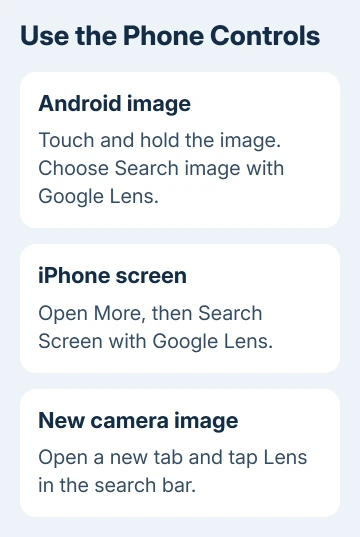
For a website picture, load its page in Chrome. Touch and hold that image, then tap Search image with Google Lens in the menu. This searches the picture without saving a copy first.
To search something in front of you, open a new Chrome tab and tap the Lens icon in the search bar. Choose Search with your camera, point the camera at the subject, and tap the shutter control.
For a saved photo or screenshot, open Lens from that same search-bar control and pick the existing file. Choose the image that contains the subject clearly, rather than a thumbnail with tiny details.
After choosing the image, add search terms or a question to narrow the result. A word describing the part you're looking for can help distinguish a whole product from an accessory shown beside it.
Some Android devices also offer Circle to Search, a phone feature you can use outside Chrome. It isn't available on every phone, but you can still use Chrome's image menu without it.
For the broader photo workflow, searching with a picture on Android explains using the Google app and saved images. Chrome's long-press menu is the route for an image already on a webpage.
Use the iPhone or iPad screen-search controls
Open the webpage in Chrome. Tap Lens on the address bar's left side, or open the three-dot menu and choose Search Screen with Google Lens. Make Google the default provider for screen search in Chrome.
Draw, highlight, or tap an area of an image or video to search it. Drag the corners to adjust the selection. Zoom or pan when the subject is too small to select accurately.
To search text, highlight the words and adjust the selection. Tap Google Translate when you want a translation. Make sure the selected text is the passage you intended, especially in a picture containing several labels.
Results open as an overlay. Add text in its search bar to ask a follow-up question about the image. Swipe down from the top of the results overlay to close it, then tap Close to leave Lens.
For a camera search, open a new Chrome tab, select its Lens control, and use the shutter. For an existing image, tap the photo picker at the lower left instead of taking another picture.
The first screen search can ask for permission to process information from the page. Read that prompt before continuing, especially if the page contains personal information.
Fix a missing command or an unhelpful result
On desktop Chrome, open Settings > Search engine and check that Google is the default. Then return to an ordinary webpage and try the three-dot Lens command again rather than relying only on an address-bar icon.
If Chrome is old, open Help > About Google Chrome from its menu. Let the update finish and relaunch when offered. On a phone, check the Play Store or App Store for the installed Chrome app's update.
For poor matches, select less of the picture or use a clearer image. Try an identifying word in the search field. A tiny, blurred object can be hard to distinguish even when the right area is selected.
ChromeOS has extra screen-search controls. The Chromebook Lens procedure covers its Launcher and Gallery routes.
If Lens still won't open on a normal page, choose the community option in Chrome Help and describe the problem. Include your device, Chrome version, the command you tried, and whether it happens on more than one page.
The Short Version
Use Chrome's Lens menu and select the subject. Android can search a long-pressed image; iPhone offers Search Screen with Google Lens. Narrow the selection and add a question when results miss the subject.
Checked November 15, 2026.
 If you have any business, I can build it online






