Flushing DNS in Windows 11 clears the saved address lookups that can keep a website pointing at an old address. Open Command Prompt as administrator, run ipconfig /flushdns, and then reopen the affected site.
That command helps when the saved lookup is the problem. It won't repair a disconnected router, change your DNS provider or clear a browser's cookies. Check whether the affected website opens after the cache has been cleared.
In this guide
Run the cache-clearing command
Save anything you're entering on the affected website first. You won't need to disconnect the whole computer from the network, but reopening the browser can otherwise lose an unfinished form.
- Open Start and type Command Prompt.
- Select Run as administrator then approve the permission request from Windows.
- Type ipconfig /flushdns and press Enter.
- Wait for the confirmation that the DNS Resolver Cache was successfully flushed.
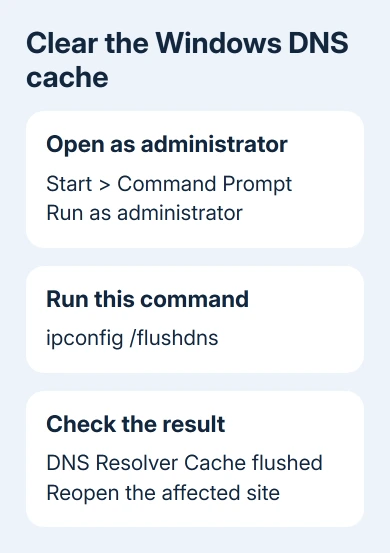
Put a space between ipconfig and /flushdns. Type the slash as shown. Don't add a website address to the end; the command clears the Windows DNS client cache rather than one site's entry.
The same command works in Windows 10. Its Start menu looks different, but Command Prompt and the command's spelling are unchanged. An administrator terminal running Command Prompt can run it too.
Microsoft lists the ipconfig cache command as a way to clear Windows' saved DNS lookups, including failed ones. That last part matters when a site has become available after Windows remembered a failed attempt.
Test the browser after the command has finished. If the window reports that permission is required, close it and use Run as administrator. On a managed work computer, ask IT to run it if administrator approval is unavailable.
Reopen the exact website that was failing
Close and reopen the browser, then enter the same website address. A new search result can lead to a different page, so use the address that originally produced the problem.
Check what happens: the expected page loads, the same error returns, or a different error appears. If the site now opens, stop there. You don't need more reset commands once the site works.
DNS turns a domain name into the network address needed to reach it. Clearing its cache makes Windows look up information again instead of using the lookups it saved earlier.
That distinction explains why a flush can help after a website moves. It also explains why clearing cookies is a separate action: cookies keep website sign-ins and preferences, not Windows' saved name lookups.
If the page works on a phone connected to this Wi-Fi while the PC still fails, keep checking this computer. If every device fails on the same site, the site's service or the network's DNS may be responsible.
For a continuing DNS server not responding message, follow the server and connection checks for that error. Clearing the cache doesn't tell you whether Windows can reach the DNS server it's set to use.
See what Windows has cached
To see the DNS lookups Windows has saved, run ipconfig /displaydns in Command Prompt. It only shows the entries; it doesn't clear them or change the DNS server your connection uses.
The output can be long. It can contain entries loaded from the local Hosts file as well as recent lookups. Don't expect a completely blank display after flushing, especially while apps and browser tabs are already making new requests.
The Hosts file is a local list that pairs names with network addresses. Its entries are a different source from a recently saved lookup, so flushing DNS isn't a way to edit that file or remove an address saved there.
The useful check is whether your browser opens the site. You don't need to read every cache entry once that site opens normally and your other connections still work.
I'd keep /displaydns for a specific check or a support request. Pasting the whole output into a public forum can reveal the names of sites and internal services the computer has looked up.
Check a lookup without changing the network
For a more direct check, open PowerShell and run Resolve-DnsName example.com, replacing example.com with the affected site's domain. Enter the domain alone, leaving out https:// and any page path.
Resolve-DnsName asks DNS for information about the name you enter. A returned address shows that the lookup produced an answer; it doesn't test whether the website's sign-in, certificate or page content works.
A timeout or name error is useful information for support. Record the exact message and the domain you queried. A failed lookup isn't a reason to run unrelated disk-repair or registry commands.
Compare another familiar site too. One failing domain with others working is a different problem from every domain failing. Keep that distinction when you report the issue to the network administrator or provider.
On a work VPN, an internal name can depend on the organization's connection and DNS settings. Reconnect through the approved VPN and ask IT about the internal name rather than replacing its DNS servers with a public service.
Know which reset the problem actually needs
ipconfig /flushdns removes cached name lookups. ipconfig /release and /renew deal with the IP address assigned to your connection. They aren't extra stages required to complete a DNS flush.
Releasing an address can interrupt a working connection, including a remote support session. Leave that command out unless you're following a repair procedure for the connection itself.
A full network reset changes more settings again. It isn't the next automatic step because one site remained unavailable. First check whether Wi-Fi or Ethernet is connected and whether other sites open.
For a connection that refuses to join the wireless network, repair the Wi-Fi connection error first. Windows needs a usable network before fresh DNS requests can reach a server.
When flushing doesn't change the error
Send the exact browser error and lookup result to the team responsible for the failing service. For one website, use its help or status contact. For all sites on a home connection, ask the provider to check DNS and service availability.
On a company PC, give IT the VPN state and whether the affected name is internal or public. That gives them enough information to check the correct server without changing settings your workplace needs.
The Short Version
Run ipconfig /flushdns in an administrator Command Prompt and reopen the site. Use /displaydns to view cached entries or Resolve-DnsName to check a domain.
Only move on to other network repairs if you're also having connection problems.
Checked November 15, 2026.
 If you have any business, I can build it online