Squad often stays silent because Windows has selected another recording device. Make the headset mic your Windows default and relaunch Squad. If Windows hears you, check desktop recording access and audio format next.
The headset's earpieces and microphone are separate devices in Windows. Hearing the game clearly doesn't tell you whether Squad has a working voice input.
In this guide
1. Set the microphone Windows should give to Squad
Close Squad before changing the recording device. Press Windows+R, enter mmsys.cpl, and confirm with Enter. The classic Sound panel opens. Select the Recording tab, not Playback.
Speak and watch the microphone meters. Right-click the responding input and choose Set as Default Device. Where available, also make it the Default Communication Device.
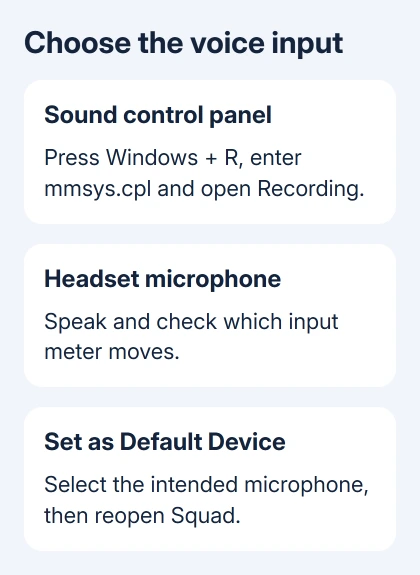
Offworld's Squad audio troubleshooting page starts with the Windows default device. Its older wording mentions Playback Devices, but voice input belongs on the Recording tab.
Reopen the game and test voice with another player. If they can hear you now, changing the default mic helped. If the Windows meter never moved, use the Windows microphone checks before making more game changes.
For a USB headset, select its mic rather than a webcam, controller, or laptop input. Wireless headsets can expose several names too. Use the meter to check which entry actually receives your voice.
2. Check that Windows allows desktop apps to record
On Windows 11, open Settings > Privacy & security > Microphone. Turn Microphone access on. Enable Let apps access your microphone too. Also enable the separate desktop-app permission.
On Windows 10, open Settings > Privacy > Microphone. Enable microphone access for the device and applications. Scroll farther down and enable the desktop apps control too.
Squad is a desktop app. You won't necessarily see Squad in the list of individual Store apps. Microsoft says desktop-app access needs its own permission, separate from individual Store apps.
Restart Squad after changing access and try the same voice test. If Windows could record you and this fixes Squad, the desktop-app permission was blocking the game's microphone access.
If the controls are locked by an organization, ask its IT team to check microphone access. Don't change unrelated privacy settings to work around a managed restriction.
3. Make sure the game is being asked to transmit
Open Squad's control settings and check the voice-chat key bindings currently assigned. Use the binding shown for local or squad voice rather than assuming an old keyboard layout or another game's push-to-talk key applies.
Ask someone on the intended voice channel to listen while you hold its assigned key and speak. Ask them how you sound. Your voice indicator can't tell you what a teammate actually hears.
If the first channel stays silent, check the other available voice channel with a nearby teammate. If one works, check the silent channel and its key binding. If neither works, both voice channels have the problem.
Keep the microphone selection unchanged during this test. Changing devices, bindings, and sound processing together makes it difficult to tell which adjustment actually helped.
For another game with separate recognition and communication settings, the Phasmophobia microphone guide follows those different controls. Its voice-recognition options aren't Squad settings.
4. Try a recording format the headset supports
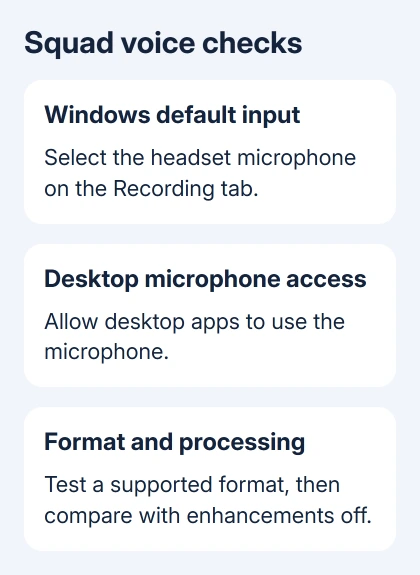
Return to Windows+R > mmsys.cpl > Recording. Select the microphone, open Properties, and choose Advanced. Note the existing Default Format before changing it.
The game vendor lists 2 channel, 16 bit, 44100 Hz as a working format, and also suggests 44100 Hz or 48000 Hz for microphone troubleshooting. These numbers describe how Windows samples the sound.
Choose the listed 44,100 Hz format only if your device offers it, select Apply, then reopen Squad and test. If it doesn't help, try an available 48,000 Hz format before returning to the original choice.
Some microphones provide only one channel or a small set of fixed formats. Don't install a different driver just to force a two-channel option onto hardware that doesn't offer it. Continue with sound processing instead.
If a format change makes other recordings worse, restore the noted setting. Keep the format that gives you clear voice in Squad without spoiling recordings in other apps. Matching a number alone isn't the goal.
5. Switch off microphone processing for a comparison
On Windows 11, open Settings > System > Sound, select the microphone under Input, and find Audio enhancements. Set it to Off if the device provides that control.
Older drivers can put an Enhancements tab in the microphone's classic Properties window. Your driver decides which controls appear. Skip this setting if it isn't offered.
Quit headset effects or audio-processing utilities for a short comparison, then restart Squad. If voice returns only with one utility closed, update or reconfigure that utility before turning its effects back on.
I'd try that comparison before reinstalling the whole game. It changes the part handling your microphone without replacing game files that already launch and play normally.
In the microphone's classic properties, check the Listen tab too. For an ordinary direct microphone setup, leave Listen to this device off. It plays the input through another output and isn't required for normal Squad voice.
6. Take a headset-specific failure to game support
Test a second microphone if you have one. If it works in Squad with the same Windows permissions and bindings, report the original headset model and connection type to Offworld support.
A vendor workaround sends certain wireless and console-style headsets through a virtual audio device, a software input that passes sound between apps. Ask support about it before changing how your microphone reaches the game.
Ask support whether that workaround still applies to your exact headset and current game version. Include your Windows version, the responding recording device, the tested formats, and whether another microphone works.
If neither microphone records in Windows, contact the PC or headset maker instead. A game reinstall can't restore a missing physical input or fix a hardware mute switch.
The Short Version
Give Windows the correct default mic, enable desktop recording access, and check the voice bindings in Squad. Compare supported formats and audio effects next. Ask game support about a failure affecting only one headset.
Checked November 15, 2026.
 If you have any business, I can build it online