The Windows 10 message Could not find the recovery environment means Reset this PC can't reach the recovery tools it needs. If Windows opens, check whether recovery is disabled and try enabling it before making installation media.
A missing recovery image needs a different route from a disabled one. The command result tells you which problem to tackle, so don't delete or resize a recovery partition just because reset won't start.
In this guide
1. Check recovery status while the desktop still opens
Save unfinished work and copy important files to another drive before attempting a reset. For an encrypted device, locate its BitLocker recovery key. Getting recovery working doesn't decide which files a later reset will keep.
Search Start for Command Prompt, right-click it and select Run as administrator. Accept the permission prompt. Type the command exactly as shown, including the space before the slash:
reagentc /infoLook for Windows RE status and Windows RE location. Windows RE is the small recovery system that supplies troubleshooting tools outside the normal desktop. Save that output in your repair notes, or photograph it.
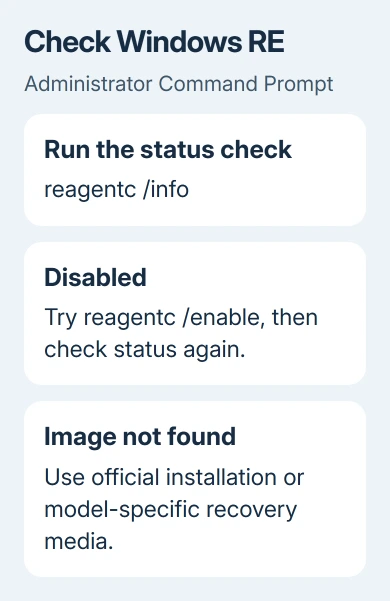
If the status is Disabled, continue to the enable command. If it's Enabled, note the location and retry the original reset route after a normal restart. An enabled status alone doesn't tell you that every recovery file is usable.
If Command Prompt says access is denied, close it and reopen it as administrator. A permission failure isn't a reason to change partitions. If reagentc itself isn't recognized, record the message rather than downloading a replacement tool.
2. Enable Windows Recovery Environment
In the same administrator Command Prompt, run:
reagentc /enableMicrosoft's REAgentC reference describes this command. Without a custom recovery image, it tries the default Winre.wim in Windows\System32\Recovery.
If it reports success, run reagentc /info again. Check that Windows RE status now says Enabled. That confirms recovery is now enabled. You'll still need to check whether Reset this PC opens.
Restart Windows normally. Then open Start > Settings > Update & Security > Recovery and retry Get started under Reset this PC. Windows 11 uses a different Settings layout; these instructions target the Windows 10 message.
If the reset choices now open, disabled recovery was the immediate obstacle. Read the choices before starting. Keep my files still removes apps and settings, so check what will change before you continue.
If enabling reports that the Windows RE image wasn't found, continue to the missing-image section. Repeating the command won't replace the image. For another error, save its wording and use installation media if recovery still won't work.
3. Handle a missing image without deleting partitions
Winre.wim contains the recovery system. A deleted image, a changed disk layout, or a recovery location that no longer points to usable files can stop Windows from reaching those tools.
REAgentC's /setreimage points Windows to an existing recovery image folder. It needs the folder that really contains the correct image, not a path copied from another computer. Drive letters can also change outside the running desktop.
For a machine managed by work or school, send IT the status output so they can check where Windows is looking for its recovery image. They may have supplied a customized recovery image. Avoid replacing that with a file from an unrelated PC.
Don't download Winre.wim from a general driver or repair-file site. Use Windows installation media or the PC maker's supported recovery media when the original image isn't available. That keeps the recovery files from an official source.
I'd take the media route before trying a partition editor. That message doesn't identify an undersized recovery partition, and deleting it can remove tools you still need. Any partition repair needs to suit the way your disk is set up.
4. Prepare Windows 10 installation media
On a working Windows computer, follow the installation-media instructions. The USB stick needs 8 GB or more of capacity and must be blank. Creating the installer erases that USB drive.
Open the Windows 10 download page. Under Create Windows 10 Installation Media, select Download Now, then launch the downloaded media tool. Choose Create installation media (USB flash drive, DVD, or ISO file) for another PC when offered.

Match the language, edition and architecture to the installation you're repairing. Select the USB drive carefully and let the tool finish. Keep your backup drive separate so it can't be mistaken for the installer drive.
For a PC that starts Windows, the Windows 10 reset guide explains the normal reset choices. Here, media is the fallback because the internal recovery route can't open.
5. Use external recovery or request a repair
Insert the finished installer USB into the affected machine and start from it using the maker's boot-menu instructions. Select the USB entry. When the Windows setup screen opens, choose the repair option instead of starting an installation.
Use Repair your computer to reach available recovery tools. Opening those tools isn't the same as repairing the internal recovery image, but it gives you a route that doesn't depend on the missing local environment.
If you decide to reinstall, review the Windows reinstall choices before selecting a method. Clean installation can erase your documents and applications. USB boot doesn't offer every keep option available inside Windows.
Windows 10's free support ended on October 14, 2025. Repairing recovery doesn't restore that support. Once recovery works again, check your options for a supported operating system or extended security updates for this computer.
If external media also fails, contact the PC maker and request Windows recovery media or recovery-image repair for the exact model. Include the original message, reagentc output, any enable error, and whether the USB reaches setup.
If an encrypted drive won't unlock or a disk disappears, stop trying to reset Windows. Ask a repair service to check it while preserving your data. A recovery-environment error and a failing storage device need different repairs.
The Short Version
Run reagentc /info as administrator. Enable recovery with reagentc /enable when disabled, confirm status, and retry Reset this PC. If the image is missing or enabling fails, use official installation media or the maker's recovery help.
Checked November 15, 2026.
 If you have any business, I can build it online