Internet Explorer's temporary files can be cleared without deleting passwords. Open Internet Options, choose Delete under Browsing history, and select temporary internet files. Keep other categories unchecked for cache-only cleanup.
These controls clear data used by the retired Internet Explorer browser and IE mode in Microsoft Edge. Ordinary Edge tabs use a separate cache. Clearing one doesn't clear the other, so first check which browser mode the affected site uses.
In this guide
Choose the cache that belongs to the affected page
A cache stores copies of page content so the browser can reuse it. An outdated copy can leave a page showing old content. Clearing that copy makes the browser request the content again when you return to the site.
Internet Explorer is retired, but some organizations use Internet Explorer mode in Edge for older sites. It uses older browser technology inside Edge. Its data controls are separate from those for Edge's ordinary cached images and files.
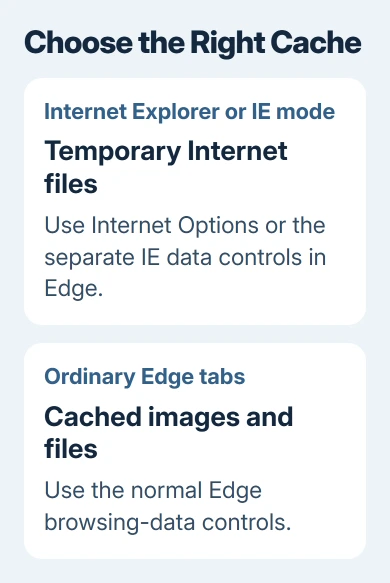
For a page in a normal Edge tab, follow the Microsoft Edge cache steps. Use the Internet Explorer controls when the affected page uses Internet Explorer or your organization's IE mode.
Don't try to restore the retired Internet Explorer desktop browser just to clear its data. Windows' Internet Options control panel provides a route to the legacy deletion dialog without opening a website in that browser.
I'd start with cached files alone for stale content. Cookie deletion and password deletion have their own checkboxes. Removing more categories makes a bigger change, which isn't needed just to request a fresh page copy.
Open Internet Options without launching the browser
Submit or save unfinished work on the affected site, then close its windows. A business app may have an unsubmitted form. After clearing the cache, open the site's starting page again rather than returning to an unfinished form.
In either Windows version, search Control Panel for Internet Options. Select the result to open Internet Properties. If Control Panel uses icon view, you can select Internet Options directly.
Choose the General tab. Under Browsing history, select Delete. This opens Delete Browsing History, where each checkbox controls a different type of stored data. Opening the dialog hasn't deleted anything yet.
Check that you're in the browsing-history deletion window. The Settings button beside Delete opens storage and history settings instead. Changing the cache size or its location isn't necessary for clearing the current cached content.
The legacy dialog is different from Settings > System > Storage. For general disk space rather than a stale website, the Disk Cleanup guide covers Windows' broader cleanup tool. Use the tool that matches your actual task.
Select temporary files and leave passwords alone
Select Temporary Internet files and website files. That category contains saved page content, such as images and media. It isn't your Downloads folder, your documents, or the list of passwords the browser remembers.
Uncheck the other categories when you only want to clear cached files. In particular, leave Passwords, Form data, History, Download History, and Cookies and website data unchecked. Read the whole list before confirming.
Clear Preserve Favorites website data to include cached content from favorite sites. Leaving it selected preserves their cookies and temporary files, which can leave the affected site's old data in place.
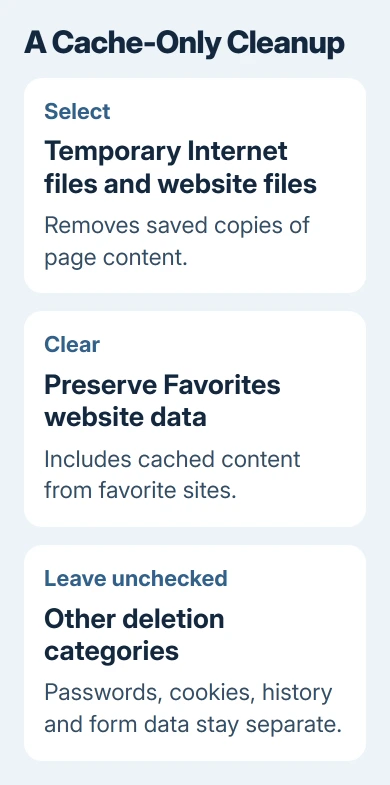
Choose Delete, wait for it to finish, then close Internet Properties with OK. Reopen the site in the browser mode it needs and check whether the old content has changed. The dialog closing doesn't tell you whether the page now works.
Cache clearing doesn't edit the website's records. A wrong balance, missing permission or broken server response needs help from the service. Deleting local copies refreshes a page; it can't change what the server sends.
Use Edge's separate IE-mode controls when available
In Edge, open the three-dot Settings and more menu, then Settings > Privacy, search, and services. Open Clear browsing data and look for Clear browsing data for Internet Explorer.
Select Choose what to clear in that Internet Explorer section. Check the Internet Explorer categories and select temporary internet files to clear just the cache. Don't use the ordinary Edge cache dialog for IE-mode data.
Microsoft's Edge privacy documentation describes this separate route for Internet Explorer browsing data. Your organization can restrict these controls. Ask its help desk if the setting isn't available.
The normal Edge dialog uses Cached images and files as its cache category. Seeing that wording instead of Temporary Internet files and website files is a useful prompt to check which data you're clearing before confirming.
Some installations offer deletion of chosen IE data whenever Edge closes. This changes future sessions too; it isn't required for one cleanup. Leave it unchanged unless you want those categories cleared after later sessions.
Check the result before removing another category
Open the troublesome page again, then try the same action. The first visit may need to download content again. If it loads correctly, stop the cleanup. Leave passwords and browser reset settings alone.
If a login problem remains, cookies may need separate attention. Removing cookies can end your signed-in sessions. Follow the site's instructions and have your login details ready before selecting Cookies and website data.
Cached pages and cookies serve different purposes. Removing cached images won't necessarily reset a session, and a successful cache cleanup can leave you signed in. That's normal when you left the cookie category unchecked.
If the dialog won't open or a setting is grayed out, record the exact restriction. On a work computer, ask IT whether policy blocks clearing legacy browsing data. Don't delete protected folders by hand to get around the restriction.
For an IE-mode business site that still fails, give the help desk its address, error message and Edge version. Say whether ordinary Edge mode works and that you cleared temporary files only, so they know what changed.
The Short Version
Delete Temporary Internet files and website files in Internet Options. Clear Preserve Favorites website data to include favorite sites, and leave other categories unchecked. IE-mode data and ordinary Edge cache have separate controls.
Checked November 15, 2026.