The maintenance box is behind a separate cover on Epson models that have a replaceable one. On an ET-3850, find its maintenance-box cover on the rear, separate from the larger paper-jam cover.
Other models use a different position or an internal ink pad that needs service. Read the complete model name and exact display message before opening anything: adding ink to the front tanks won't clear a full maintenance box.
In this guide
Match the printer and the message first
Find the model name on the printer, such as ET-3850 or ET-2980. Keep the entire number. Two EcoTank printers can have similar front panels while using different access covers or waste-ink arrangements.
Epson says its ET-3850 maintenance box collects surplus ink from printing and printhead cleaning.
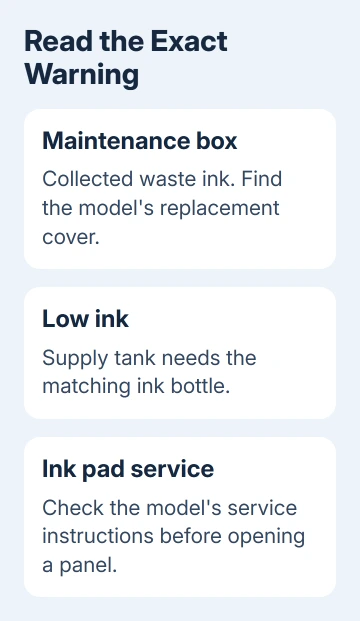
A low-ink message means the supply used for printing is running low. A maintenance-box message is about ink already collected as waste. The container isn't an extra bottle of usable ink, and refilling the supply tanks doesn't empty it.
For an ink pad or service-required warning, follow the instructions matching that wording. Don't assume an accessible maintenance box exists just because another Epson owner replaced one.
If the printer won't produce a page and shows neither message, start by checking the printing problem itself. The ET-2850 output checks separate blank output, absent colors, and documents stalled before printing begins.
Find the rear cover on an ET-3850
The ET-3850 manual's back-parts diagram labels both the Maintenance box cover and the Rear cover (duplexer). They're different parts.
The duplexer is the paper-handling section used for two-sided printing. Opening it to look for a jam isn't the same job as accessing the maintenance box, even though both are at the back.
Give yourself enough room to see the printer's rear without tipping it. Compare the labeled cover with the exact-model manual before removing it. Ink can leak if the container is handled carelessly.
Check the printer display for the replacement instructions. Epson directs ET-3850 owners to follow those on-screen steps when the message appears, rather than removing the box as a routine inspection.
If no replacement message is present and you only want its remaining capacity, use the status screen instead. Finding the cover doesn't mean the box needs to come out.
Check the remaining capacity without opening the printer
On the ET-3850, press Home if needed and select the maintenance-box status icon shown in its guide. Read the remaining-capacity screen, then select OK to leave it.
Use the displayed capacity to judge how soon you'll need a replacement. A low remaining-capacity indication means the waste container is filling; it doesn't describe the amount of black or color ink available in the supply tanks.
These steps are for the ET-3850's control panel. If another Epson has a different Maintenance menu, use its own guide instead of assuming the option has disappeared or needs a firmware reset.
When the box is full, the ET-3850 can't print or clean the printhead until it is replaced. Tasks that don't require ink, such as scanning, can still work. That combination can explain why the scanner responds but printing stops.
Repeated cleaning won't solve a full-container message. Once the display asks for replacement, deal with the container before trying to improve print quality.
Follow the separate ET-2980 replacement procedure
The ET-2980 also has a replaceable maintenance box. Its instructions show a small screw-fastened cover at the rear. This isn't the tank cover used when pouring ink into the printer.
Have the new box ready and wait until printing has stopped. The ET-2980 replacement procedure uses a flat-head screwdriver to loosen the cover screw.
- Remove the maintenance-box cover as shown in that model's instructions.
- Grasp the used box and pull it out of its holder.
- Keep it level, place it in the bag supplied with the replacement, and seal the bag.
- Insert the new box fully in the correct direction.
- Refit the cover, tighten its screw, and follow the LCD confirmation, including OK when prompted.
Don't touch the green chip or the waste-ink openings. The chip is needed for normal operation, and the used box can spill ink if tilted or taken apart.
Check the part number against the full printer model before buying. The ET-2980 guide lists T04D100, but that doesn't mean the same box fits every Epson printer.
I'd keep the replacement's bag beside the printer before opening the cover. It gives the used container somewhere to go as soon as it comes out.
Stop when the model or warning doesn't match
If the expected cover isn't present, stop looking for hidden screws. Find the access point in your model's diagram before removing a panel. If no access cover is shown, don't take the case apart to search for one.
For an internal ink-pad service message, ask Epson Support whether that model requires a service visit. Give them the full model and the exact wording, and ask about the waste-ink service part rather than an ink refill.
If a replacement box isn't recognized, record its part number and the new display message. Ask support to check that it's the right box and is fitted correctly. A printer that still rejects the box needs that specific fault checked.
For an ET-2760 with a different printing symptom, the ET-2760 print checks keep that problem separate from maintenance-box replacement.
The Short Version
On an ET-3850, the maintenance-box cover is at the back and is separate from the duplexer. The ET-2980 uses a screw-fastened rear cover. Check the exact model and warning; an ink-pad service message can require a different repair.
Checked November 16, 2026.