
An Epson ET-2850 that won't print often has a stuck queue or a connection problem; blank sheets and missing ink need a different fix. Clear its screen message, then print the built-in nozzle check to choose the right repair.
A complete pattern shows that the ET-2850's ink system works independently of your computer. No paper, a blank sheet, and gaps in the pattern each need a different fix.
In this guide
1. Clear the printer's screen and try its own print
Load plain paper and extend the output tray. Read the ET-2850's LCD before sending another document. A paper jam or printer error can keep every computer job waiting.
For W-01, remove the jammed paper and press the button shown on the screen. For E-01, restart the ET-2850; if the code returns, check for a jam before arranging service.
Disconnect the printer's USB cable before running this check. Press Home, select Maintenance > Nozzle Check, and press Start. This uses the printer's own controls, so it doesn't depend on the app or computer driver.
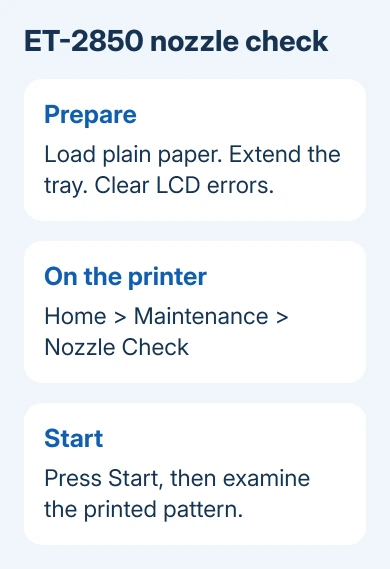
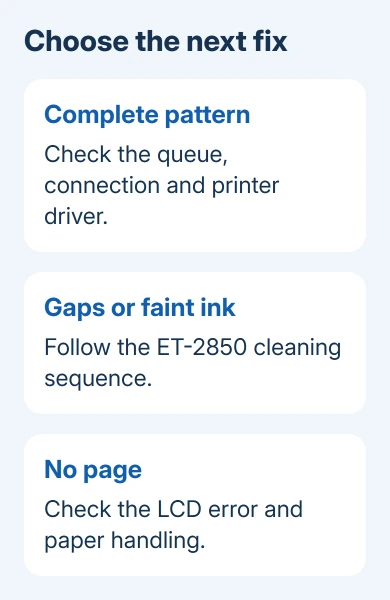
Epson says a complete pattern points toward the computer, cable, software, or settings. A pattern with gaps needs ink maintenance. If no page prints, deal with the printer's error or paper handling first.
If the printer's own pattern looks complete, check the queue next. If the page feeds but ink is missing, go to step 5. Don't spend ink cleaning a head that has just produced a complete pattern.
2. Remove the job holding up the queue
In Windows 11, open Settings > Bluetooth & devices > Printers & scanners, select the ET-2850, and choose Open print queue. Cancel the stalled jobs, then send one small document.
In Windows 10, use Settings > Devices > Printers & scanners, select the printer, and choose Open queue. Confirm that this app sends its job to the ET-2850 rather than a PDF printer or an old duplicate entry.
If cancellation doesn't get the queue moving, press Windows + R, enter services.msc, and open Print Spooler. Choose Restart, then retry one job. The Windows queue repair steps cover this reset.
On a current Mac, open System Settings > Printers & Scanners, select the ET-2850, and open Printer Queue. In older macOS versions, start in System Preferences > Printers & Scanners.
Click Resume if the printer is paused. Delete a job displaying an error, or resume an individually paused job. If your document isn't in this queue, it may have been sent to another printer.
When a small file prints, try the original document once. If only that document fails, look next at the app or file, rather than resetting the printer again.
3. Check the connection the queue is trying to use
For USB, reconnect the cable at both ends and connect the printer directly to the computer. Remove the USB hub for this check. A powered printer and a plugged-in cable don't necessarily mean the data connection works.
For Wi-Fi, use Home > Settings > Network Settings > Print Status Sheet, then press Start. Compare the printer's network with the network your computer is using.
A computer on a guest network may be unable to reach the printer even when both can reach the internet. If the report shows the wrong network or a connection error, follow the Epson Wi-Fi report guide.
Use the connection you set up when you installed or added the printer. A queue made for a USB connection won't automatically become a working wireless queue when the cable is removed.
If USB works and Wi-Fi doesn't, keep the head-cleaning tools closed. The same printer has already printed successfully through another route, so check the network setup next.
4. Repair the software when the internal pattern is good
Get the software from the ET-2850 support page and choose the version for your computer's operating system. Install or repair it as needed. Similar EcoTank names don't mean identical packages or menus.
ET-2980 owners should refill and reset its ink tanks through that model's Fill Ink prompts.
For the neighboring ET-2800 model, use its own nozzle-check controls and cleaning sequence instead of copying this panel's selections.
In Windows, use the Epson driver for the model when the generic entry lacks the expected settings. The manual also lists Epson Printer Connection Checker, which comes with supported Epson software packages.
On Windows 10, its documented route is Start > Epson Software > Epson Printer Connection Checker. On Windows 11, search Start for the tool if the Epson package installed it, rather than expecting the old Start-menu layout.
On a Mac, check that the printer is listed and its queue is active. If printing stopped after a macOS change, the Mac printing guide covers permissions and adding the printer again.
Before removing a working printer entry, print a short document using a different app. If another app prints successfully, work on the failing app or document instead of cleaning the printer again.
5. Clean only when the nozzle pattern needs it
For gaps or a faint pattern, select Maintenance > Head Cleaning on the printer and follow the display. The power light flashes during cleaning and stays on when the cycle finishes.
Do not turn the printer off or open the scanner unit during that cycle. Check the next printed pattern to see whether the missing lines returned.
After three unsuccessful cycles, leave the ET-2850 off for at least 12 hours. Print another nozzle check, then run Head Cleaning if needed. I'd take that pause rather than run more cycles immediately.
The manual's next step is Power Cleaning when nearly all of the pattern is missing or normal cleaning hasn't improved it. Before starting, check every tank: none can be less than one-third full.
Choose Maintenance > Power Cleaning and follow the screen. Check the pattern afterward. If quality hasn't improved, switch the ET-2850 off. Leave at least 12 hours before checking the nozzles again or repeating Power Cleaning.
When the ET-2850 needs service
An E-11 message means the waste ink pad needs replacement. These pads aren't user-replaceable. W-11 means a pad is nearing its service limit; the display allows continuing with OK, but you'll need to arrange service.
The Epson maintenance-box guide distinguishes replaceable containers on other models from internal pads that require service.
Request help through Epson's ET-2850 support page for a recurring E-01 without a jam, a failed product check, or ink that doesn't return after cleaning. Have the serial number, screen code, and nozzle-check result ready.
The Short Version
Print the ET-2850's own nozzle check. A complete pattern sends you to the queue, connection, and driver; missing ink sends you to the model's cleaning sequence. A persistent hardware or ink-pad message needs service.
Checked November 12, 2026.





