
An Epson ET-2800 that won't print can have a computer-connection problem or need ink maintenance. Clear its screen message, then print a nozzle check. Complete lines point to the computer; missing lines or a blank sheet need ink checks.
A new printer that never finished ink charging is different from a working printer that suddenly stopped. Check the setup message before starting cleaning cycles.
In this guide
1. Clear the screen and finish any first-time setup
Turn on the ET-2800 and read its LCD. Load plain paper in the rear feeder, extend the output tray, and follow the instructions for any paper or jam message before sending another job from the computer.
For a new unit, confirm that the initial ink-filling and charging procedure finished. Filling the tanks alone doesn't complete setup. Follow the remaining screen instructions and the Start Here sheet.
When the LCD tells you to see that sheet during initial setup, hold Help for five seconds, then press Start to begin ink charging. It takes about 11 minutes. When charging finishes, the power light stays steady. Press OK to continue.
If the display reports E-01, turn the printer off and on and check for a paper jam. A returning E-01 after the paper path is clear needs service rather than another driver installation.
Don't pull the power plug while the printer is charging ink or cleaning. Let an active maintenance process finish. A busy light and a printer that's waiting for a computer job are different situations.
Once the screen is ready, print the nozzle check in the next section. It runs on the printer alone, without your computer or Wi-Fi. Its output points you toward a printer repair or a computer fix.
2. Print the ET-2800's own nozzle pattern
Disconnect interface cables such as USB. Press Home, choose Maintenance, and press OK. Press OK again to choose Nozzle Check, then press the Start button. The printer will produce its pattern.
Epson says its ET-2800 product check helps separate the printer's own failure from computer software and connection trouble.
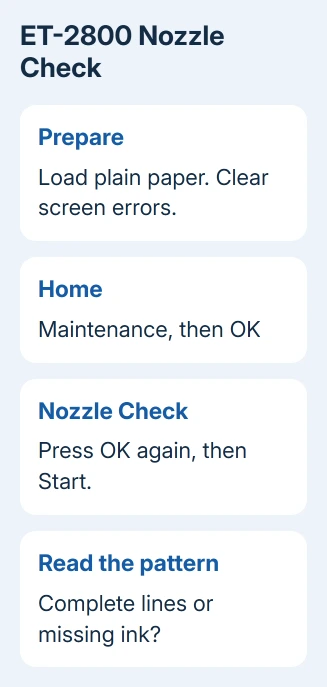
A pattern with no gaps shows the ET-2800 can feed paper and put ink on it without help from your computer. Continue with the queue and connection. Cleaning a complete pattern spends ink without addressing a stalled computer job.
For broken or faint printed lines, move to the cleaning section. When all or most lines are missing, use the Power Cleaning branch instead of following the small-gap route.
If no sheet prints at all, check the LCD again and confirm that paper can feed. If this check still won't print, contact printer support. Changing a Windows print setting won't fix a job the printer runs on its own.
3. Clear the queue and select the right printer
In Windows 11, open Settings > Bluetooth & devices > Printers & scanners, select the ET-2800, then Open print queue. Cancel the stuck documents and send one short test document.
In Windows 10, open Settings > Devices > Printers & scanners, select the ET-2800, and choose Open queue. Check the print dialog too: Microsoft Print to PDF or an old duplicate entry isn't the printer you meant to choose.
When cancellation won't clear the queue, press Windows + R, type services.msc, and open Print Spooler. Select Restart, then retry a single job. The Windows queue repair steps cover this reset.
On a current Mac, open System Settings > Printers & Scanners, select the ET-2800, and open its queue. Older macOS uses System Preferences > Printers & Scanners.
Resume a paused queue or remove a job displaying an error. For a problem that started with a Mac system update, use the Mac printing checks before changing ink settings.
If the short document prints, retry the original file. If only one document or app fails, focus on that file or app. You don't need to reset a printer that prints other documents successfully.
4. Repair the connection used by that queue
For USB, unplug both ends of the cable, then plug them back in firmly. Remove any hub and use the computer's own USB socket. Confirm that the cable carries data and that the queue was installed for the USB connection you're using.
For Wi-Fi, press Home, then select Settings > Network Settings > Connection Check. Press Start to print the connection report and follow the error code and solution shown on it.
Make sure the network allows traffic between computer and printer. Guest Wi-Fi may block that traffic while still providing internet access. The Epson Wi-Fi guide covers report-based repairs.
A USB printer entry doesn't automatically become a wireless entry when the cable is removed. Add or repair the ET-2800 using the intended connection and the model's supported software.
If its internal pattern is good but computer printing still fails, repair the ET-2800 software for your operating system. Choose the ET-2800 package, rather than an installer intended for another EcoTank model.
I'd check the selected queue and connection before reinstalling. A good internal pattern has already shown that repeated head cleaning isn't the useful next step.
5. Restore missing ink without endless cleaning
For gaps or faint lines, select Maintenance > Head Cleaning, press OK, then Start. The power light flashes while cleaning runs and stays steady when it finishes. Run another nozzle check to compare the result.
Keep the inner cover closed and leave power on during cleaning. If the pattern becomes complete, stop cleaning and retry your document. The pattern, rather than the tank looking full, shows whether ink is reaching the page.
After up to three ordinary cleanings without improvement, turn the printer off for at least 12 hours. Then check the nozzles and try ordinary cleaning again. If quality still hasn't improved, move to Power Cleaning.
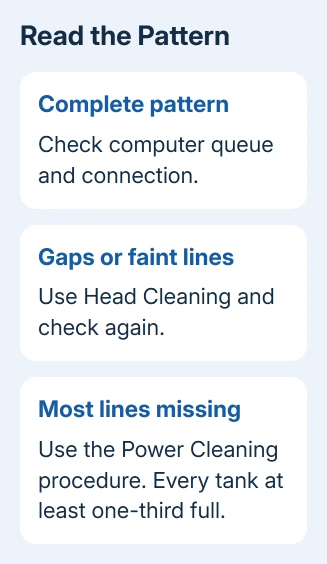
When all or most of the pattern is missing, the manual directs you to Power Cleaning instead. Before using it, check each tank contains at least one-third of its capacity. Too little ink risks damage during this process.
Choose Maintenance > Power Cleaning, press OK, and follow the LCD instructions. This uses a lot of ink and fills the waste ink pads faster, so use it for the pattern that calls for it rather than as a general reset.
Check the nozzles afterward. Without improvement, leave the ET-2800 switched off for at least 12 hours before another Power Cleaning. If those steps still don't improve the pattern, contact support instead of using more ink.
When the ET-2800 needs service
An E-11 message means an ink pad needs replacement; W-11 signals that the pad will soon reach its service limit. These pads aren't a routine user replacement. Contact Epson about the displayed code and the ET-2800 serial number.
For failed internal printing or persistent blank output, use the ET-2800 support contact options. Include the LCD message, printed pattern, and cleaning history.
Ask support whether that result points to trouble with ink reaching the page or with paper feeding through the printer.
The Short Version
Clear setup or LCD errors and run the ET-2800 nozzle check. Good output means queue or connection repairs; absent ink needs cleaning with the stated waits. Failed internal printing and ink-pad errors need service.
Checked November 15, 2026.





