Chrome microphone failures often come from a blocked website or the wrong recording input. Allow the site and select your microphone in Chrome. If other apps can't hear you either, check the system's microphone access and input.
A working camera doesn't mean the microphone is allowed. Chrome treats them separately, and the computer or phone can block Chrome even when the website itself has permission.
In this guide
1. Unmute the call and allow its website
Check the microphone button in the call and any mute switch on the headset or cable. A microphone with permission can still send silence while the meeting has you muted. Use the call's input meter or preview to check your voice.
On a computer, open Chrome > Settings > Privacy and security > Site settings > Microphone. Find the affected site in the list of sites not allowed to use the microphone. Select it and change microphone permission to Allow.
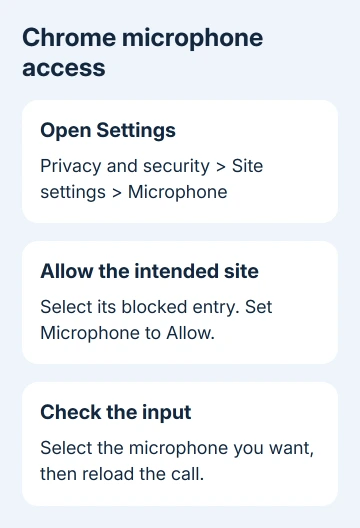
Return to the call tab and reload it. If Chrome asks again, choose Allow while visiting the site or Allow this time, according to the choices shown. Allow access only for the service you're using for the call.
Google says its Chrome microphone controls handle website permission separately from system access. Check the site's own permission rather than changing Camera and expecting that to enable audio too.
Sign in to your call or recording service; each has its own settings. Open its microphone preview or audio settings after permission changes. If speaking makes the input meter respond, try the call before making more changes.
2. Choose the microphone Chrome should use
Stay on Chrome's Microphone settings page and use the microphone selector to choose the intended input. A laptop microphone, webcam microphone and USB headset can all be different devices, even when they are attached to one computer.
Choose the name matching the hardware you want, then check the call's own microphone selector too. Some services offer their own device choice, so a correct browser default doesn't mean the call is using that same input.
Reconnect a disconnected headset before choosing it. If it isn't in the list, check its system connection instead of choosing an outdated entry. Website permission alone can't restore a missing device.
I'd read the selected input's name before attempting a Chrome reinstall. This is especially useful after unplugging a USB headset or changing from a monitor's microphone to the laptop's built-in one.
If your camera is failing as well, the Chrome camera access guide covers its separate permissions. Keep the microphone choice and camera choice distinct while checking them.
3. Let desktop Chrome use the microphone in Windows
For Windows 11, open Settings > Privacy & security > Microphone. Enable Microphone access. Next enable Let apps access your microphone. For desktop Chrome, check Let desktop apps access your microphone too.
Windows 10 keeps its microphone permissions in Settings > Privacy > Microphone. Enable device access and Allow apps to access your microphone, then check Allow desktop apps to access your microphone farther down the page.
Don't stop at a list containing only Microsoft Store apps. Chrome may not have an individual toggle there. If your version of Windows also shows a separate control for Chrome, check it alongside the desktop-app access setting.
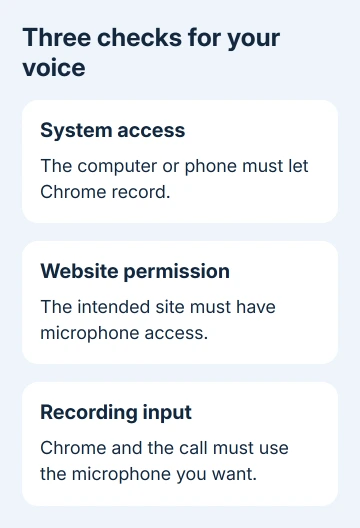
Next open Settings > System > Sound and select the intended Input device. Run its microphone test or watch its input response while speaking normally. If it responds there, you know Windows can hear the microphone even if Chrome can't.
When Windows can't record either, use the Windows microphone repair guide for input and hardware checks. Stay with Chrome's permissions when the microphone records clearly outside the browser.
After changing system access, restart Chrome and rejoin the call. If your organization disables a setting, send IT the blocked control's name. Don't bypass its policy.
4. Check macOS microphone permission
If your Mac uses System Settings, open Apple menu > System Settings > Privacy & Security > Microphone. Enable Google Chrome. When macOS requests a browser restart, close Chrome and launch it again to apply the permission.
On an older macOS release using System Preferences, open Security & Privacy > Privacy > Microphone instead. Follow the unlock prompt if that older panel requires it before allowing Chrome.
If Chrome isn't listed, return to the site and try to use the microphone. Complete both the website request and any macOS request that appears. The permission list is for apps that have requested access, rather than every installed app.
Use System Settings > Sound > Input to select your intended microphone and check its input level. In System Preferences, use Sound > Input. If the level responds, return to Chrome and compare its selected device with that name.
Both macOS and Chrome's website settings need to allow recording. Allowing access in one leaves the other permission unchanged. Restart the call after correcting the blocked part.
5. Check Chromebook privacy and recording controls
On a Chromebook, open Settings > Privacy and security > Privacy controls and enable Microphone access. Check any physical microphone switch too. A system-wide block prevents recording even when the website has permission.
Open Settings > Device > Audio to choose your microphone. Under Input, choose the intended device, adjust its volume and use Mic test. Return to the website after recording works there. Keep site permission from the first step enabled.
6. Use the phone's own permission controls
On Android, open Chrome > three-dot menu > Settings > Site settings > Microphone. Allow sites to ask for microphone access. If the intended site is in Blocked, select it and choose Allow.
Android must also permit the Chrome app to record. Open the phone's Settings > Apps > Chrome > Permissions > Microphone and permit recording while Chrome is in use. The exact app-settings layout can differ by phone maker.
On iPhone or iPad, open Settings > Apps > Chrome and turn on Microphone. Return to the site and respond to its access request. If device access is off, the website's permission request might not appear at all.
On iPhone or iPad, a camera or microphone icon beside the address bar opens permissions for a site whose access you changed. The icons aren't on every page. If the phone blocks access, use Chrome's settings in the phone's Settings app.
Voice Search can also need Speech Recognition permission. That applies to speech features, so check it for a voice-search failure rather than assuming every silent video call needs a speech-recognition change.
7. Restart the session and report the remaining failure
Leave and rejoin the call, restart Chrome, then restart the device if recording still fails. Try one other approved recording or calling app. Note whether the microphone fails everywhere, across Chrome sites, or on one service only.
For a single failing service, contact that service's support with its error and details of which other app worked. If it fails across Chrome sites, use Chrome > Help > Report an issue with the browser version, device and permission results.
If the microphone fails across apps, ask the device or microphone maker for recording support. For work-managed Chrome, ask IT to check microphone policy and system access. Keep an approved working calling app available for urgent calls.
The Short Version
Unmute the call, allow its site, and choose the intended microphone. Check system access using the steps for your device. Compare another app to decide whether Chrome, one service or the microphone itself still needs attention.
Checked November 16, 2026.