

PowerPoint's Presenter View puts notes on your screen and slides on the audience display. On Windows, select Slide Show > Use Presenter View. On a Mac, choose Slide Show > Presenter View.
For checking notes before presenting, use the Notes area in the editing window. Use that pane while preparing, then switch to Presenter View for the talk.
In this guide
Find the notes attached to the current slide
Open the presentation in the installed PowerPoint app, then choose a slide thumbnail. Click the status bar's Notes button if the speaker text isn't showing.
Microsoft's speaker-notes guide explains that notes belong to individual slides. Changing the selected thumbnail changes the note text you're viewing.
On a Mac, View > Normal returns to the ordinary editor. The Notes area sits beneath the slide. Select another thumbnail to check that slide's notes rather than expecting one continuous script for the entire deck.
If the pane prompts you to add notes, that slide may have no speaker text yet. Click in the area and enter the notes you need, then save the presentation before rehearsing.
Text in a box on the slide remains visible slide content. It won't become private simply because you intend it as a reminder. Put private speaking prompts in the Notes area and remove them from the audience slide.
For a paper copy of the script, use the PowerPoint notes-printing controls. A printed script is separate from the private view used during a slide show.
Turn on Presenter View in Windows
Connect the projector or second monitor before setting up the show. Use an extended desktop so the two screens can show different things instead of the same picture.
- Open PowerPoint's Slide Show tab.
- In the Monitors group, select Use Presenter View.
- Check the selected monitor for the slide show.
- Choose From Beginning to start presenting.
Use these Windows desktop controls with Microsoft 365, PowerPoint 2024, or PowerPoint 2021. They aren't the browser edition's controls, even when both versions open the same presentation.
Presenter View contains the current slide, a preview of the following slide, and the current slide's speaker notes. The audience display should contain the slide show, without that private working area.
Look at both displays before beginning. A correct view on your laptop doesn't tell you what the projector is showing, particularly after a dock or cable has been changed.
If both monitors mirror the same content, press Windows + P and select Extend. The separate desktop areas let PowerPoint put the presenter controls on one screen and the slides on the other.
Use the Mac's presentation controls
In desktop PowerPoint for Mac, select Slide Show > Presenter View. Check the notes for the current slide and the preview of the next one before starting your talk.
During the show, the Pen button among the helper buttons at the lower left holds the laser pointer, and the Mac laser pointer fix covers versions where it's missing.
The Mac and Windows menus aren't identical. Use the Mac command rather than searching indefinitely for the exact Windows Monitors group or its checkbox.
If your notes appear on the audience display, choose Swap Displays in the Mac's Presenter View. Confirm the result on the actual second screen before continuing.
For a Windows presentation with the screens reversed, use Display Settings, then Swap Presenter View and Slide Show from Presenter View's upper toolbar. Both let you switch the displays, but the controls have different names.
Microsoft's Presenter View instructions explain both ways to swap the displays. Use them to correct which screen shows your notes without rebuilding the presentation.
I'd check the screens with a harmless practice slide first. That catches a reversed projector view before your private script is visible to the room.
Make the speaker text comfortable to read
Use the notes text-size buttons in Presenter View to enlarge or reduce the script. Adjust it for the distance between your eyes and the laptop, rather than the much larger audience display.
Long notes can require scrolling. Read through a slide's complete script during rehearsal so you know where the visible part ends and where the rest continues.
You can also drag the divider between the presenter panes to resize them. Make more room for the notes when the current-slide preview is larger than you need, then check that the next-slide preview remains useful.
Resizing the presenter panes is different from enlarging text boxes on the slide itself. Your script needs to be readable to you; the audience's content needs its own slide layout.
Use short paragraphs or speaking prompts when that suits the talk. A dense page can make you lose your place even when the font is large enough, especially while moving between slides and audience questions.
Rehearse with one screen or check the browser limit
On a single Windows monitor, start the slide show and open the More control on the lower-left slide-show toolbar. Choose Show Presenter View to practice using the notes and presentation controls.
That single screen now contains your presenter workspace. It doesn't create a second private display, so don't assume people looking at that screen see only the slides.
PowerPoint for the web can create and edit notes, but its slide show doesn't offer desktop Presenter View. Use the installed PowerPoint app when the talk needs a private script on a separate screen.
The browser edition doesn't play zooms either, so a deck that relies on Section Zoom needs the installed app as well.
For an online meeting, check the meeting app's selected shared screen or window. Sharing the display that contains Presenter View shares what is visible there; check what participants can see before starting your real presentation.
Keep a separate copy to share if you plan to send out the presentation afterward. The PowerPoint note-removal steps explain how to remove saved speaker notes; hiding the pane leaves them in the file.
When the note area still stays blank
Leave the show, then choose a slide that you know has speaker notes in the editor. Confirm the text is saved in the current file, then restart the show on that slide. A different copy of the deck may contain different notes.
If notes exist in the editor but are missing from Presenter View, contact Microsoft Support with the PowerPoint version, operating system, and what happens with one screen compared with two. Include which presentation shows the problem.
The Short Version
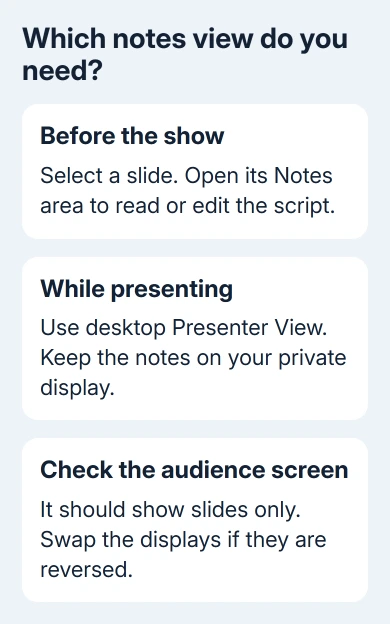
Read individual slides' notes in the editor's Notes area. Use desktop Presenter View for private notes during a show, check both displays, and swap them if necessary. The browser editor doesn't supply the same presenter workspace.
Checked November 16, 2026.
 If you have any business, I can build it online






