

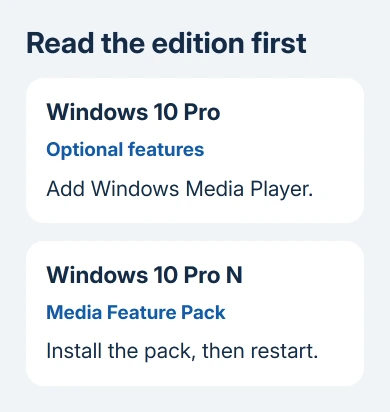
Yes, Windows Media Player can be installed in Windows 10 Pro through Optional features. Windows 10 Pro N needs the Media Feature Pack first, so check the edition before looking for a separate installer.
A missing Start-menu result doesn't always mean the player is absent. Check whether Windows already lists it as an installed feature, then follow the route for your edition.
In this guide
Check whether the edition ends in N
Open Start > Settings > System > About. Under Windows specifications, read Edition and Version. Windows 10 Pro and Windows 10 Pro N need different first steps, even when the desktop looks the same.
The N edition leaves out media components that come with regular Windows. Installing them adds Windows features; it doesn't change your license or edition.
Search Start for Windows Media Player too. If it opens and plays your own music file, the player is already installed. A video that launches a different app can simply have another default program assigned.
With regular Pro, continue with the next section. With Pro N, install the pack first, then check for the player. I'd check the edition before trying any downloaded installer; it settles which Windows component is missing.
Add the player in regular Windows 10 Pro
Open Settings > Apps > Apps & features > Optional features. Some Windows 10 screens call that link Manage optional features. Look through the installed list before selecting Add a feature.
Search the available features for Windows Media Player. Select it and choose Install. Leave Settings open while Windows finishes adding the component, then search Start for the player again.
Microsoft's Windows Media Player instructions list this Windows 10 route separately from Windows 11. A Windows 11 screenshot can send a Windows 10 user to the wrong Settings category.
An installed entry means Windows already has that feature. Don't keep searching the available list for a second copy. Try launching it from Start, then use the repair section if the program won't open.
If the installation fails, copy the complete error and check the internet connection before trying again. On a company computer, ask IT whether optional Windows features are blocked or supplied through its update service.
Check that the feature shows as installed and that the player opens. Installing a different app from the Store doesn't tell you whether this older Windows component is installed.
Install the Media Feature Pack on Pro N
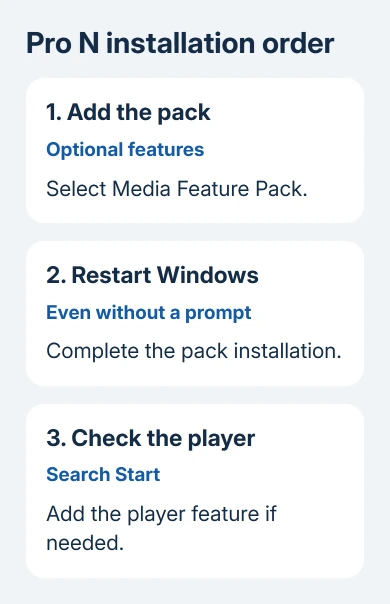
For Windows 10 N version 1909 and later, open Settings > Apps > Apps & features > Optional features > Add a feature. Find Media Feature Pack, select it, and install it.
Finish saving open documents, then restart after installing the pack, even without a restart prompt. The Media Feature Pack page requires that restart to complete the installation.
After signing back in, search Start for Windows Media Player. If it still isn't listed, return to Optional features and check the Windows Media Player entry using the regular installation route.
If the pack isn't in the available list, recheck Edition and Version. Regular Pro doesn't need the N pack. For an older N release, use the official pack list for that exact release instead of downloading an unrelated package.
Installing the pack restores media components, but a file can still need a supported format or codec. A codec is the software that reads that file's audio or video format.
Separate an installation problem from a playback problem
Open the player first, then try a local music file that you know works elsewhere. If the player opens but won't play one recording, check that file or its format rather than looking for a missing Windows feature.
Try another local file. If one plays and the other doesn't, note the failing file's extension and the complete playback message. Protected purchases can also depend on the service that supplied them.
DVD playback isn't included with Windows Media Player on Windows 10. Adding the feature again won't add DVD playback support. A compatible DVD application is needed for that task.
The Windows 11 media-player comparison explains the similar names if you're moving between two PCs. Use the Windows 10 installation menus here for this computer.
When double-clicking a file opens a different program, right-click the file and choose Open with. Select Windows Media Player if it's offered. This lets you try the player without changing which app opens those files by default.
For a permanent choice, use Settings > Apps > Default apps. The default-apps guide explains why the selected program matters, though its Settings steps apply to Windows 11.
Repair an installed player or ask for installation help
For a player that is installed but fails to run, search Start for Turn Windows features on or off. Expand Media Features and check whether Windows Media Player is enabled.
To reinstall the player, turn off the media feature, restart Windows, then enable it again and restart once more. Save work before starting, since the restarts are part of the repair.
On a managed PC, ask IT before removing media components that other applications use. Provide the edition, version, missing feature, and error message. Ask IT to check where the PC gets its Windows components for installation.
If installation still fails on a personal PC, open Get Help from Start and describe an optional-feature installation failure. Include whether the computer is Pro or Pro N and whether the pack installed successfully.
Windows 10's standard free support ended October 14, 2025. Restoring a media player doesn't change that support status. Plan a supported Windows installation separately from getting your existing files to play.
The Short Version
Windows 10 Pro can add Windows Media Player in Optional features. Pro N needs the Media Feature Pack and a restart first. Confirm the player opens before troubleshooting a file format or changing its default app.
Checked November 16, 2026.






