

Windows Update can reuse a damaged download or get stuck when a service fails. Run its troubleshooter first. If the download still fails, reset the update services and working folders so Windows can try again without resetting your PC.
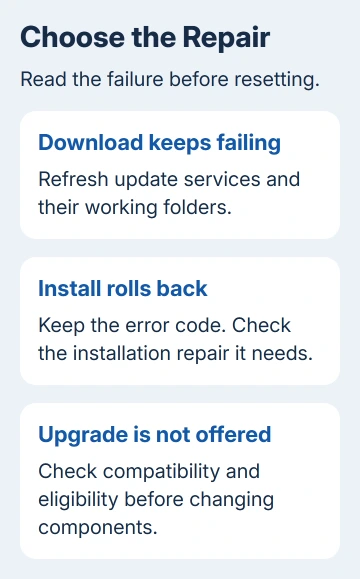
A download failure, an installation rollback, and a missing feature update need different treatment. This reset is for a broken update process. It won't remove a compatibility block or make an unsupported PC eligible for an upgrade.
In this guide
1. Let the update troubleshooter repair the common faults
Save your work, restart the computer, and confirm that websites open on your connection. Open Get Help from Start, search for Windows Update troubleshooter, and follow its prompts. Microsoft recommends this before a manual component reset.
On Windows 11, open Settings > Windows Update afterward. On Windows 10, open Settings > Update & Security > Windows Update. Select Check for updates, or Retry beside the failed update.
Let any pending restart finish before deciding whether the update failed. An update that reaches Restart required has moved past the download stage; it isn't still stuck just because more installation happens during restart.
If the same update fails again, record the error code alongside the update's KB number. The update error code guide explains problems that need a particular repair rather than another general reset.
2. Prepare an administrator Command Prompt
Copy important files to a backup before changing system components. If the PC is managed by your school or workplace, ask IT to handle this procedure; the organization can control update services and download sources.
Search Start for Command Prompt, choose Run as administrator, and accept the permission prompt. Keep this window open until the services have been started again. A normal Command Prompt can return access errors for these operations.
Run these commands in Command Prompt. The %systemroot% part tells Command Prompt where your Windows folder is. Pasting these lines into a PowerShell tab won't use that variable in the same way.
I'd try renaming these folders before using a tool that changes dozens of services and permissions. It gives you a clear place to stop if a service or folder refuses the change.
3. Stop the services that use the update folders
Enter each command separately and wait for its response:
net stop bitsNext, stop the Windows Update service:
net stop wuauservFinally, stop the service that checks file catalog information:
net stop cryptsvcThese services download updates, manage the update process, and check files. Stopping them lets you rename their working folders without a running service keeping those files open.
A response saying a service wasn't started means that particular service was already stopped. It isn't the same as Access is denied. If permission is denied, check that the window was opened as administrator before continuing.
If a service won't stop, don't force a folder change while it is still using those files. Restart Windows, open Command Prompt again as administrator, then try the stop commands again. A repeated failure belongs in the support report.
4. Rename the working folders, then start the services
Run these two lines in the same window:
ren "%systemroot%\SoftwareDistribution" SoftwareDistribution.bak
ren "%systemroot%\System32\catroot2" catroot2.bak
SoftwareDistribution holds update working data and downloads. catroot2 holds catalog information Windows uses when installing updates. Renaming them sets the existing copies aside so Windows can create fresh working folders.
Use the folder name catroot2, including the final digit. Don't substitute a similarly named system folder. The manual reset reference lists the components involved.
If the destination already exists, stop that rename attempt. An earlier repair may have left a .bak folder. Don't remove an unfamiliar backup to get past this error. The folder hasn't been renamed successfully.
Whether both renames worked or one failed, restart the services before leaving this procedure:
net start cryptsvcRestart background transfers next:
net start bitsThen bring Windows Update back:
net start wuauservWrite down any error when starting a service. Close the command window, restart the PC, then check for updates in Settings. The reset has helped when the update downloads and installs. Renaming the folders alone doesn't tell you that.
5. Follow the remaining failure instead of repeating the reset
If the update now downloads but rolls back during restart, write down the new error. That means the download got past its earlier problem, but installation still needs attention. Include the update's KB number in your notes.
For damaged Windows system files, the usual repair order is DISM followed by System File Checker. The Windows repair installation guide covers the next repair choice when the usual Windows repair tools don't succeed.
On Windows 11, Settings > System > Recovery can offer Fix problems using Windows Update, another kind of repair. Reset this PC is different again. Don't select a PC reset expecting it to clear only the update download folders.
October 14, 2025 was Windows 10's cutoff for free support. Resetting update components doesn't change your PC's support coverage. Check whether the update applies to your installed edition, version, and any extended support enrollment.
If a managed PC still fails, send IT the KB number, error, Windows version from winver, and the command response that failed. For a personal PC, open Get Help, describe the failed Windows update, and follow its contact options.
The Short Version
Try Get Help first. If needed, stop update services in an administrator Command Prompt, rename the working folders, and restart the services. Reboot and retry, then follow the remaining error instead of repeating the reset.
Checked November 16, 2026.






