

Windows 10's quick-start feature is Fast Startup, and it's usually enabled already. Open Control Panel's power-button settings, unlock the shutdown controls, and check Turn on fast startup to enable it.
A missing checkbox often means hibernation isn't available or has been turned off. Fast Startup changes the next boot after Shut down; choosing Restart still starts Windows through a full boot cycle.
In this guide
Open the shutdown settings in Control Panel
Save any open work before testing shutdown later. For now, press Windows + R, type control, and press Enter. This opens the desktop Control Panel rather than the newer Settings app.
With View by set to Category, choose Hardware and Sound > Power Options. If Control Panel is displaying icons instead, open Power Options directly.
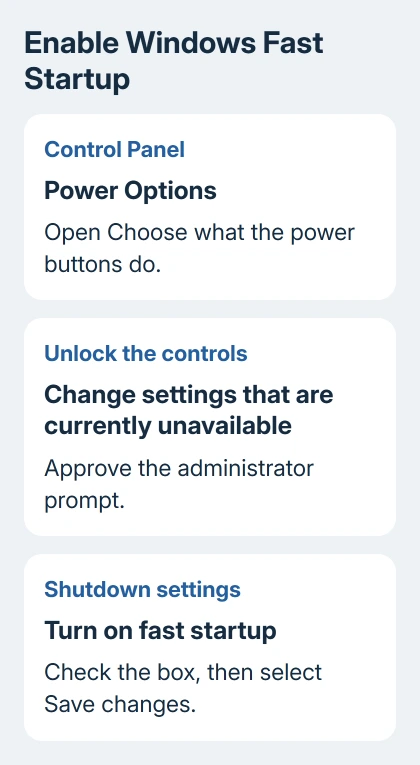
Select Choose what the power buttons do from the window's left panel. This page holds the shutdown options too, even though Fast Startup doesn't change what the physical power button does.
Click Change settings that are currently unavailable near the top. Approve the administrator prompt, or enter an administrator's login details if Windows asks for them.
The previously dimmed shutdown choices should become available. If you can't approve that prompt on a managed workplace or school computer, ask its administrator to change the setting rather than trying a registry workaround.
Select the checkbox and save
Under Shutdown settings, check Turn on fast startup (recommended). Select Save changes before closing the window. An already-checked box means the setting was enabled when you reached this page.
Microsoft explains in its Fast Startup reference that Windows saves the system's running core and drivers to a hibernation file during shutdown.
That saved system state helps the next startup. It doesn't save your open documents so you can pick up where you left off. Save or close them as usual before shutting down.
Open the same Control Panel page again to check whether the box stayed selected. Then save your work and choose Start > Power > Shut down.
Wait for shutdown to complete, turn the computer on normally, and check that Windows reaches the sign-in screen. A working startup matters more than chasing a particular number of seconds.
I'd compare two normal shutdown-and-start cycles with the same devices connected. Installing updates or changing a dock during the comparison can make the timing tell you about something other than this setting.
Restore hibernation if the checkbox is missing
Fast Startup uses Windows' hibernation support. If a cleanup utility or an earlier command disabled that support, restore it before looking for the checkbox again.
Open Start and type cmd. Right-click Command Prompt, choose Run as administrator, and approve the prompt. At the command line, enter:
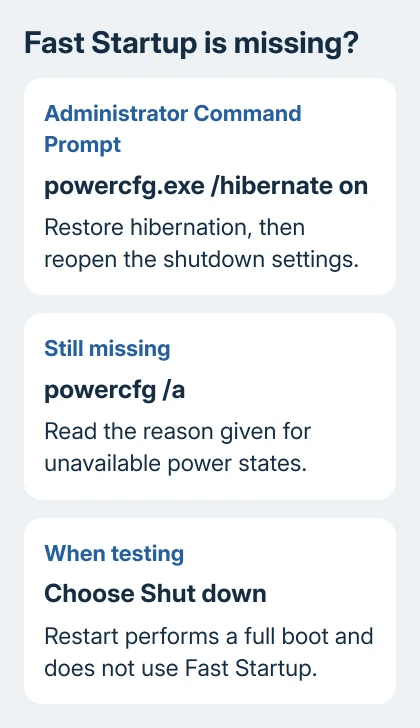
powercfg.exe /hibernate onPress Enter. When it works, you'll usually return to the command prompt without a long confirmation message. If it reports an error, keep the exact wording; that result changes the next step.
The hibernation re-enable procedure uses this command. Close and reopen the Power Options page afterward, unlock the shutdown settings, and look for Fast Startup again.
If it's still absent, run this read-only check in the same administrator window:
powercfg /aThis lists available sleep and power states and gives reasons for unavailable ones. Read the reason given for hibernation or Fast Startup, rather than assuming that a missing Sleep option means the same thing.
The system power-state reference distinguishes full hibernation from Fast Startup. A smaller, reduced hibernation file can support Fast Startup without saving your full work session.
Don't resize or delete the hibernation file just to make every item in the report say available. If the report points to firmware or a system restriction, send the reported restriction to your administrator or the computer manufacturer.
Test Shut down rather than Restart
Choose Shut down when checking the setting's effect. Restart performs a full boot, so timing Restart won't show the benefit you enabled.
This difference is useful during troubleshooting too. After installing a driver or when a device behaves strangely, Restart gives Windows a fresh start instead of reusing the saved system state from an ordinary Fast Startup shutdown.
The restart and shutdown comparison explains why the two choices can produce different results. Fast Startup doesn't mean the computer skipped signing you out or that an open document was safely saved.
It also differs from a firmware setting called Fast Boot. That setting belongs to the computer's BIOS or UEFI. Changing it isn't required to enable Windows' Control Panel option.
Leave the firmware alone for this task. If the delay happens before the Windows logo appears, tell the PC manufacturer which stage is slow rather than assuming the Windows setting controls the entire power-on sequence.
Keep startup apps separate from Fast Startup
Fast Startup helps Windows load its saved system state. Programs that launch after sign-in can still make the desktop feel slow, even when Windows reaches the login screen quickly.
Press Ctrl + Shift + Esc to open Task Manager. In Windows 10, choose More details if needed, then open Startup to review programs that start with your account.
Disable a recognized program only when it doesn't need to launch at sign-in. This changes its automatic launch; it doesn't uninstall the program. Keep security and device utilities unless you understand their role.
The Windows slow-startup guide covers that longer performance check. A checkbox can't remove the load from several apps opening together or correct a failing storage drive.
Undo the change if shutdown develops a problem
If enabling Fast Startup is followed by a repeatable shutdown or device problem, return to the same Power Options page, unlock it, and clear Turn on fast startup. Save the change, restart, and check the behavior again.
For a setting that stays unavailable or a startup that still fails, contact the PC maker with the model, Windows version, and powercfg /a result. Ask about that model's power-state support and current chipset or firmware guidance.
Windows 10's regular support ended October 14, 2025. Fast Startup is a performance setting, so it doesn't extend security support or make an unsupported installation current.
The Short Version
Enable Fast Startup under Control Panel's power-button settings and save. Restore hibernation if necessary, read powercfg /a when the option stays missing, and test after Shut down rather than Restart.
Checked November 16, 2026.






