Purging the Windows Update cache replaces damaged update downloads. Stop the Windows Update service, empty C:\Windows\SoftwareDistribution, then start the service and check for updates to download fresh files.
A cache reset and Windows Update Cleanup solve different problems. Reset the download cache for a failed update; use the built-in storage cleanup tools when successful old updates are taking up disk space.
In this guide
Check that a cache reset matches the problem
Try this for repeated download failures or errors involving corrupt update files. It won't uninstall a completed update or bypass Windows upgrade hardware requirements.
Microsoft says to clear SoftwareDistribution in its update troubleshooting steps when cached files are corrupt. Start with the built-in troubleshooter if you haven't tried it yet.
On Windows 11, open Settings > System > Troubleshoot > Other troubleshooters and run Windows Update. On Windows 10, use Settings > Update & Security > Troubleshoot > Additional troubleshooters, then Windows Update.
Follow the troubleshooting prompts on screen. Windows can open Get Help instead of an older troubleshooter window. If it repairs the download and the update installs, leave the cache alone afterward.
Before a manual reset, save your work and complete any restart requested by Windows Update. Don't interrupt an update installation screen. Begin only after the desktop returns and installation has finished or failed.
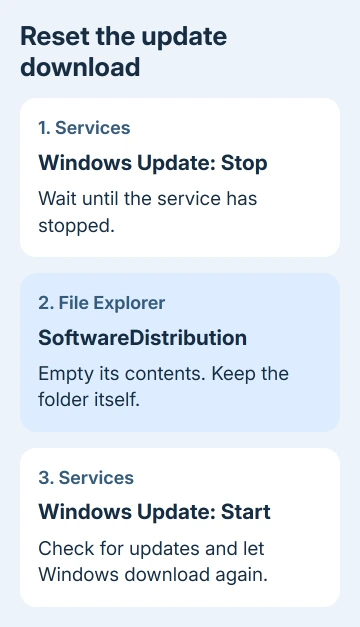
1. Stop the Windows Update service
Have an administrator approve these changes, or use your own admin account. Press Windows key + R, type services.msc, and press Enter. The Services window lists the background services running on the PC.
Find Windows Update in the alphabetical list. Right-click it and choose Stop. This stops the service from using the cached files while you clear them, so a download won't compete with the deletion.
Wait for the service to stop. If the right-click menu offers Start rather than Stop, the service is already stopped. Don't change its startup type to Disabled; this procedure only needs it stopped temporarily.
Leave Services open with that entry selected for the final step. The service must be restarted to finish this reset. Leaving it stopped prevents the normal update check you're about to use to confirm the result.
If Stop is unavailable or access is denied, check whether workplace or school management controls the PC. Ask IT to reset the cache rather than taking ownership of Windows folders or changing service permissions yourself.
2. Empty SoftwareDistribution's contents
Press Windows key + E to open File Explorer. Click its address bar, enter C:\Windows\SoftwareDistribution, and press Enter. These instructions assume Windows is installed in C:\Windows, as it is on most PCs.
Read the address bar before selecting anything. The target is SoftwareDistribution, not C:\Windows itself. Keep the SoftwareDistribution folder and clear its contents, following the current support procedure.
Click in that folder's file list, press Ctrl + A, then press Delete. Approve the administrator prompt if one appears. This removes the cached update files so Windows can download a fresh copy when you check again.
Your personal documents and installed updates stay in place. Don't select adjacent folders or use a cleaner that promises to remove unrelated Windows components as part of the same operation.
If Explorer reports a file is in use, cancel deletion and return to Services. Check whether Windows Update is running again. Close Settings before stopping it again, since an active update check can restart activity.
If the folder stays locked, restart Windows and try again after stopping the service. I'd stop there if the lock keeps returning. Forcing deletion or changing permissions can add a different problem to a failed update.
3. Start the service and download again
Return to Services, right-click Windows Update, and select Start. If it is already running, continue to Settings. A new folder appearing inside SoftwareDistribution after this point is expected because Windows uses the cache again.
On Windows 11, open Settings > Windows Update and select Check for updates. On Windows 10, open Settings > Update & Security > Windows Update and select Check for updates.
Keep your PC online and its charger connected. A fresh download can take longer than a retry using cached files, especially for a large update. Progress starting from an earlier point doesn't mean another fault has appeared.
Let the installation complete and choose Restart now when Windows asks. Then reopen Windows Update and check whether the original update is installed or whether it offers the same failed update again.
Note the KB number and exact error code if it fails again. If the error changes, let that new code guide the next repair. The Windows Update error guide separates download faults from driver, permission and installation problems.
Use cleanup tools when the goal is free space
For an update that installed successfully, deleting download files isn't the only kind of cleanup. Search Start for Disk Cleanup, open it, choose the Windows drive if asked, and select Clean up system files.
Review Windows Update Cleanup if it appears, including its size and description. It removes older update files that Windows can clean up. A missing entry can mean nothing is eligible for removal.
That cleanup doesn't use the same service-stop procedure as repairing a download cache. The Disk Cleanup system-files button explains why the second scan can show categories the first scan misses.
Read the selected categories before confirming deletion. In particular, Previous Windows installation(s) affects rollback to the earlier Windows installation. Don't select it casually just because you're clearing space for an update.
When a fresh cache still doesn't fix updates
Check the Windows drive's available storage, then choose a repair using the precise update error code. Repeating a cache reset won't resolve an incompatible driver or an update blocked by workplace policy.
Avoid copying a full update-component reset script just to repeat this task. Some scripts change service permissions, networking or other update folders. Those are broader repairs than clearing the files downloaded for Windows Update.
For an unmanaged PC, open Get Help, search using the update error and request support if its suggested repair fails. Give support the KB number, error code and Windows version. For a managed PC, send those details to IT.
The Short Version
Stop Windows Update, empty C:\Windows\SoftwareDistribution, then start the service and check again. Use Windows Update Cleanup for old installed-update files. If a fresh download fails, match the next repair to its error code.
Checked November 16, 2026.