Clear File Explorer's recent history in Folder Options > General, using Clear beside Clear File Explorer history. The documents remain in their folders; this clears their history. Broken picture previews need a different cache reset.
Choose the history reset for an unwanted recent list or remembered locations. Choose thumbnail cleanup only for incorrect image previews. Neither reset gives you access to a folder if you don't have permission.
In this guide
Open the history controls for your Windows version
Press Windows + E to open File Explorer. In Windows 11, select the three-dot menu > Options. In Windows 10, select the ribbon's View tab, then Options to open Folder Options.
Select the General tab. Near the bottom, find Privacy and the Clear File Explorer history control. Use this control to clear history. The Restore Defaults buttons elsewhere in the dialog do something different.

Check which list you want to change before clicking. File Explorer history, Windows Search history, and thumbnail previews serve different purposes. Clearing one doesn't mean every recent item on the PC will disappear.
If you're mainly trying to avoid Home whenever Explorer opens, set its starting view to This PC. That changes the landing page while leaving the saved history available in Home.
Clear the saved history and check the result
Select Clear, then close Folder Options with OK. Return to Home in Windows 11 or Quick access in Windows 10. Check the recent-file list you wanted to remove.
An owner confirmed this menu route cleared the Explorer history they were trying to remove on Microsoft's forum. That fixed the history problem; it doesn't mean clearing history will fix every Explorer freeze.
Open a document from its real folder to check that the file remains available. The history button removes the record, while selecting the real file and pressing Delete removes the file itself.
Don't delete files from Documents or Downloads to tidy the recent list. Those are storage folders. Removing a real file there can remove your working copy, which isn't what the history button is for.
If the recent section fills up again as you open files, that's normal while saving history is still turned on. The Clear button empties existing history; the checkboxes control what gets collected afterward.
Keep recent files from building up again
Reopen Options > General > Privacy. Turn off the checkboxes for recently used files and frequently used folders if you don't want those automatic lists. Select Apply, then OK to keep the change.
The exact checkbox wording can mention Home or Quick access, depending on the Windows version. Microsoft's File Explorer instructions explain these Privacy controls and their effect on the automatic lists.
Leave a checkbox enabled if you still use its list. Turning off recent files doesn't require removing the folders you pinned for convenience. Your pinned folders are separate from the activity Windows saves automatically.
To remove a pinned shortcut itself, right-click its folder entry and select Unpin from Quick access. Removing the shortcut doesn't require deleting its target folder. Check the menu wording before choosing an action.
If a cloud recommendation remains visible, read its label and the account controls offered by your installed Windows version. Clearing the list on your PC doesn't necessarily remove recommendations from your connected work account.
I'd change only the list that bothers you. Removing useful folder shortcuts when you only wanted to clear recent documents just gives you extra work.
Treat thumbnail previews as a separate cleanup
For an old or incorrect picture preview, clear the thumbnail cache, which stores those small preview images. The history button doesn't rebuild those previews.
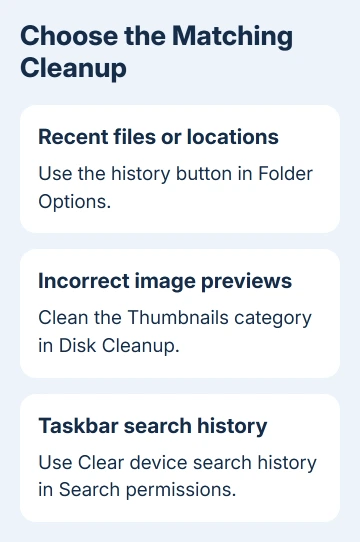
Open Start, type Disk Cleanup, and select the app. Choose the drive holding the Windows cache when asked. Review the file categories, select Thumbnails, and clear unrelated categories you don't intend to remove.
Select OK, then confirm the cleanup. Windows recreates thumbnail images as needed, so the first visit to a picture folder can take longer while previews return.
The thumbnail troubleshooting page covers missing previews, including OneDrive files that aren't stored locally. A cloud-only file can need downloading rather than repeated cache cleanup.
Keep this operation tied to a preview problem. Thumbnail removal isn't needed just because a recent document's name appears in Home, and it doesn't change the content of the original pictures.
Use Windows Search controls for its own history
A search typed into the taskbar belongs to Windows Search. Its saved device history has a separate setting from File Explorer's folder-history button.
In Windows 11, open Settings > Privacy & security > Search permissions. Under History, select Clear device search history. In Windows 10, the corresponding route is Settings > Search > Permissions & History.
Use the Search history on this device switch there if you also want to stop saving that device history. This setting controls Windows Search history. Edge and Chrome have their own browser-history controls.
Search history connected to a Microsoft account can also be managed through its privacy dashboard. Use those account controls if that's the history you want to clear. Clearing Explorer activity on your PC won't do the same job.
If Explorer still hangs, check whether one folder fails or all of them do. Give IT the affected path and Windows version. Permissions, an unavailable share, and a failing search service need different repairs.
The Short Version
Clear Explorer history in Folder Options and use its Privacy checkboxes to stop automatic recent lists. Clean thumbnails for preview problems, or use Search permissions for taskbar search history. Keep the real documents.
Checked November 16, 2026.