A minimalist computer table needs room for your equipment, legs and cables. Measure the monitor stand, keyboard and mouse area before choosing the tabletop; a clean product photo doesn't show whether your working setup fits.
The useful choice isn't the smallest surface. It's the simplest table that holds everything you use without forcing the computer, power supplies or everyday accessories into awkward places.
In this guide
Start with the equipment footprint
Arrange your computer equipment on a clear surface. Include the monitor's full stand, keyboard, a usable mouse area and anything you reach for during work. Add a notebook if you regularly write beside the keyboard.
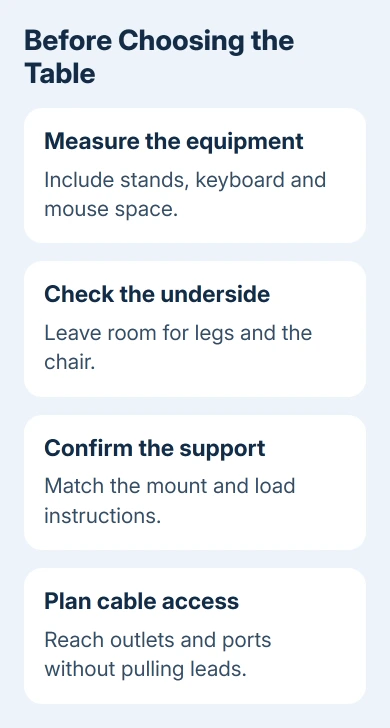
Measure the width and depth that arrangement uses. A monitor's advertised screen diagonal isn't its stand footprint. Check the stand dimensions in its specifications, or measure the actual base if you already own it.
For two monitors, make room for both stands in the positions you'll use rather than adding screen widths and guessing the depth. Angled screens and broad bases can use the tabletop differently from a straight pair in a product picture.
For a laptop-only setup, lay out the laptop open at a comfortable viewing angle. If you use a dock, external keyboard or drawing tablet, include those now. A table that fits the closed laptop may not fit a working session.
CCOHS's office-furniture purchasing guidance starts with the work, computer equipment, accessories, room and users. That is a better buying checklist than a style label.
Check depth, leg space and the chair together
Mark the proposed table footprint on the floor with removable tape or paper. Leave space to pull the chair out, enter the seat and open nearby storage. Measure the clear room space rather than relying on the wall's total length.
Check the space underneath the proposed desk, too. A deep drawer, storage shelf or crossbar can occupy the area your knees and feet need. Ask for underside measurements when the listing only gives the tabletop's outer dimensions.
Sit in your intended chair and compare its working position with the proposed table height. A fixed-height table offers less adjustment. Its minimalist appearance doesn't tell you whether that height suits your setup.
If the table has a keyboard tray, check whether it also leaves room for the mouse at the same working level. A very narrow tray may fit the keys but send the mouse back onto a higher surface.
The existing computer-table adjustment guide covers fitting the chair, controls and screen after purchase. Use those checks on a showroom sample before ordering if the dimensions leave you uncertain.
Choose support for the screen you will actually mount
Decide whether the monitor will use its original stand or an arm. A stand needs enough flat supported surface for its entire base. An arm needs a mount that fits the arm itself and works with your tabletop.
For a clamp mount, check the arm maker's permitted tabletop thickness and the clearance its clamp needs underneath. A decorative apron, rear shelf or frame rail can obstruct the clamp even when the top's thickness looks suitable.
For a through-hole mount, check the required hole dimensions and underside access. An existing cable opening isn't automatically compatible with the mount. Get the desk maker's approval before planning a new hole in a purchased top.
Read the desk's material description and load instructions, then compare them with the arm's requirements. Don't assume the table's total weight rating means its edge can handle the pressure from a monitor-arm clamp.
I'd settle the mounting question before choosing the table finish. Replacing a clamp or discovering that the rear frame blocks it can undo the space-saving plan that made a narrow desk appealing.
Ask the desk supplier whether the exact tabletop supports the proposed mount. Send the arm's model and installation requirements. Get written confirmation about those parts, rather than a general promise that the desk works with computers.
Read the load rating and storage details
List everything the top will carry: monitors, stands or arms, a desktop tower, speakers and other equipment. Compare the combined equipment weight with the manufacturer's published load instructions for that table configuration.
On an adjustable model, check how much weight it can lift and how the equipment should be arranged. Don't apply a rating from a similar-looking frame or a different tabletop size. Read that model's supplied instructions before buying.
If the specification is unclear, ask whether its stated capacity includes the tabletop and how the load should be spread. Use the maker's answer rather than guessing how much spare capacity to leave.
Look at storage from the seated position. A drawer can hide accessories while reducing knee clearance. A side cabinet may be useful, but include its width when marking the room footprint and checking access to the chair.
Minimal storage works best when the few things you keep have a place. Put occasional-use supplies elsewhere if that suits your work, rather than choosing a cramped keyboard area to hide equipment you use every day.
Plan cable access without hiding necessary controls
Find the room's outlets and decide where the computer, dock and power supplies will sit. Check that cables can reach their ports without being pulled tight. Leave access to the sockets and power switches you may need to reach.
For a sit-stand table, the cable route must work throughout its intended movement. A lead that reaches at sitting height may pull when the top rises. Check the desk maker's cable-management instructions and secure supplies as directed.
Keep the computer's ventilation openings clear when choosing a shelf or holder. Hiding the machine behind a solid panel isn't a useful trade if it blocks the airflow specified in the computer manual.
For a raised laptop, budget space for external controls. Apple recommends comfortable equipment placement in its Mac workspace guidance. The stand lifts the keyboard as well as the screen, so allow space for a separate keyboard and mouse.
If the new arrangement includes two Windows screens, the dual-monitor setup guide covers their software arrangement. Leave physical room for the screens and their connections before working on that layout.
Before paying, confirm the return terms and ask the supplier about any missing dimensions, load rating or mount compatibility. Choose another model when the missing specification is essential to the equipment the table must hold.
The Short Version
Measure the working setup, mark its room footprint, and check the underside. Match the tabletop and mounting method to the monitor, read the exact load instructions, and plan cable access. Buy the simple table that passes those checks.
Checked November 16, 2026.