

Safari's network connection was lost message means loading stopped before the page finished. Reload once, then try a second network. A Wi-Fi-only failure needs network checks; a Safari-only failure needs browser checks.
On an iPhone or iPad, check the connection and VPN first. On a Mac, extensions and stored website data also have direct checks. If just one website fails across devices, keep that separate from a problem affecting every page.
In this guide
1. Reload the page and compare another connection
Tap Safari's reload control on iPhone or iPad. On a Mac, press Command-R or choose View > Reload Page. If you were submitting a payment or order, check whether it completed before submitting it again.
In a fresh tab, load a second familiar website. If the second site opens, Safari can reach the internet, and the problem may affect just the first site. Keep the original address for the comparisons that follow.
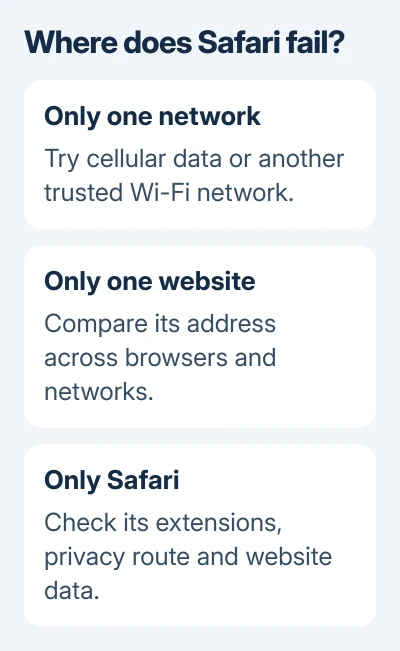
On an iPhone, disable Wi-Fi through Settings > Wi-Fi, then retry over cellular if your plan supports it. A Wi-Fi-only iPad or a Mac can use another trusted network instead. Return to your usual connection after the comparison.
If the page loads on the second connection, check the network where it failed. If it fails on both, continue with Safari's own settings. Apple recommends this comparison in its Safari loading steps.
On hotel or airport Wi-Fi, finish the network's sign-in before judging Safari. Use the iPhone Wi-Fi login steps when the welcome screen hasn't appeared.
I'd compare connections while your browsing history is still intact. It can show that the site and your browser both work without signing you out of websites you still need.
2. Check the VPN and Private Relay route
A VPN routes the connection through a separate server. Disconnect it using its app or your device's VPN settings, then reload the same address. Some sites block or handle that connection differently.
If the site works with the VPN disconnected, reconnect it and check once more. Give the VPN provider the site address and the result. For a managed phone or Mac, ask IT before removing the network configuration.
An iCloud+ subscription can also provide Private Relay, a separate feature. On a Mac using it, choose View > Reload and Show IP Address in Safari. You'll see that command when the network uses Private Relay.
On iPhone or iPad, check Settings > your name > iCloud > Private Relay. Temporarily switch it off for the comparison, then return it to your preferred setting after checking the page.
If the page opens after that change, the problem involves how it connects through Private Relay. It doesn't call for changing every Wi-Fi privacy setting. For a message naming the service itself, use the Private Relay connection guide.
3. Restart Safari and update the device
On a Mac, quit Safari and reopen it. If it won't quit normally, use Option-Command-Esc, select Safari, and choose Force Quit. Reopen the original address before restoring a large collection of tabs.
On iPhone or iPad, save anything needed from an unfinished form, then restart the device normally. Settings > General > Shut Down provides an on-screen shutdown route without a model-specific button combination.
After turning it on, open the same page. If the error returns, check Settings > General > Software Update on iPhone or iPad. Safari updates arrive with the device's system software.
On a current Mac, use System Settings > General > Software Update. In System Preferences on older macOS, select Software Update. Install an offered compatible update and complete its restart before checking again.
That handles a browser or system problem without resetting your saved networks. If the device is already current and only Safari fails, check its extensions and site data next.
4. Turn off interfering extensions on a Mac
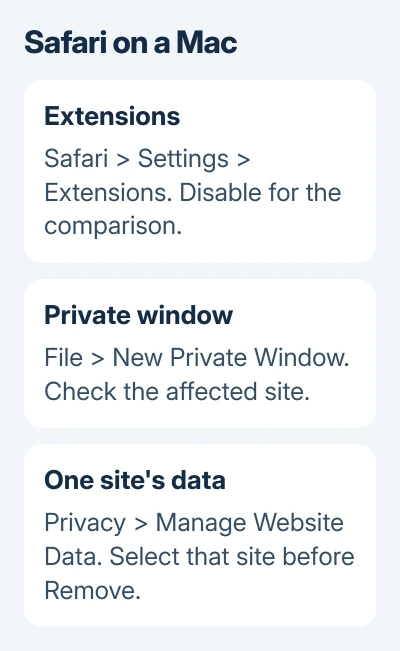
Choose Safari > Settings > Extensions and deselect installed extensions. Older Safari calls Settings Preferences. Reload the affected site with the extensions disabled.
If loading now succeeds, switch on one extension and reload, repeating with the others. When one triggers the error again, update it or ask its developer for help. Leave the others enabled if they work normally.
If turning extensions off changes nothing, return them to their earlier settings and continue. You'll learn whether an extension caused the trouble without giving up all your browsing tools permanently.
5. Remove website data only when it helps
On a Mac, choose File > New Private Window or press Shift-Command-N. Open the affected site there. If it works in that window, try removing that site's stored data from the normal browsing session.
Open Safari > Settings > Privacy > Manage Website Data. Select the affected website, click Remove, then Done. Know your sign-in details first because deleting its cookies can sign you out.
Open the page again in a normal window. If it loads, you won't need to clear the rest of your browsing data. If the error remains, stop repeating the deletion and move to the final comparison.
For iPhone and iPad, open Settings > Apps > Safari > Clear History and Website Data. On those devices running version 17 or earlier, Safari sits directly in Settings. This clears browsing history and can end website sign-ins.
For a page missing interactive content, also check Safari > Advanced > JavaScript in those settings. Turn JavaScript on if it's off. A disabled script setting can break a page, though it doesn't explain every lost-connection message.
6. Report the comparison that still fails
Try the address with a second browser or device. A single site that fails across browsers and networks needs its operator's help. Send the operator the URL, time and error so they can check that request.
If all browsing fails on one network, ask its administrator or internet provider to check access. If only Safari fails across networks after these checks, give Apple Support the model, system version and results from those comparisons.
The Short Version
Reload once, compare networks, and check VPN or Private Relay. Restart and update the device, then test Mac extensions and affected-site data. Ask the site operator for help if only their site fails, or Apple Support if only Safari fails.
Checked November 16, 2026.
 If you have any business, I can build it online






