A silent Lenovo microphone often has its keyboard mute enabled, the wrong recording input selected, or blocked app access. Press the marked microphone key first, then test the selected input in Windows Sound settings.
Supported ThinkPads use F4; other Lenovo layouts can differ. A Windows voice recording that succeeds while the meeting stays silent points to the app's selected microphone. Check it before replacing drivers.
In this guide
1. Unmute the Lenovo microphone and any headset
Find the keyboard's crossed-out microphone symbol. Press that control once and check the mute message on the screen if one appears. Depending on the keyboard's function-key mode, the shortcut can require Fn with the marked key.
Don't confuse the microphone symbol with the speaker-mute symbol. Speaker volume changes what you hear; it doesn't restore what the other person hears from you.
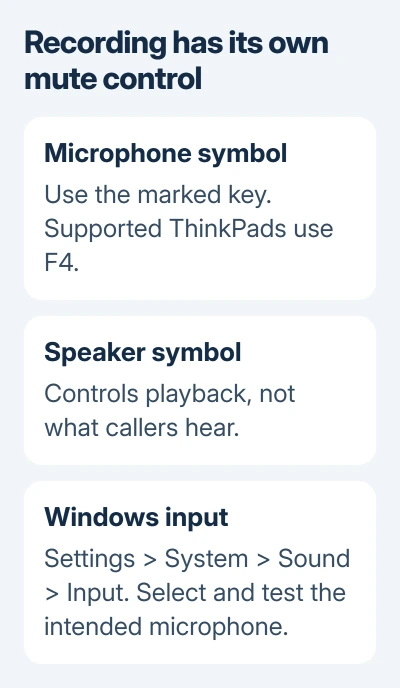
Lenovo lists microphone mute at F4 in its ThinkPad keyboard reference. That isn't a rule for every IdeaPad, Yoga or Legion. Follow the symbol and your model's keyboard instructions when its layout differs.
For a headset, check its own inline mute switch or boom control too. Temporarily unplug the headset to check the built-in microphone instead. Otherwise Windows might keep listening to the headset you set aside.
If the built-in microphone works with accessories disconnected, reconnect them individually. A faulty headset needs different checks from the laptop's built-in microphones, even when both appear under the same audio software.
2. Choose the input and make a Windows recording test
On Windows 11, open Settings > System > Sound. Under Input, choose the microphone for your call. The internal microphone may be labeled Microphone Array, with the audio-device name beside it.
Open that input's properties. Use Start test, speak normally, then Stop test. Current Windows versions can offer Play under Recorded sample so you can hear the result. Adjust Input volume for a recorded voice that is too quiet.
On Windows 10, open Settings > System > Sound and select the device under Choose your input device. Speak while watching Test your microphone. Movement in the level indicator means the input is reaching Windows.
If Windows 10 shows the device as disabled, open its Device properties and clear Disable. In Windows 11, open All sound devices if necessary and allow the intended input if it is disabled.
Use the Windows recording test to compare the input independently of a call. If it works, continue to the app-access section. A missing microphone or silent test needs the later system checks.
I'd use the Windows test before joining another meeting. It gives you a clear comparison without depending on the meeting's mute button, selected input or connection.
3. Restore recording permission for the application
In Windows 11, open Settings > Privacy & security > Microphone. Enable Microphone access, then Let apps access your microphone. Turn on the app's own switch too, if it's listed there.
Also check Let desktop apps access your microphone. Desktop programs use this shared permission. Allowing an individually listed app doesn't automatically allow a desktop calling program.
In Windows 10, use Settings > Privacy > Microphone. Check device access through Change if offered, turn on app access, then check the desktop-app access switch farther down the page.
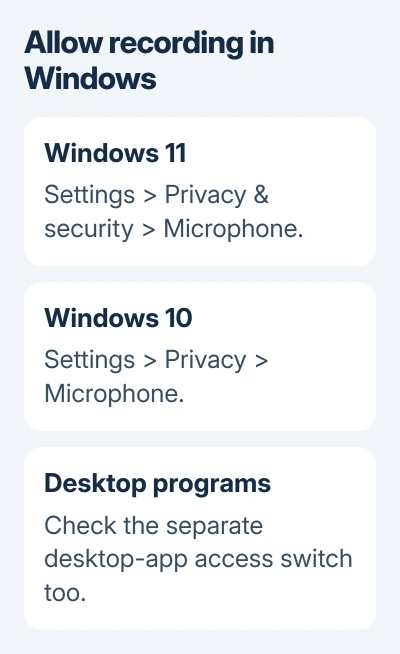
After changing permission, exit the calling app completely. Launch it again and run its audio check. If the Windows recording works and the app stays silent, check the app's own controls next. That result doesn't call for removing drivers.
If these controls are managed or locked on a work laptop, ask your administrator to enable recording for that application. Your own settings can't override your organization's policy.
4. Match the meeting app to the working input
In the calling app's audio or device settings, choose the input that worked during your Windows recording test. A saved selection can still point to a disconnected headset, webcam microphone or monitor accessory.
Unmute yourself inside the meeting as well. The keyboard mute control, headset switch, Windows input selection and meeting mute button are separate places where speech can be stopped.
For a browser meeting, check the site's microphone permission and the microphone selected in the meeting's settings. If permission was denied, use the browser's site controls to allow it, then reload the meeting page.
Don't use the successful speaker test as a microphone result. Hearing the meeting only confirms playback. Use the app's recording or microphone-level check, then ask whether another participant can hear you.
For missing video at the same time, the Lenovo camera privacy checks cover the separate shutter and camera access controls. Opening a camera shutter doesn't automatically change microphone permission.
5. Repair a missing or silent Windows input
Restart Windows using Start > Power > Restart, then check the input again before opening the meeting app. If it's still missing, check Settings > Windows Update for offered updates in Windows 11.
Windows 10 places Windows Update under Settings > Update & Security. It no longer receives standard free support; use updates available for that particular device and its support arrangement.
For additional audio checks, launch Get Help in Windows 11 and ask for help with audio problems. Follow its microphone or input prompts. Windows 10's older route is Troubleshoot > Additional troubleshooters > Recording Audio.
An audio-driver update can restore a missing input. In Device Manager > Sound, video and game controllers, open the audio device's right-click menu and select Update driver. Complete any requested restart and repeat the recording test.
A driver package must match the Lenovo model. A shared audio-brand name doesn't make another ThinkPad's package suitable. Give Lenovo the model and current driver version when asking which package the laptop needs.
6. Request the right hardware assessment
If an external microphone records but the built-in microphone array (the laptop's group of microphones) stays silent, tell Lenovo Support. Ask them to check it and its connection, especially after a drop or display repair.
If both recording and playback are broken, use the Lenovo speaker and audio checks too. Give support the Windows test result, mute-key behavior and whether the internal input appears in Sound settings.
The Short Version
Unmute the marked key and test the intended Windows input. If it records, check the app's access and input choice. If Windows can't record, work on audio software or request a microphone assessment.
Checked November 16, 2026.