Event ID 131 from DeviceSetupManager often means Windows couldn't download a device picture or related software. If the hardware works, start with Device Installation Settings before reinstalling drivers or Windows.
First check whether the device itself works. A metadata error needs different treatment from a USB drive that disconnects or a PC that crashes. The event alone doesn't tell you which hardware needs repair.
In this guide
1. Check that the event is about device metadata
Right-click Start, open Event Viewer, and expand Applications and Services Logs > Microsoft > Windows > DeviceSetupManager > Admin. Select a recent entry and read its General tab.
Check all three details together: the source is DeviceSetupManager, the event number is 131, and the description begins Metadata staging failed. Other Windows components can reuse an event number, so 131 on its own isn't enough.

Metadata gives Windows details about a device, such as its picture and related apps. The hardware driver has a separate job: it lets Windows communicate with the device.
Try the device's real job now. Print a page, play audio through the headset, or open a file from the external drive. If that works, continue with the metadata settings. If it doesn't, write down what fails along with the event details.
For an actual USB device not recognized warning, read the Device Manager message too. A failed metadata download and a failed USB connection need different checks.
2. Stop optional device downloads through the dialog
Press Windows + R, enter sysdm.cpl, and press Enter. This opens System Properties in both Windows versions, so you don't need to hunt through Settings.
Select Hardware > Device Installation Settings. The dialog asks about downloading manufacturers' apps and custom icons. Choose No > Save Changes, and approve any administrator prompt.
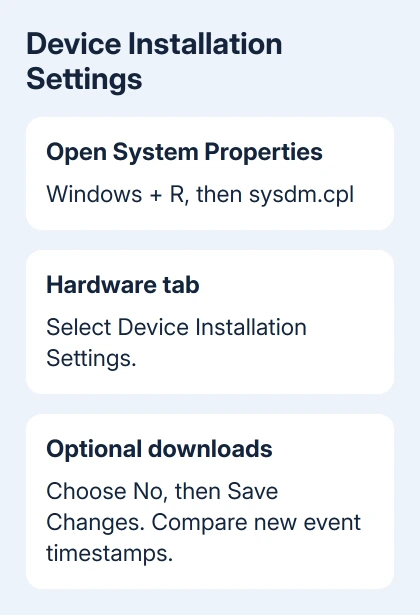
This controls optional device downloads. Leave Windows Update and your installed drivers enabled; you don't need to remove either to change this setting.
Restart the computer, use it normally, and check entries with timestamps after the restart. Old events stay in the log; their presence doesn't mean the setting failed. Look for fewer or no new entries with the same metadata error.
In the original discussion, one owner later reported that stopping those lookups also stopped the events, without causing problems on their PC.
They had tried the earlier suggestions together, including registry changes, so their result doesn't tell us whether the dialog alone worked. I'd try the dialog first because you can reverse it without editing the registry.
If a manufacturer app or custom device experience stops appearing automatically, return to this dialog and select Yes. Write down your choice so you can tell whether it changes how the device behaves.
3. Check whether an organization controls the setting
If the setting reverts, is unavailable, or doesn't affect new events, check who manages Windows on this PC. School and workplace policies can override the Device Installation Settings dialog.
Ask IT to check Computer Configuration > Administrative Templates > System > Device Installation. The policy name can vary with the templates installed; give IT PreventDeviceMetadataFromNetwork to identify it.
Microsoft's policy reference describes the current setting as preventing automatic downloads of applications associated with device metadata. An enabled policy overrides the dialog.
The documented policy registry location is SOFTWARE\Policies\Microsoft\Windows\Device Metadata. The older discussion's workaround uses a different location. Don't mix instructions for those two registry locations.
Ask IT whether the policy is intentional and whether optional device applications are needed for your work. If IT set it that way on purpose, changing the local dialog repeatedly won't help. Ask them whether the policy needs to change.
On a personal Home edition PC, a missing Group Policy Editor isn't another fault. Continue with the timestamp comparison and report the remaining errors rather than installing an unofficial policy editor.
4. Keep the error log and leave the service address alone
The original reports included connection-aborted and invalid-server-response results, including 0x80072EFE and 0x80072F78. The asker also recorded server connection failures while their ordinary internet use continued working.
Later in the discussion, the metadata redirect address changed, but the asker still received server errors. That history matters: copying an old service address from a 2024 answer isn't a dependable repair in 2026.
Leave DeviceMetadataServiceURL unchanged. Likewise, disabling the DeviceSetupManager Admin log only hides new entries from that log. It doesn't make a failing download succeed, and it removes information you may need for support.
The older thread also includes 0x80070490, which means an element wasn't found. These codes can point to different failures, rather than a single network problem. Save the exact value shown on your computer.
For a genuine Windows connection problem, fix the connection that isn't working. A metadata event mentioning connectivity while websites and device functions work isn't enough reason to reset a healthy network adapter.
5. Report persistent errors with the useful details
Open Start, search for Feedback Hub, and choose Report a problem. Include your Windows version and build from Windows + R > winver, the event source, event number, result code, and when new entries appear.
Say whether printing, storage, audio, or another actual device function fails. Include what happened after changing Device Installation Settings. That tells support what isn't working, rather than just how many red entries you see.
Microsoft now lists device metadata as deprecated, meaning it is being retired. That doesn't mean every existing Windows build has removed the service or that all Event ID 131 entries can be ignored.
If hardware is failing too, give the device maker its Device Manager error and failed function. For repeated crashes, include the crash details separately. A failed optional download by itself doesn't justify replacing hardware.
The Short Version
Confirm the source and metadata wording. Try Device Installation Settings if the hardware works, compare new timestamps, and check managed policies. Report persistent errors while keeping the log and service address intact.
Checked November 16, 2026.
 If you have any business, I can build it online