A USB drive that works once after startup, then disappears when reconnected, can have a driver still stuck in memory. Check for Code 38 in Device Manager and restart first.
If it returns and Bitdefender is installed, check that software next. Owners with this reconnect pattern have confirmed that removing it helped.
This pattern is different from a disk that never shows up, asks to be formatted, or reports no media. Keep the files intact while checking the reconnect failure.
In this guide
1. Confirm Code 38, then use Restart
Right-click Start > Device Manager. Expand Universal Serial Bus controllers, then double-click the USB Mass Storage Device entry with the yellow warning symbol. Read Device status on the General tab.
Code 38 says a previous instance of the device driver is still in memory. A driver lets Windows operate the attached hardware. Windows is still holding onto the driver from the last connection when you plug the drive back in.
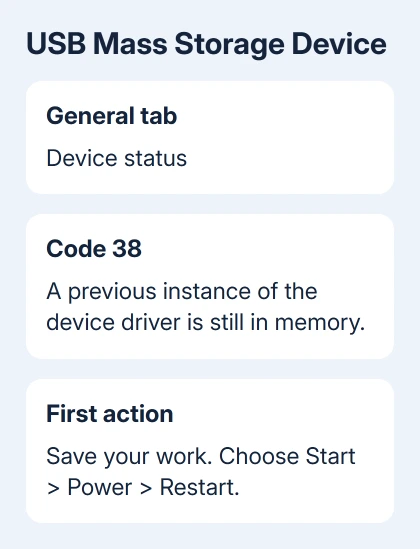
Save your work and choose Start > Power > Restart. Microsoft's Device Manager error reference recommends restarting for this code. Use that command rather than assuming a normal shutdown already did the same thing.
After Windows returns, plug the drive into a direct computer port and open a small file. Close the file, eject the drive through the taskbar's safe-removal control, unplug it, and reconnect it. Check whether it appears a second time.

If it keeps working, restarting freed the driver that was stuck in memory. If it works once and fails again, continue with software checks. Repeatedly restarting gives temporary access but doesn't explain why the driver remains loaded.
For a different message, follow the USB recognition checks instead. Code 43, a descriptor failure (when Windows can't read the device's details), and Code 38 describe different stages of the connection.
2. Compare another drive and another computer
Try a second flash drive or external disk on the affected PC. Use a direct port rather than the same hub. Then try the original drive on another computer, including removing and reconnecting it there.
If several storage devices fail when reconnected to this PC but work elsewhere, focus on this PC's software. A working USB mouse doesn't rule that out: storage devices use a different set of drivers from a mouse or keyboard.
If only one drive fails across computers, stop treating the entire PC as the cause. Try its replaceable cable if it has one, and copy accessible files before doing anything that writes to the disk.
A drive that reports No Media or 0 bytes needs the No Media drive checks. Formatting won't fix a Code 38 driver that's still loaded, and it can destroy the files you were trying to recover.
Write down the comparison in simple terms: both drives work after restart, both fail on their second connection, both reconnect normally elsewhere. That is much more useful for support than saying all USB ports are broken.
3. Check Bitdefender when the reconnect pattern matches
The accepted answer in the original Windows 11 discussion suggested removing Bitdefender without reporting a result. In a separate owner discussion, one owner removed Bitdefender and the problem stopped.
A second owner there reported the same outcome. These reports are older, so they don't tell us that every current Bitdefender version has this fault. It's still a sensible check if you have Bitdefender and the same Code 38 reconnect fault.
First update Bitdefender through its own controls and restart if requested. Repeat the reconnect check. If the same failure continues after updating, consider uninstalling Bitdefender temporarily to see whether reconnection works.
On Windows 11, open Settings > Apps > Installed apps, find Bitdefender, open its three-dot menu, and select Uninstall. On Windows 10, use Settings > Apps > Apps & features, select the product, and choose Uninstall.
Follow the product's removal prompts, then restart. Turning off scanning isn't the same test: parts of its driver can stay loaded in memory. For a work computer, have IT handle security software changes.
After removal, open Windows Security > Virus & threat protection and confirm an antivirus provider is active. Keep antivirus protection active while you test, then repeat the eject-and-reconnect check.
If reconnection now works, give Bitdefender Support the product version, Windows build, and Code 38 details. Ask for a current compatible build or a repair for the storage-driver conflict before reinstalling the same package.
4. Compare Safe Mode when the cause is still unclear
In Safe Mode, Windows leaves out many drivers and services loaded at normal startup. If reconnection works there, check the software that runs during a normal startup. That alone won't tell you which antivirus, if any, is responsible.
Before entering recovery options, keep the BitLocker recovery key at hand if device encryption is enabled. Windows may ask for it. Save open work, then open the recovery settings.
On Windows 11, use Settings > System > Recovery > Advanced startup > Restart now. Windows 10 uses Settings > Update & Security > Recovery, then Restart now under Advanced startup.
Choose Troubleshoot > Advanced options > Startup Settings > Restart. On the numbered screen, press 4 for Safe Mode. Connect the drive, open and close a file if accessible, eject it, and compare its next connection.
Restart normally afterward. Tell support if reconnection works only in Safe Mode and list security, backup, encryption, and USB tools.
Ask them to check driver filters, the extra software layers that handle device requests. Leave registry changes to support.
5. Update the PC's matched drivers and escalate
If the problem remains without the suspected software, check Windows Update, then get chipset or USB updates for your model from the PC manufacturer. Use the exact PC model. A random USB driver package can add another problem.
On Windows 11, Windows Update is in Settings > Windows Update. On Windows 10, it's in Settings > Update & Security > Windows Update. Restart after updates and compare the same drive's second connection again.
I'd tell support exactly how to repeat the reconnect failure before trying a Windows reinstall. The owners in the discussion had already tried driver removal and other repairs; the successful change was removing the conflicting software.
Have the PC manufacturer review the storage drivers if Code 38 continues across drives. Include the Windows build from winver, device names, antivirus version, and the Safe Mode comparison.
If files remain inaccessible, ask about recovery before agreeing to disk repairs that could change the contents.
The Short Version
Confirm Code 38, restart, and check the second connection. Compare drives and PCs, then check Bitdefender or Safe Mode for a software conflict. Keep antivirus protection active and leave formatting out of this repair.
Checked November 16, 2026.
 If you have any business, I can build it online