

Windows 11 can detect a JBL Quantum headset without offering it as an output, as owners reported after upgrading to 24H2. Try selecting it in the older Sound dialog first.
If it's missing there too, owners have restored it by rebuilding the JBL device entries or removing the conflicting Quantum software.
An entry in All sound devices isn't the same as a usable playback choice. Check whether the headset is missing from just one output list or from every playback list.
In this guide
1. Choose the headset in the older Sound dialog
Press Windows + R, enter mmsys.cpl, and press Enter. Open the Playback tab. This opens the older Sound dialog in both Windows versions, so you don't need to search their different Settings layouts.
Find the JBL playback device. If several JBL entries appear, choose the one intended for game or general playback rather than assuming every entry has the same purpose. Select it and click Set Default, then OK.
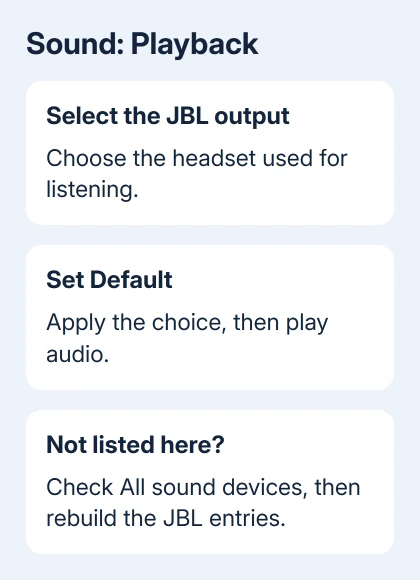
Play audio from an ordinary app. If audio comes through your headset, playback works even though the newer output list isn't showing it. Keep using the old dialog to choose outputs while resolving the software problem.
This worked for owners with Quantum 400 and Quantum 610 headsets in the original discussion. The original asker had a Quantum 910 that was missing from the Playback tab too.
If the device is disabled, right-click an empty area of Playback and enable Show Disabled Devices. Right-click the headset if it appears disabled, choose Enable, and select it as the default output.
For a Bluetooth headset from another maker that appears only as an accessory, the Bluetooth Audio Sink checks cover a different missing-output case. Don't apply JBL software removal to a headset that doesn't use it.
2. Check whether Windows has allowed playback
Open Settings > System > Sound > All sound devices in Windows 11. Select the JBL output. Look for the control that allows apps and Windows to use the device for audio.
If the button says Allow, click it to permit playback. If it says Don't allow, playback is already allowed, so leave it that way. The button describes the action available, which can make its current state easy to misread.
Return to System > Sound and look in Output. If the headset appears, select it and try its test control or play audio. A device that is selected but silent needs audio checks; a missing device needs the remaining steps here.
Windows 10 uses Settings > System > Sound and the device's properties for its enable or disable control. The older Playback dialog from the first section remains the more useful comparison across both versions.
Microsoft's audio troubleshooting steps include selecting the proper output and reinstalling a faulty audio driver. If playback is allowed but the JBL output is missing, continue with its device entries.
3. Rebuild the JBL audio entries
Close games, voice chat, and other apps using the headset. Keep the current Quantum software installer handy if you rely on its features. Remove only entries you can identify as belonging to the JBL headset.
Right-click Start > Device Manager and expand Sound, video and game controllers. Right-click a JBL entry and choose Uninstall device. Select Attempt to remove the driver for this device if that option appears, then confirm.
Repeat for the headset's JBL entries under Audio inputs and outputs. Older Windows versions can label the driver checkbox Delete the driver software for this device. Some entries don't offer a driver-removal checkbox.

Choose Action > Scan for hardware changes. Restart Windows if the headset hasn't returned. Open the Playback tab and the Windows output list again, then select the headset if it's available.
An owner got the JBL choices back this way and kept their Quantum settings. They also reported that Windows 10 could need a restart. Check your own output list after the repair.
If Quantum opens with unusable gray controls after restarting, close it through Task Manager, then launch it again. This was part of the same owner's recovery. Check audio playback separately from whether the app's controls have returned.
If Windows still doesn't offer the headset, don't keep deleting unrelated sound controllers. Try removing the Quantum software next; that's what eventually worked for the original asker.
4. Remove Quantum software when the headset stays absent
The original asker later reported that removing their JBL Quantum software made the device return to the output list. They called the software Quantum Sphere. Check the actual JBL software name listed on your computer.
In Windows 11, find the JBL Quantum software under Settings > Apps > Installed apps. Use its three-dot menu to choose Uninstall. On Windows 10, use Apps & features and select Uninstall on the product entry.
Restart, reconnect the headset's normal USB connection or wireless dongle, and check Playback again. If it appears, set it as the output and test audio before reinstalling anything. Keep track of which software version you removed.
Removing the companion app can also remove its custom sound processing or settings features. I'd accept basic working playback while asking JBL which software build supports the Windows version installed on the PC.
If the failure returns only after reinstalling Quantum, give JBL Support that sequence. Ask about compatibility for your headset model and Windows build before requesting replacement hardware.
The asker's earlier optional JBL HID driver update didn't solve it. A HID entry handles a different part of how the device works. Installing that update successfully doesn't mean the headset is back in the output list.
Give support the two playback results
Press Windows + R, enter winver, and write down the OS build and version. Install available Windows updates through Settings > Windows Update, restart, and check the output lists again if they remain inconsistent.
Report whether the headset appears in All sound devices, the older Playback tab, both, or neither. Include the headset model, Quantum version, connection type, and what changed after removing the software.
For a headset that works correctly in Windows but fails only inside a game, check that game's selected output. The game headphone-output checks explain why a working default device can still leave one game silent.
If the headset is missing on another computer too, ask JBL to check its connection, dongle, and hardware. If it works there, tell Microsoft Get Help or JBL Support what changed when you removed the software on this PC.
The Short Version
Try the older Playback dialog, then Windows' Allow control. Rebuild the JBL entries if needed. Removing Quantum software restored the asker's output choice; keep your model and software version for support.
Checked November 16, 2026.
 If you have any business, I can build it online






