Computer Management can work even when its Manage shortcut is broken. Search Start for Computer Management, then try compmgmt.msc directly. That tells you whether the shortcut is broken or the tool itself won't open.
An association error, an administrator restriction and a missing Local Users and Groups section need different answers. The older Windows 7 shortcut fix is included separately so it doesn't get applied to a current work PC by mistake.
In this guide
1. Open the console without the Manage shortcut
Open Start, type Computer Management, and select the result. On Windows 10 or 11, you can also right-click Start and choose Computer Management from the power-user menu.
If it opens, look for the navigation tree with System Tools, Storage and Services and Applications. That confirms the tool can open even if right-clicking This PC and choosing Manage still fails.
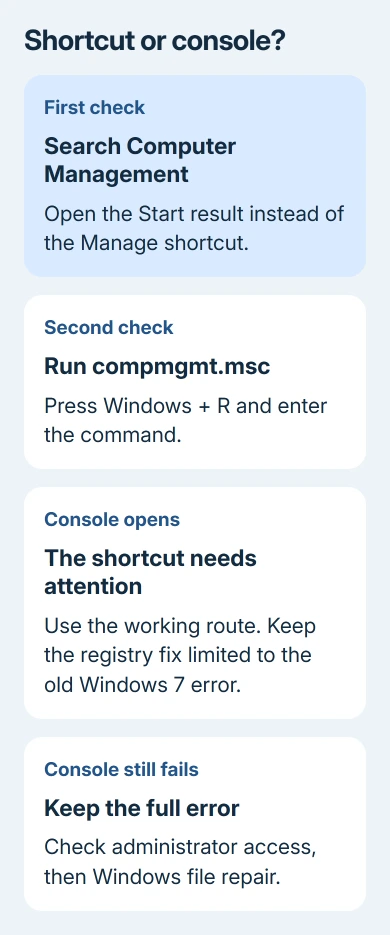
For a second direct route, press Windows + R, enter the command, and press Enter:
compmgmt.mscOn Windows 7, Start search and this Run command are the useful checks. There isn't a Windows 10-style power-user menu. The Computer icon's Manage entry is the route reported broken in the original thread.
If the direct command works, use it to finish the management task you came for. A broken shortcut doesn't require replacing your user profile before you can open the working console.
If the same error appears through both routes, keep its full wording. Continue with the console checks rather than assuming the shortcut repair applies.
2. Launch the console host and check permissions
Computer Management uses Microsoft Management Console, or MMC, to display its tools. Try opening that program and the Computer Management file together through Windows + R:
mmc.exe "%windir%\System32\compmgmt.msc"If that works while the plain .msc command fails, Windows needs help opening .msc files directly. Keep this working command to share with support rather than assigning .msc files to a text editor through Default apps.
For a permission message, search Start for Computer Management, use the result's right-click menu to select Run as administrator. When Windows prompts, supply the credentials for an authorized administrator.
If it opens as administrator, the original problem is access permissions, rather than a missing console. A standard account doesn't become an administrator just because it launches this tool.
If an organization blocks the program, send IT the restriction message. Don't remove policies or change registry ownership to work around a company restriction. IT needs to approve the task you're trying to do.
For a shortcut whose elevation option is unavailable, the Run as administrator checks explain how that shortcut differs from its underlying program.
3. For the old Windows 7 association error, repair Manage
This section applies to Windows 7 when the Computer icon's Manage entry gives an association error, but the direct MMC command works. Skip it for a policy block, missing console file or a different current-Windows error.
Several owners on the original Computer Management thread fixed Manage by making it open MMC directly. A later owner couldn't save the value because of a permission error.
Before editing, create a backup of the specific registry key. Press Windows + R, enter regedit, approve the administrator prompt, then browse to:
HKEY_CLASSES_ROOT\CLSID\{20D04FE0-3AEA-1069-A2D8-08002B30309D}\shell\Manage\commandSelect command, then use File > Export with Selected branch to save that key. Keep the file somewhere you can identify again. This backup is for the shortcut entry you're about to change.
Double-click (Default) in the right pane and enter this value, keeping the quotes:
"%SystemRoot%\System32\mmc.exe" "%SystemRoot%\system32\compmgmt.msc" /sSelect OK, close Registry Editor, and try Computer > Manage again. If the console opens, the shortcut now opens MMC instead of using its previous launcher. The thread's original launcher value was CompMgmtLauncher.exe.
If Windows refuses to save the value, don't take ownership of registry branches. Give the administrator the working direct command and the save error. Use the direct console route if the earlier check succeeded.
4. Repair Windows files when direct launch also fails
If Computer Management won't open through either direct command, use Windows' built-in file repair. This is broader than repairing a shortcut because the console or its supporting Windows components might be damaged.
For Windows 10 or 11, search Start for Command Prompt, use the result's right-click menu to select Run as administrator. Run the first command. Once it finishes successfully, run the second:
DISM.exe /Online /Cleanup-Image /RestoreHealth
sfc /scannow
The System File Checker procedure puts DISM first to repair the source of Windows replacement files. SFC uses that source to repair protected files.
Let SFC finish its verification at 100 percent, then read the result. Restart and retry the console after repaired files are reported. If the scan finds no damage, it hasn't explained why Computer Management won't open.
On Windows 7, the historical support answer uses an elevated Command Prompt with sfc /scannow. Don't copy the Windows 10/11 RestoreHealth procedure into Windows 7.
If SFC leaves files unrepaired, use the unfinished SFC repair steps for the scan result. Repeatedly running the console command won't repair files that the scan couldn't restore.
5. Check a missing section before replacing the profile
An open console without Local Users and Groups isn't the same failure as Computer Management refusing to open. Windows Home doesn't include this tool. Check your edition in Settings > System > About.
Compare the console from another existing account with administrator access. If it works there, the original account's settings or profile need attention. That result won't identify a particular damaged file.
I'd get IT or Microsoft Support to review those results before moving the whole profile. Supply the Windows version and edition, full error, direct-command results and SFC outcome. Ask for console or profile repair based on those results.
The Short Version
Try Start search and compmgmt.msc. A working direct console points toward the shortcut. Keep the registry fix limited to its Windows 7 association error. Use file repair or administrator support when direct launch fails too.
Checked November 16, 2026.
 If you have any business, I can build it online