An AutoIt Error Line 21219 popup at C:\ProgramData\RealtekHD\taskhostw.exe calls for a malware check. Update your antivirus and run a full scan before reinstalling Realtek audio drivers.
The path matters more than the line number. Another program can produce an AutoIt error for a different reason.
In the reported Windows 11 case, an adviser removed malware with a custom cleanup. That doesn't make their repair file suitable for another computer. Use the built-in security checks first, then get help with any entry that keeps returning.
In this guide
1. Match the path in the error message
Read the full popup, including the File path. The reported message names Line 21219 and ends with The requested action with this object has failed. AutoIt is a scripting tool, so that number points to a line in the failing script.
The specific path in this case is C:\ProgramData\RealtekHD\taskhostw.exe. A familiar-looking filename inside that folder isn't a reason to trust it. The Realtek name doesn't mean that suspicious file belongs to your working audio driver.
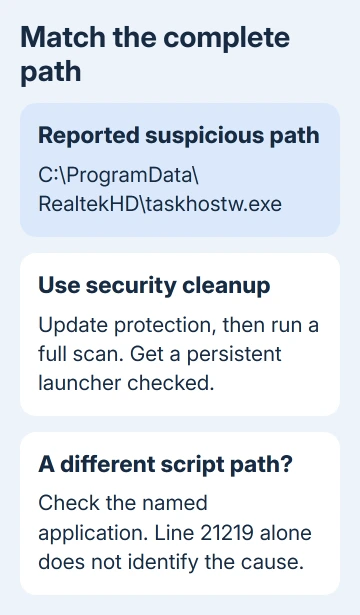
Take a picture of the error or write the path down. Note whether it appears at sign-in, when an app opens, or repeatedly while Windows runs. Those details tell a technician which program to check and when it runs.
If the message names a script you created or a known work application, send the error to its developer or IT team. These cleanup steps address the suspicious RealtekHD path, not every program that uses AutoIt.
I'd leave Windows system files alone. Searching the drive for every copy of taskhostw.exe and deleting them would turn a targeted cleanup into a much bigger problem.
2. Update protection and run a full scan
Open Start, type Windows Security, and open it. Select Virus & threat protection. Under Virus & threat protection updates, choose Protection updates > Check for updates before starting the scan.
Return to Virus & threat protection > Scan options, select Full scan, then Scan now. A full scan checks the files and programs on your device, rather than only the areas covered by a quick scan.
Read the scan's completion result. If threats appear, follow the security app's recommended actions. Then open Protection history to check whether the item was removed, quarantined, or still needs a decision.
Microsoft's Windows Security scan instructions explain the scan choices and where the results appear. Our Windows virus-scan guide helps you choose between them.
If another antivirus product is protecting the PC, use its update and full-scan controls. Windows Security can show information about that provider; the Defender scan options won't necessarily be available in the same way.
If the scan removes a threat, restart and check whether the popup returns. If the scan finds nothing but the popup remains, the program named in the error still needs checking.
3. Use an offline scan for a persistent infection
Defender Offline isn't available on Arm-based Windows PCs. On an Arm model, keep using your installed antivirus and get persistent threats checked by a malware-removal specialist.
Save your work and use an administrator account. For a BitLocker-encrypted drive, open Control Panel > System and Security > BitLocker Drive Encryption > Suspend protection, then Yes. Have the recovery key available for the restart.
In Windows Security > Virus & threat protection > Scan options, select Microsoft Defender Antivirus (offline scan) and choose Scan now. The PC will restart to begin the scan.
The scan runs outside the normal Windows session. That makes it harder for persistent malware to interfere while it's being checked. The PC should return to Windows automatically when the scan finishes.
Afterward, return to BitLocker Drive Encryption, select Resume protection, and confirm with Yes if you suspended it. The suspend and resume controls restore that protection after the scan.
Open Windows Security > Protection history afterward. Check what action was taken for each threat. The scan may not show a results window during startup.
A restart without a scan isn't a clean result. Ask Get Help to check whether Windows Recovery Environment is enabled before retrying; Defender Offline needs that environment to run.
Restart, then repeat whatever brought up the popup before. If the popup has stopped, check the protection results and keep your antivirus enabled. If it returns, keep the exact path and detection name for the next step.
The offline scan runs outside your Windows session; the full scan searches your files while Windows is open. Each has a purpose. Repeating either without a new result won't tell you what to do next.
4. Check a leftover startup reference carefully
A recurring message can also involve an entry that still tries to start a removed file. Use Autoruns for Windows to inspect programs configured to run automatically.
Download Autoruns from that official page, extract it, and run it as administrator. Use its filter to search for the path recorded in section 1. Check the entry's Image Path, not just its friendly display name.
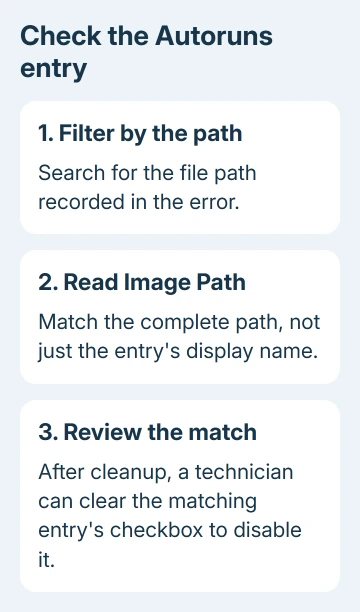
Autoruns covers more locations than Task Manager's startup list, including scheduled tasks. A matching entry can show what keeps launching the file. It doesn't replace malware removal or tell you which other files were involved.
After the security cleanup, a technician can disable an unwanted matching entry by clearing its checkbox. Keep a record of the entry first. Don't clear a group of unrelated entries just because their names look unfamiliar.
The LogiLDA startup-error guide shows a different example of a leftover startup command. Its Logitech-specific changes aren't the repair for this RealtekHD error.
5. Get a cleanup matched to this computer
If the message keeps appearing after these checks, open Get Help from Start and describe the recurring AutoIt error. Include the complete file path, when it appears, and any threat names and actions listed in Protection history.
A reputable malware-removal specialist can also review the startup entry and security logs. Ask them to check both the unwanted program and whatever launches it. Removing only the visible popup can leave the underlying problem in place.
The original discussion used Farbar Recovery Scan Tool and a custom fix list. That list was prepared for that computer's logs. Don't copy a cleanup script from another person's case or bypass a download warning to run an unidentified file.
One owner reported that the PC was working after their custom cleanup. Have the specialist use your own logs to check persistent malware, rather than borrowing that repair file. Line 21219 has no universal repair command.
The Short Version
Check RealtekHD before choosing an audio repair. For the reported taskhostw.exe path, update protection, run a full scan, and use an offline scan if needed. Get persistent startup entries checked against your own computer's logs.
Checked November 16, 2026.