

When Personal Vault won't unlock because FileSyncHelper.exe is missing, repair OneDrive's Windows sync app while keeping your vault files in place. One owner restored access by replacing the helper from their own installation.
Try the same vault online first so you know whether access is failing only on this PC. A browser unlock won't repair Windows, but it can restore access to the cloud copies while you work on the app.
In this guide
1. Open the same Personal Vault online
Sign in to OneDrive in a current browser using the same personal Microsoft account. Open Personal Vault and verify your identity when prompted. Check a file you recognize and confirm that its content is the version you need.
The original Windows 11 report could still see the vault files online while the PC couldn't find the helper program. Your Microsoft account can still work even when this program is missing from the PC.
Save newer local edits before changing the app installation. The cloud copy can open even while a PC edit is waiting to upload. Read the cloud document to check that it includes your latest changes; a matching filename isn't enough.
If the browser also can't unlock the vault, record whether sign-in or verification fails. The Personal Vault error guide covers other unlock messages and the distinction between a locked vault and unfinished syncing.
If the verification code goes to an unavailable phone or email address, follow the Microsoft account recovery checks. Replacing a helper program can't supply a missing verification method.
2. Record the missing path and check the installed app
Copy the path from the Windows error for support. In the original case, C:\Program Files\Microsoft OneDrive\FileSyncHelper held logs but no executable. Other installations can use a different location.
Open File Explorer, paste the folder portion of your own error path into the address bar, and inspect it. This shows you the folder Windows was trying to open. The location can differ between PCs.
Open settings from OneDrive's taskbar cloud and note its installed version. If the icon is hidden, check the taskbar's hidden-icon menu. Record whether ordinary OneDrive files still open and sync.
The original owner had already restarted several times. A reboot didn't restore the missing file, and a separate Windows 10 computer still worked. That made an outage affecting the whole account a less likely explanation.
Don't download a loose copy of FileSyncHelper.exe from an executable-download site. Use the OneDrive installer or support-guided repair so the program comes from the correct product installation.
If the folder exists but the executable isn't there, continue with the sync app repair. If the program is there and you see a different error, leave the file in place and send support the full message.
3. Reinstall the Windows sync app from its supported source
Microsoft's OneDrive reinstall instructions distinguish the backup-and-sync app from the Store app that only views files. Personal Vault in File Explorer needs the Windows sync installation.
On Windows 11, open Settings > Apps > Installed apps, find Microsoft OneDrive, open its three-dot menu and choose Uninstall. On Windows 10, use Settings > Apps > Apps & features, select Microsoft OneDrive, then Uninstall.
An administrator prompt may appear for a machine-wide installation. If this is a managed PC or Windows won't allow removal, ask IT to repair the installed OneDrive app rather than changing protected program folders yourself.
Download the Windows sync installer from the OneDrive website using the link in the reinstall guide. Run that setup file and follow its installation prompts. Sign in to the same personal account and finish the setup prompts.
Uninstalling the app stops syncing; it doesn't delete the stored OneDrive account. Keep your existing local folder while reinstalling so you can compare any pending files when the app reconnects.
Once OneDrive reconnects, unlock Personal Vault from File Explorer. Open the document that failed, then check that the app syncs normally. This checks that the vault works on your PC, which opening it in a browser couldn't tell you.
If the helper error remains, note whether the path changed after reinstalling. Tell support if Windows is still asking for a location used by the previous installation.
4. Treat the old file-copy fix as a specific repair
The August 2022 accepted reply described finding the helper in two folders on the same computer and copying it back to the location where it was missing. The owner reported that Personal Vault then opened again.
The saved reply doesn't include the two folder paths it showed or linked. The owner confirmed that the copy worked, but without those locations, there isn't a complete set of steps you can follow.
I'd use the supported installer before manually copying program files. If Microsoft Support asks you to restore the helper, have them confirm the source, destination and version on your PC rather than borrowing a file from another machine.
Another reply suggested deleting a registry debugger value for OneDrive.exe. The owner found no such subkey, and that suggestion didn't fix the error. Leave unrelated registry entries alone.
The report doesn't show that malware caused the error. Focus on the program Windows names and the OneDrive installation that should supply it.
5. Give support the results if the helper is still missing
Use Contact Microsoft Support at the end of the linked reinstall guide. Describe the issue as a Personal Vault unlock failure naming FileSyncHelper.exe, including whether the sync app can start.
Include the Windows version, OneDrive build, full missing path, whether the vault opens online and the result after reinstalling. State whether the folder contains the executable or only logs, and whether normal synced files still work.
If an urgent document is accessible online, keep using that cloud copy while support works on the PC repair. Keep track of any separate edits so the browser workaround doesn't leave you unsure which version belongs in the vault afterward.
The Short Version
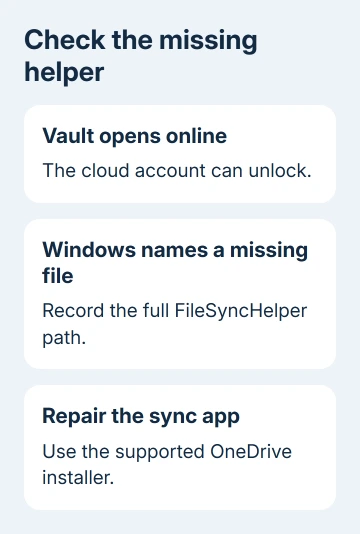
Check the vault online, note the missing path and reinstall the Windows sync app. An owner fixed it in 2022 by copying the helper from another folder on that PC, but the saved reply lacks the paths. Ask support to guide manual file repairs.
Checked November 16, 2026.
 If you have any business, I can build it online






