

Phone Link's repair controls can move from Windows 11's Installed apps to Settings > System > System components. Find Phone Link there, open Advanced options, and try Repair. Owners confirmed this route worked.
A taskbar icon or a Mobile devices setting doesn't mean the app is healthy. If Phone Link is absent from System components too, check the older app location and the Store entry before trying to remove packages.
In this guide
1. Look in System components first
Press Windows + I to open Settings. Select System, scroll to System components, and find Phone Link. Open its three-dot menu and select Advanced options.
This is the important change when instructions keep sending you to Apps > Installed apps and Phone Link isn't there. The component's own page should offer controls such as Terminate, Repair and Reset.
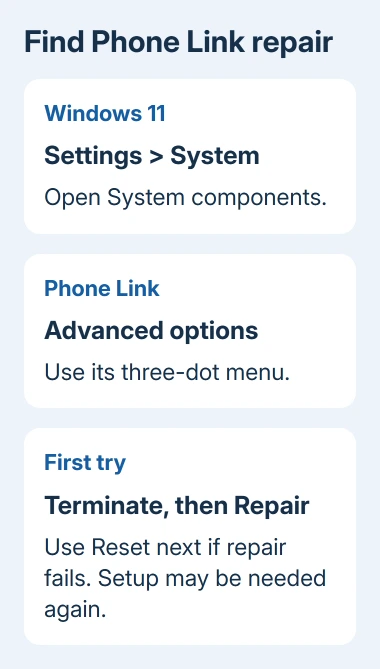
The asker confirmed this location solved their problem, and a later owner reported success too. Several others couldn't find Phone Link in their component list. Windows builds differ, so check what's listed on your PC.
If System components isn't available or Phone Link isn't listed, go to section 3. If it is listed, try the repair controls next. From that entry, you can repair Phone Link without uninstalling it.
2. Terminate and repair before resetting
Save anything you were doing in Phone Link. On its Advanced options page, select Terminate, then Repair. Repair attempts to restore the component without clearing its data, so start there.
Open Start, search for Phone Link, and launch it again. If you see your linked phone or the setup screen, Phone Link can launch again. Check which screen appears before trying Reset.
If Repair reports that the component is currently running, close Phone Link and try Terminate, then Repair again. One owner reported that the second attempt succeeded after the first still claimed it was running.
When Repair finishes but the app still won't open, select Reset and read the confirmation. Reset clears the local data kept by the app, so expect to set up the phone connection again. Keep your phone nearby for that setup.
Microsoft's app repair instructions put repair ahead of reset when the app offers both. If Reset returns an error instead of completing, record the exact message and continue with the installation check.
I'd try the component's repair button before any package-removal command. It uses the app's own repair controls, and it lets you try a fix without removing the installation.
3. Try the older app-list location
For Windows 11 installations where Phone Link is still listed as an app, open Settings > Apps > Installed apps, find Phone Link, then open its three-dot menu and Advanced options. Use the same Repair and Reset order there.
On Windows 10, open Settings > Apps > Apps & features > Phone Link > Advanced options. Windows 10 doesn't have the same System components page described in the Windows 11 reports.
Don't reset another phone-related component because its name looks similar. Stay with the entry labeled Phone Link. Windows' connected-phone features and the Phone Link app have related but separate controls.
In Settings, search for Phone Link and select Enable or disable Phone Link when offered. Turn on its Phone Link switch. If Windows offers an Install prompt, use it to add the missing app. This route applies to Windows 10 and 11.
If the app opens but can't reach the handset, move to the Phone Link connection checks. Those steps address communication with the phone after the app can launch.
4. Find the official Phone Link Store listing
Open Microsoft Store and search for Phone Link. Confirm the publisher is Microsoft Corporation. If search doesn't find it, open the official Phone Link listing in your browser.
That listing's product ID is 9NMPJ99VJBWV. Use it to check that you've found the right app when search results aren't helpful. Use the listing's installation button to continue in Microsoft Store, then follow the action offered for this PC.
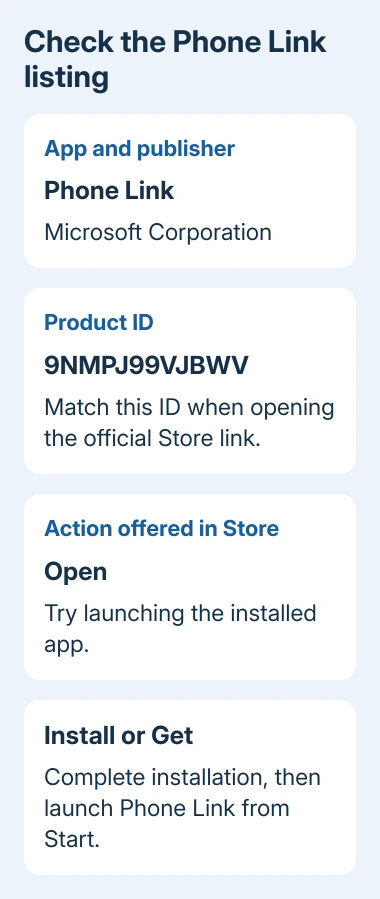
If the Store offers Open, try it. If it offers Install or Get, complete that action and launch Phone Link from Start afterward. The wording can depend on whether the Store recognizes the app as installed.
If Open does nothing, the app still needs attention. Note that result and whether Settings lists the component. Support can then check whether Phone Link has a launch problem or is missing from your account.
Avoid copying a package-removal script just because the Store search is empty. The source thread includes failed reinstall and re-registration attempts as well as a later success report, with mixed results for those methods.
5. Check the result after restarting Windows
Restart through Start > Power > Restart, then launch Phone Link from Start before opening other phone-integration tools. If it opens, finish any requested pairing and check the feature you normally use.
After a reset, the Microsoft sign-in on your PC should match the one on your phone. A fresh setup request is expected when the app's local data was cleared. That setup request doesn't mean your phone's photos or messages were erased.
If setup still shows an old phone you no longer use, the separate Phone Link unlinking guide covers removing the saved connection from the relevant places. Don't unlink every device just to locate the repair button.
A repair or reset error needs its exact text. The saved reports include both an app-running repair error and a reset error asking the reader to try again later. They aren't the same result, and repeated resets didn't help every owner.
Give support the component and Store results
Press Windows + R, enter winver, and note its Windows release and build number. Include whether Phone Link appears in System components, Installed apps, neither list, or the Store only, plus the result of selecting Open.
Open Feedback Hub from Start and report the Phone Link launch failure with those details. For direct help, open Get Help and request Windows app support. On a managed PC, have IT verify Phone Link access for your account.
Include the repair error in your report. If Windows can't repair or reset Phone Link, support needs that detail, not just a pairing request. Ask them to check the installation before package-removal or re-registration commands.
The Short Version
Find Phone Link's Advanced options under System components, then try Terminate and Repair before Reset. Older Windows uses its app list. Check the official Store entry if neither location contains Phone Link.
Checked November 16, 2026.
 If you have any business, I can build it online






