

Side to Side page movement disables Word's zoom controls and can leave only Thumbnails on the View tab. Choose View > Page Movement > Vertical, then set the zoom you want without changing the document's font size.
That is the first check when Print Layout suddenly looks tiny and the zoom slider is gray. If the normal zoom controls are already available, check the zoom percentage and how many pages are fitted into the window instead.
In this guide
1. Switch Page Movement back to Vertical
With the file open in Windows desktop Word, select View. Find the Page Movement group and select Vertical instead of Side to Side.
Look at the Zoom group again. The normal zoom choices should return, and the window's bottom-right slider should become usable. Select 100% as a quick check that the setting can change.
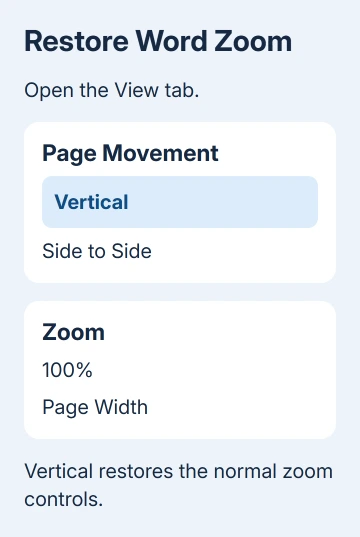
Microsoft's side-by-side page viewing instructions explain that Side to Side switches off the ability to choose a zoom setting.
Choosing Vertical lets you change zoom again.
Several owners on the forum confirmed that changing this setting fixed the problem. One had already spent time struggling with it; another confirmed that the side-to-side setting was the cause.
The important detail is the combination of symptoms: a tiny document, a disabled zoom control, and a View tab offering only Thumbnails. Together, they point to the page-movement setting before a problem with the Office installation.
If the slider now works, move on to choosing a useful size. If it remains gray, check the document view in the next section before attempting Office repair or altering the PC's display settings.
2. Use Print Layout with the zoom you need
On View, select Print Layout if you're working on margins, headers, or how the printed page will look. Then check Vertical again so the document uses normal vertical page movement.
Choose 100% for a familiar starting size. If the text still feels small, use the bottom-right zoom slider or open View > Zoom and select a larger percentage. This changes how large the document looks on screen.
Choose Page Width when you want the page to fill the available window width. Choose One Page to inspect the entire page, though its text may look smaller.
The Multiple Pages choice is useful for checking several pages together, but it also makes each page smaller. A document shown that way can look wrong even though the zoom controls are working normally.
Don't enlarge the font to compensate for a viewing setting. Font changes can alter line breaks and page count, while changing zoom lets you read more comfortably without reformatting the file.
I'd check the displayed percentage before touching the text. When a page looks unexpectedly small, that single number can explain the view without creating extra editing work.
For a document whose printed layout also needs attention, the Word printing guide covers paper size and print settings. Those choices solve a different problem from disabled zoom.
3. Tell page movement apart from other view commands
Side to Side describes how you move through pages in one document, as though you were turning pages in a book. In that mode, Word offers thumbnails to help jump to another page instead of its usual zoom choices.
View Side by Side is a separate command for comparing document windows. The similar names make them easy to confuse, but the setting to check for this fault is inside Page Movement.
Selecting Thumbnails doesn't bring the normal zoom group back. It changes how you navigate the side-to-side document. Return to Vertical first, then choose the larger working view.
If you were expecting two pages across the window, check whether you actually need that arrangement for the task. One large page is easier to edit; several small pages let you check the overall layout.
When checking page breaks, use the overview briefly, then switch back to a comfortable zoom percentage for editing. That avoids changing the document itself just to make its page arrangement easier to inspect.
If you can change the percentage but the wrong font appears, compare the Word Print Layout font checks. A font substitution problem won't be repaired by a page-movement change.
4. Match the instructions to the Word edition
The side-to-side zoom behavior applies to Windows desktop Word editions that include Page Movement. The current support page lists Word 2016, 2019, 2021, 2024, and Microsoft 365 for this feature.
The original report used a Word 2016 installation that came with Office 365. Its owner described zoom working initially, then showing only the thumbnail choice after the view changed.
If your View tab has no Page Movement group, don't assume the same feature caused the problem. Record the exact Word edition and version so the next person checking it can compare the correct interface.
In Windows desktop Word, File > Account > About Word shows the version details. Include whether you bought Office outright or use it through a Microsoft 365 subscription.
Word's Mac and browser editions use different viewing controls. If you're using a Mac or a browser, don't search for a Windows Page Movement control your edition doesn't offer.
For a browser document, say that it is Word for the web when requesting help. For a Mac, supply the version from Word > About Word. That keeps the support advice matched to the application you're using.
5. Check one new document before application repairs
Create a blank document, then check Print Layout, Vertical, and 100% there. Compare it with the affected file. If zoom works in the new document, tell support that it fails only in the affected file.
If both files stay stuck despite Vertical being selected, record whether Thumbnails is still the only choice. A screenshot of the View tab and the bottom-right zoom area is more useful than a screenshot of tiny text alone.
Give your IT team or Microsoft 365 support the build details and explain how the two documents behaved. Explain that the page-movement change didn't restore zoom, rather than just reporting that the text is too small.
The original asker had already repaired Office without fixing the issue. That result is a good reason to inspect the view setting before starting a lengthy repair for the same visible symptoms.
The Short Version
Choose View > Page Movement > Vertical to restore Word's zoom controls. Then use 100%, Page Width, or the slider for a comfortable view. If Vertical doesn't help, compare a new document and give support the Word version.
Checked November 16, 2026.






