

Movies & TV can leave Windows 11 unable to remember which app opens MP4 files, with its default choice missing. Set .mp4 directly in Default apps first; if the extension or permanent Open with option is missing, repair or reset Movies & TV.
Owners with this exact fault also restored the choice by uninstalling that app, then selecting their preferred player.
In this guide
1. Set the extension rather than opening one video once
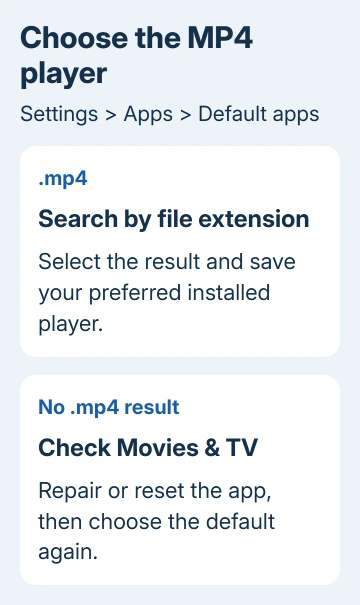
Open Settings > Apps > Default apps. Type .mp4, including the period, into the file-type search. Select its result, choose the player you want and save that choice using the confirmation button offered.
Use a player already installed on the PC, such as VLC or Media Player. The name of a video app in a search result isn't enough; it needs to be installed and able to play your files.
Close Settings and double-click an MP4 in File Explorer. Then open a second MP4 from another folder. If both open in the chosen player without a chooser, Windows has saved the choice for more than one file.
Microsoft's default-app settings also let you select the player by name and change the file types it handles. Try that view if the extension search isn't giving you a useful result.
If .mp4 is absent entirely, or Windows asks again for every video, continue with the app repair route. The original thread described that specific failure, rather than simply having the wrong player selected.
2. Confirm the file really ends in .mp4
In File Explorer, open View > Show > File name extensions. Read the filename's final extension instead of judging by its icon. A file ending in .mov, .mkv or .m4v has a separate default-app setting.
Don't rename another video format to .mp4 just to make it use this choice. Changing a filename doesn't convert the video inside it. Set the actual extension or open the file from inside the player.
Right-click a confirmed MP4 and choose Open with > Choose another app. Select the player and choose Always if that button appears. Older Windows 11 versions use an Always use this app checkbox instead.
Choosing Just once, or selecting a player for one opening without a permanent choice, doesn't save a default. If Always or its older checkbox is missing, don't repeat that temporary selection for your whole footage folder.
The general default-app guide covers the normal extension choices. When the controls themselves are missing, try repairing the app's setup next rather than repeating the same selection.
3. Repair Movies & TV before clearing its app data
On current Windows 11 versions, open Settings > Apps > Installed apps. Find Movies & TV, open its three-dot menu and select Advanced options if offered.
The early Windows 11 release used in the thread calls the list Apps & features. It is still under Settings > Apps, and the three-dot menu leads to the app's advanced controls. Match the menu to the version you're actually using.
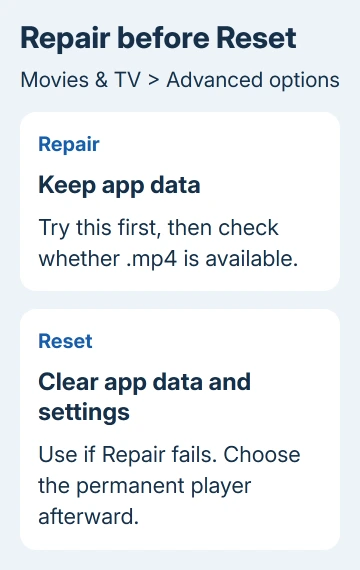
Select Repair if available, wait for it to finish, then check whether Default apps now lists .mp4. Repair tries to fix the app while keeping its data, so start there before resetting it.
If Repair isn't available or doesn't restore the missing choice, continue with Reset. Some apps don't provide all of these controls. Don't look for a reset button in the separate file-type chooser; it is on the app's own advanced page.
4. Reset Movies & TV and choose the player again
On the same Advanced options page, choose Reset, read the warning and confirm. This removes the saved data and preferences for that app. Keep any account details you need to sign back in afterward.
An owner on Microsoft's forum got the permanent player choice back after resetting Movies & TV and using Open with > Choose another app on a video. Their chosen player was MPV, so the result wasn't limited to choosing another built-in app.
After the reset completes, right-click an MP4 before opening it, choose your player and save the permanent choice. Recheck two videos. Check that Windows remembers your player, rather than just playing that one file in it.
If you're looking at a different app called Media Player, don't assume it's the same program as Movies & TV. Windows can have several media apps installed. The Windows media-player guide explains those overlapping names.
If Movies & TV isn't listed at all, skip its reset. Installing it just to try this old workaround gives you another app to deal with. First confirm that the player you want is installed and shows up in Default apps.
5. Remove Movies & TV if the missing choice persists
Use this option if the app is installed, repair and reset haven't helped, and you don't need Movies & TV as your player. Open its menu in Installed apps, choose Uninstall if available and follow the prompts.
Two owners in the thread got the choice back after removal: one reported VLC became the default and .mp4 returned to the file-type list; another confirmed that removing Movies & TV restored the choice too.
Return to Default apps and set .mp4 to the preferred installed player. If needed, restart Windows before checking the setting again. Test a second file again to check that Windows saved your choice, rather than opening one video just once.
If Uninstall isn't offered, don't force the app out with a copied registry deletion or an unfamiliar PowerShell removal command. Someone in the same discussion found that edited registry entries changed back when they opened another video.
When Windows still won't keep the player choice
For a company or school device, ask IT whether it controls which apps open your files. Send a screenshot of the missing .mp4 result or the choice returning after sign-in, along with the player name and Windows version from winver.
On a personal PC, use Windows' Get Help app and ask about a missing MP4 association after app repair and reset. Include whether other extensions such as .jpg and .mp3 appear normally, as the original asker described.
If the chosen player opens but shows a codec error or no picture, the default has worked. Check whether the player supports that video's format. Changing the default again won't make it decode a format it doesn't support.
The Short Version
Set .mp4 directly and save a permanent player choice. If the extension or Always control is missing, repair or reset Movies & TV. Removing that app restored the choice for owners with the same fault; finish by checking more than one MP4.
Checked November 16, 2026.






