JPG files can still contain dimensions and camera details when File Explorer shows blank fields. Try renaming one copy to .jpeg; if its details appear, Explorer is handling the two endings differently.
This is different from a photo that won't open, a missing thumbnail, or an image whose camera information was removed before it reached your PC.
In this guide
1. Compare the same photo in Properties
Find a JPEG photo that previously had useful information, such as its dimensions or camera model. Right-click it in File Explorer, choose Properties, and open the Details tab. Check the Image and Camera entries that apply to that photo.
Note which entries are blank. Dimensions describe the image's width and height in pixels. Camera settings, such as exposure and ISO, are extra information that not every image contains.
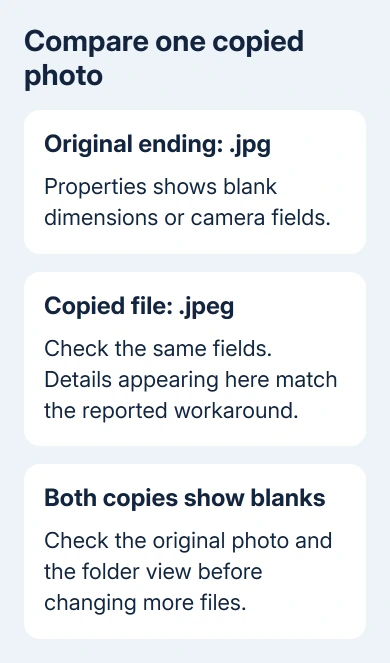
Check Properties > Details before deciding the folder view is broken. If the values appear there but not in the folder's columns, the image information is readable. Move to section 3 to make the relevant columns visible.
If Properties is blank too, check a second photo from the same source. Details missing from .jpg but visible on .jpeg images match this fault better than one empty camera field on one picture.
The original owner could reveal dimensions and camera settings by renaming the same file. That result is useful because it checks the same image with two file endings, without exporting it or compressing it again.
2. Rename one copy from .jpg to .jpeg
Create a duplicate of the photo in a local folder, such as a test folder in Pictures. Keep the original's name and location unchanged. Use the copy for the comparison, especially when another app manages the originals.
On Windows 11, open View > Show > File name extensions in File Explorer. On Windows 10, open the View tab and check File name extensions. The complete name should now include .jpg.
These controls are covered in Microsoft's File Explorer instructions. With extensions visible, you can change the real ending instead of accidentally adding .jpeg before a hidden .jpg.
Select the copy, press F2, and replace only .jpg with .jpeg. For example, garden-copy.jpg becomes garden-copy.jpeg. Read the extension warning and confirm only after checking that the original is safely separate.
Both endings are used for JPEG images. This change doesn't convert the picture or improve its quality; it asks Windows to handle that same image under the other extension.
Right-click the renamed copy, open Properties > Details, and compare the exact entries you checked earlier. Also open the renamed image in your viewer and check that it displays normally.
If the missing values now appear, use the copy for the immediate task. An owner confirmed this workaround after repeated default-photo-app changes and a restart had failed.
I'd stop after one successful comparison before renaming anything else. A large photo library may have other software referring to the original names, and you don't need a mass rename to learn whether this workaround applies.
3. Display dimensions in the folder's Details view
When Properties contains the values but the folder doesn't show them, switch that folder to Details view. On Windows 11, use View > Details. On Windows 10, choose Details from the View tab.
Right-click the row of column headings, where Name and Date modified appear. Select Dimensions if it's listed, or choose More and select the fields you need. Confirm the selection to add them to the folder.
Click Dimensions to sort by that field. Include your checked JPEG copy and see whether its value appears. An empty column differs from a column that wasn't displayed at all.
Camera-specific fields can remain empty for screenshots, scans, and images exported without that information. Check an original camera photo when testing camera model or exposure data; don't expect those fields on every picture.
The right-side Details pane is another display area, separate from the Details view's columns and the Properties dialog. Note which view is missing the information so you don't mistake a closed pane for details Windows can't read.
If your actual problem is which app opens when you double-click, use the separate JPG default-app repair. Changing the viewer and getting Explorer to show the stored photo details aren't the same job.
4. Keep missing metadata separate from a reader problem
When both endings show the same blank fields, changing the extension hasn't helped with those fields. Check an original copy from the camera or phone rather than repeatedly changing the test file's name.
A messaged or exported picture can differ from its original. Renaming can't recreate camera settings absent from the file. That's different from Explorer failing to read information still stored there.
The HEIC-to-JPG workflow covers converting a different image format. Renaming HEIC, PNG, or another format to .jpeg doesn't perform that conversion and isn't this workaround.
For the same reason, don't keep saving the picture through editors just to test Explorer. Keep the original and use copies so a display problem doesn't become a change to the photo itself.
If one ending works and the other doesn't, record that comparison for support. That tells support which file type Explorer has trouble reading, instead of leaving them to guess why the details disappeared.
When should support check the photo handler?
For an ongoing problem, open Get Help from Start and report that File Explorer reads dimensions from a .jpeg copy but not the original .jpg. Include your Windows version from Settings > System > About.
Mention any photo manager, codec, or thumbnail extension installed before the change. A support technician can check file-type property handlers, the Windows components that supply these fields, without blindly replacing file associations.
Ask support to check whether Windows has the photo-property handler registered correctly. The discussion's DLL registration suggestion has no later success report, so the rename workaround is the confirmed option here.
The Short Version
Check Properties first. Rename one copy to .jpeg and compare the missing fields. If they appear, you have a workaround; if both copies stay blank, check the original file and seek further support.
Checked November 16, 2026.