Voice-only audio filtering can remove a guitar while leaving speech clear. Switch the calling app to its music mode first; if the guitar still disappears, turn off the microphone processing supplied by Windows or the laptop maker.
A working voice connection means the microphone isn't simply muted. Check whether the guitar disappears only in the call or whether it's also missing from a recording made on your PC with the same microphone.
In this guide
1. Let the calling app transmit music
In the Zoom desktop app, open your profile picture, choose Settings > Audio, and select Original sound for musicians under Microphone modes. This preserves more of the microphone's sound than the voice-focused modes.
Join a meeting and open the audio options beside Audio. Check the active microphone mode. Current versions mark it with a checkmark; older versions can show an Original Sound control in the meeting window.
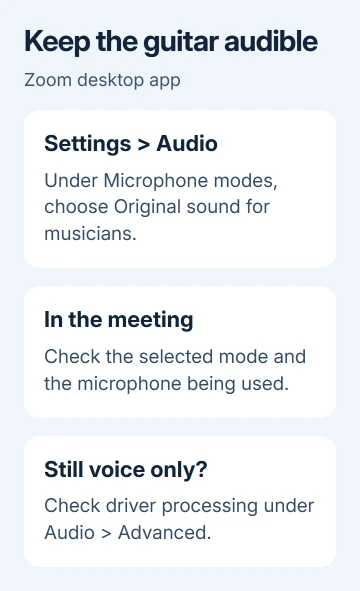
Select your actual microphone in that same audio menu. A webcam, headset, and USB interface can all appear as separate inputs. The right music setting won't help if the app is listening to a headset sitting far from the guitar.
Play a few notes, let a chord ring, then speak. Ask your teacher whether they can hear the notes as they fade. A filter can pass the initial strum and then cut off the quieter sound.
For a lesson, both people who play need to check the settings for their own microphone. Changing the teacher's input doesn't repair the student's transmitted guitar, or the other way around.
Don't choose Personalized audio isolation for this test. That mode is built to keep your voice clear while suppressing other sounds. If music mode fixes the guitar, keep that mode for lessons and stop changing Windows settings.
2. Turn off the driver's voice processing
Zoom's advanced audio controls include a separate setting for processing done by Windows audio drivers. This explains why music mode alone can leave the problem unchanged.
Open Settings > Audio > Advanced in the desktop app. Set Signal processing by Windows audio device drivers to Off, then repeat the short guitar-and-speech check in the meeting.
Off asks the device driver to pass the microphone's sound through without processing it. If the guitar comes through now, the driver was changing the sound before the app's own music controls could preserve it.
If that setting doesn't help, restore its previous value before trying Windows system audio enhancements > Off on the same page. Test the second change separately so you know which one helps.
This setting can also change audio enhancements in Windows, affecting other software that uses the same devices. Note its original value before changing it.
Older app builds can have different labels or fewer controls. Update the desktop app through its update menu if the option is absent. Don't assume an old screenshot's label must exist in the current version.
3. Disable microphone enhancements in Windows
Open Settings > System > Sound in Windows 11. Under Input, choose the microphone being used in the call. If its properties page offers Audio enhancements, set that control to Off.
Another route is Windows+R, type mmsys.cpl, and press Enter. Open Recording, double-click the microphone, and look for Enhancements or Advanced in its Properties window.
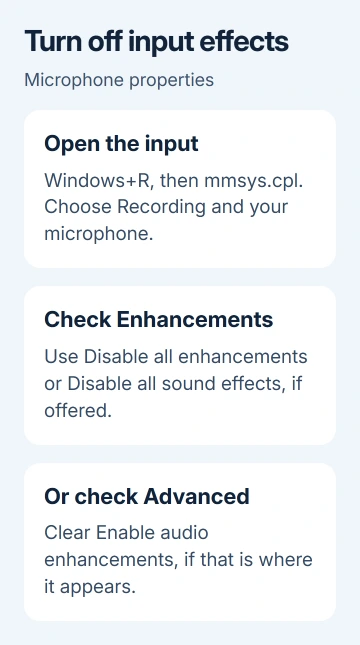
On Enhancements, select Disable all enhancements or Disable all sound effects, whichever your driver supplies. On Advanced, clear Enable audio enhancements if that's where the driver puts it. Select Apply or OK.
Microsoft's microphone enhancement instructions describe both locations. Some drivers don't show either control. If both are absent, continue in the maker's audio app.
Windows 10 users can reach the same Properties window through Settings > System > Sound > Input > Device Properties > Additional device properties. Use the enhancement control your driver actually provides.
Restart the calling app after the change and test the guitar again. If the same microphone now carries the instrument, keep that setting. If nothing changes, return to its original state before moving on.
4. Check the laptop maker's noise controls
Search Start for the audio software installed with the laptop. Examples include MaxxAudio, Bang & Olufsen, LG Smart Assistant, Realtek Audio Console, or Dolby Atmos. Check whichever of these apps is installed on your laptop.
Look in its microphone or input controls for noise reduction, voice filtering, or similar effects. Turn off the speech-focused processing and test again. Controls vary with the installed audio package and laptop.
I'd try switching the effect off before uninstalling the whole audio package. Turning it back on is simple, and your other speaker and headphone controls stay available.
The Windows 11 music-audio repair page covers instruments disappearing with Original Sound enabled. Its fixes include disabling interfering audio effects and updating audio drivers.
If the effect keeps switching back on, ask the laptop maker for its current audio package for that model. Avoid disabling Intel audio devices at random, which can remove the input you need.
5. Compare a recording with the call
Make a local recording with the same microphone, using Sound Recorder in Windows 11 or Voice Recorder in Windows 10. Speak, play, and listen back. Keep the microphone position the same as during the call.
If speech and guitar are clear in the recording, check the calling app's selected microphone and audio processing. If the guitar is missing there too, check laptop audio effects and microphone placement before changing more call settings.
The Windows microphone test helps check which input you're actually using. For a microphone that isn't detected or records nothing at all, use the Windows microphone repair steps instead.
If the problem remains, give the laptop maker the microphone name, driver version, and local recording result. Ask how to disable input noise suppression for music. Share that comparison when asking the calling app's support team for help.
The Short Version
Start with music mode and the correct microphone. If speech passes but guitar doesn't, check driver processing, Windows microphone enhancements, and the laptop's audio effects. Compare a local recording before replacing hardware.
Checked November 17, 2026.
 If you have any business, I can build it online