

A roomy D: drive won't help when iCloud Photos needs download space on C: first. For the "There is not enough space on Windows" error during an iCloud photo transfer, check C: and copy a smaller selection before trying the whole collection.
Both the destination drive and the drive holding your downloaded iCloud files need enough free space. Buying more iCloud storage won't give either Windows drive more room.
In this guide
1. Check the drive named Windows, then shrink the copy
Open File Explorer > This PC and look at the available space for both Windows (C:) and your destination drive. Windows is often the drive's name. The error can refer to that drive even though you've chosen D: for the final copy.
Right-click each drive and choose Properties if the free-space figure isn't visible. Compare the available space on C: with the selection you're downloading, rather than comparing only D: with your entire photo library.
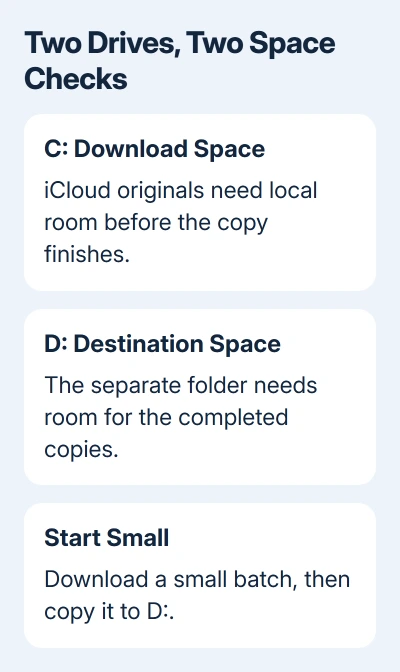
Try a few photos or one small folder first. Let the download and copy finish before selecting more. If that works while a large selection fails, keep the batches small enough for the space available on C:.
In the Microsoft forum case, one owner had 1.64 TB free on a 2 TB destination drive, yet a 30 GB photo transfer failed. Copying one quarter's photos at a time instead of a whole year's worked. Unlinking OneDrive hadn't helped them.
Those figures describe that owner's transfer, not a required amount of free space for every PC. Videos, file sizes and items already downloaded change how much room your own batch needs. A calendar quarter can still be too large.
I'd choose a few recognizable pictures for the first batch. Once it copies successfully, you'll know the destination can accept files and can increase the next selection without committing to the entire library.
2. Download the selected originals before copying them
In File Explorer, open iCloud Photos in the navigation pane. If it isn't listed there, open Pictures > iCloud Photos. Find the items you want to copy to the other drive.
A photo's thumbnail can appear even when the original hasn't downloaded to your PC yet. Copying that selection can trigger a download as well as the transfer to your other drive.
From the small selection's right-click menu, select Always keep on this device. Wait for those files to download, then open a photo and play a video from the selection. Copy them to a folder on D: outside iCloud Photos.
Apple's instructions for keeping photos downloaded explain the pinning command. It has a checkmark when selected. Version 7 of iCloud for Windows doesn't support pinning.
Avoid pinning the entire iCloud Photos folder when C: is nearly full. That asks Windows to retain the whole collection locally, which works against the small-batch approach you're trying to use.
If even one original won't download, use the iCloud Photos download checks to check whether a download problem or a full drive is stopping it. A missing original needs attention before a large copy can succeed.
3. Verify the separate copy before reclaiming space
Open the folder you created on D:. Check several photos and videos there, including a larger video. Use Properties on a copied file to confirm you're inspecting the destination folder rather than the iCloud Photos entry.
Keep a simple record of completed batches, such as a destination folder for each month. That makes an interrupted transfer easier to resume and helps prevent duplicate batches using up the space you've just cleared.
After opening the copies to check them, return to the same items in iCloud Photos. Right-click them and choose Free up space. This removes the downloaded files from your PC while keeping them in iCloud.
Don't use Delete to reclaim that space. Deleting from the synced library can remove photos from iCloud and other connected devices. The separate folder on D: is the copy you're building; the iCloud folder remains a synchronized library.
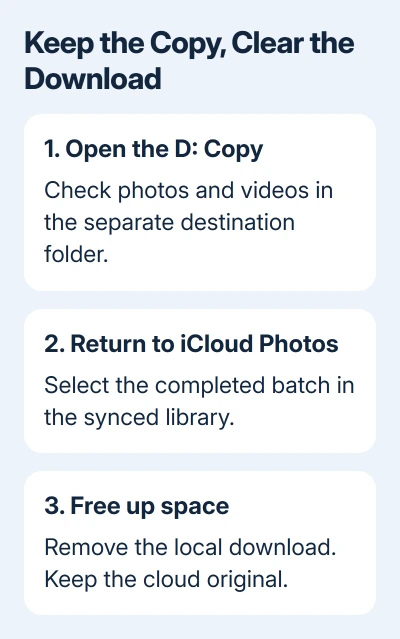
Free up space also unpins an item that was pinned. Simply turning off Always keep on this device doesn't remove an existing download, so that alone may leave your C: free-space figure unchanged.
Return to This PC and check C: again before the next batch. If the free-space figure hasn't increased enough, don't launch another large download. Check which items still have local content and whether other files are taking up the space.
4. Clear unrelated files when a small batch still won't fit
Move personal files you recognize out of C: to a suitable storage location, or review the built-in storage cleanup categories. Leave the Windows and Program Files folders alone; manually removing their contents can break installed software.
On Windows 11, open Settings > System > Storage > Temporary files. On Windows 10, open Settings > System > Storage and inspect the temporary-file categories. Review the selections before removing anything, especially Downloads.
The Disk Cleanup guide covers the system-file cleanup button when ordinary temporary-file removal leaves little space. Pick categories you understand instead of deleting unfamiliar folders yourself.
Try the original small selection again after cleanup. If the download and copy finish, you'll have a batch size that fits. More free space on C: can support larger selections. The whole library can still be transferred in batches.
If small, already-downloaded files also fail to copy to D:, check beyond the space used for iCloud downloads. Record the exact message, check D:'s free space and try copying an ordinary document to the same destination folder.
Report whether the download or copy fails
For an iCloud download that still fails with room available on C:, ask Apple Support about iCloud for Windows photo downloads. Give the app version, both drives' free space and whether a single original downloads successfully.
If ordinary files fail too, ask Microsoft Support about File Explorer transfers to that drive. Include the error and what happens when you copy that file into another folder. Keep your cloud originals until the separate copy is complete.
The Short Version
Check C: as well as D:. Download and copy a small batch, open the destination files, then use Free up space on the iCloud items before the next batch. A large empty destination doesn't remove the local download requirement.
Checked November 17, 2026.






